Getting started
Launching CFturbo BLADERUNNER, a graphical user interface opens which forms the workspace for the analysis of CFturbo designs by flow simulations. Let's get familiar with the workspace concept!
Workspace welcome page
The user interface is divided into six elements: the toolbar 1 on the left, which is used to execute main actions such as opening and saving files. The workspace view 2 in the middle, which will later show the tree structure of the workspace with all the CFturbo designs to be examined. And three tabs on the right comprising Settings 3, Convergence plots 4 and Performance curves 5.
A wide range of parameters for mesh quality and solver configuration may be defined in the Settings tab, while the convergence of a simulation run can be monitored in the Convergence plots tab. Characteristic curves of key variables such as efficiency or rotor power are displayed in the Performance curves tab.

Welcome page when launching CFturbo BLADERUNNER
Some element functions in detail:
1 Toolbar with icons for the main actions, top to bottom:
New – create a new project by creating a new CFturbo design or opening an existing one
Open – open an existing CFturbo BLADERUNNER workspace
Save – save the current CFturbo BLADERUNNER workspace
Save as – save the current CFturbo BLADERUNNER workspace under a new name
Close – close the CFturbo BLADERUNNER workspace
Demo – download free examples from the CFturbo webpage to test the application
Help – access the help resources
Logs – access the BLADERUNNER log file in case of an error
2 Workspace view – displays a tree structure of the current workspace as described below
3 Settings tab – shows the software configuration and licensing in case the workspace is empty or the WORKSPACE bar at the top of the workspace view has been clicked; otherwise shows information about the model geometry, flow domains, meshing parameters, and solver settings
a WORKSPACE directory – current directory for storing workspace files, click to change
b CFturbo BLADERUNNER – installed version and licensing status
c CFturbo – executable file and path - click to change to a different version, installed version and licensing status
d CFD Solver selection – Simerics-MP and Simerics-MP+ are currently supported
e Simerics-MP/MP+ – executable file and path - click to change to a different version, installed version and licensing status
Licenses are either "Available" or "Not available" in case the licence is invalid or "Not found" in case the respective software is not installed.
4 Convergence plots tab – shows the convergence of simulation runs based on the development of key variables and residuals
5 Performance curves tab – shows the characteristic curves of key variables to evaluate different CFturbo designs
6 Log window – lists all sort of text data like residuals returned by the CFD solver as well as error messages; the log window is displayed by default, but can be hidden using the Hide log button to create space for the displays above it. It can be shown again with Show log, while the Clear log button deletes its content. The size of the log window can be changed by touching and dragging the frame above the buttons, which can be sensed with the mouse.

Projects, studies and variants – the structure of the workspace
A CFturbo BLADERUNNER workspace is structured into projects, studies and variants in order to keep the development of a turbomachine by a series of CFturbo designs well-organized.
The workspace forms the framework of the entire development project, for example a centrifugal pump (CP) series, which is to be offered in three different sizes. The workspace is then given the name "New CP series.cftbr ", which appears in the title bar of the window. The file extension .cftbr stands for CFturbo BLADERUNNER workspace.
Three projects are then created within this workspace for the three centrifugal pumps and named with their specific speed, "CP nq28", "CP nq31" and "CP nq37". When designing centrifugal pump geometries in CFturbo, numerous parameters are varied, so it makes sense to divide the projects into individual studies, for example according to the size of the impeller outer diameter or the outlet width of the blades. The different CFturbo designs created for each outer diameter and each outlet width are called variants in CFturbo BLADERUNNER. Each variant is therefore assigned a unique CFturbo file. New variants are created by adding new CFturbo designs to the individual study or by cloning an existing variant.
CFturbo BLADERUNNER displays the structure workspace – projects – studies – variants in a workspace tree, the branches of which can be folded in and out. The software thus provides a good overview of a large number of CFturbo designs, a consolidation of this data and an analysis of the design behavior in direct comparison. Varying the number of blades in above centrifugal pump example, the workspace tree looks like this:

Workspace tree with projects, studies and variants
Variants are marked with a CFturbo logo due to their link to a CFturbo file, studies are identified by the red text color and the unfilled folder symbol, projects by the black text color and the filled folder symbol.
The workspace adopts the turbomachine type of the first variant, i.e. the first CFturbo file read in. In the case of the centrifugal pumps the type is pump, which is displayed in brackets in the workspace bar on top of the workspace view. Within a type, different shapes such as axial or centrifugal may be combined. In above workspace the axial pump project "AP nq120 (meanline)" was added to the workspace tree. However, developing different turbomachinery types in the same workspace does not make sense, is therefore not supported and results in an error message as shown in the last project entry "** "AT pi1.3 (oxygen)" of the workspace tree.
The following CFturbo turbomachine types are possible:
Pump – axial, centrifugal, mixed-flow
Fan – axial, centrifugal, mixed-flow
Compressor – axial, centrifugal, mixed-flow
Gas Turbine – axial, radial, mixed-flow
Hydro Turbine – Francis, Kaplan
Performance curves and their operating points
To investigate the fluid dynamic behavior of the individual turbomachinery designs, flow simulations are used to calculate a single characteristic curve or even an entire map of relevant parameters such as efficiency or shaft power for each variant. Characteristic curves are called performance curves in CFturbo BLADERUNNER. For each variant, at least one performance curve for a specific rotational speed must be defined. For a whole map, further performance curves for other rotational speeds are added to this variant. A performance curve includes at least one operating point, usually the design point defined in the CFturbo file under global settings.
For an entire characteristic curve, further operating points may be added.
The following workspace tree results for above centrifugal pumps:
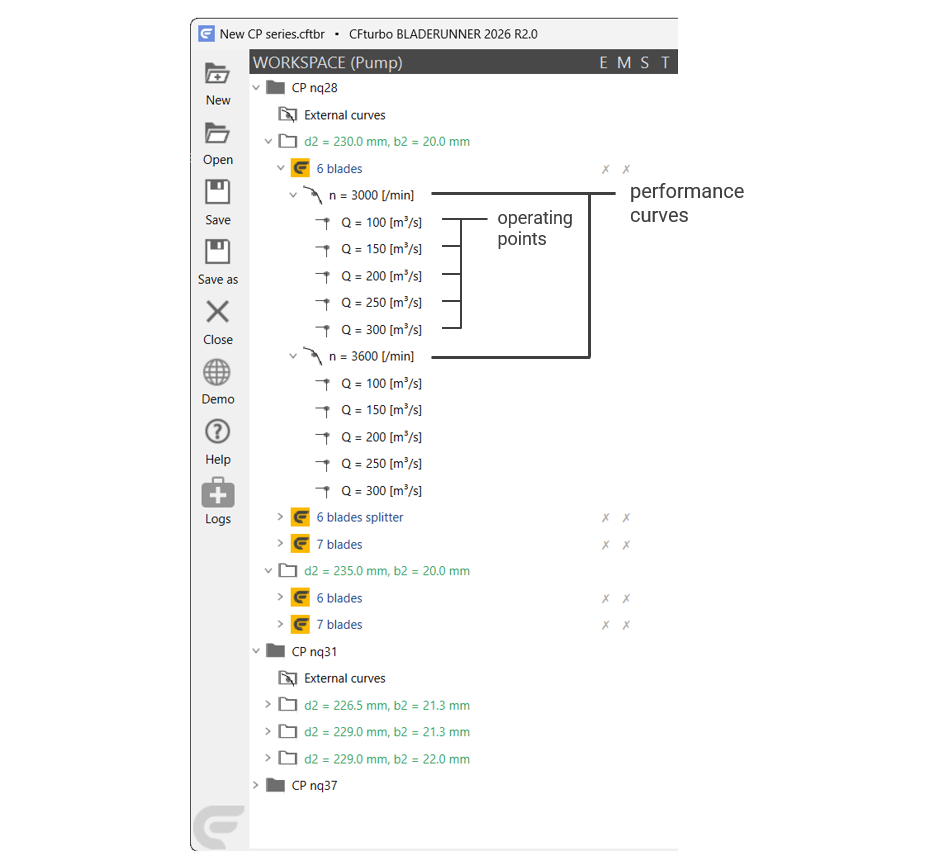
Variants in the workspace tree with their performance curves and operating points
Let's get started with our first project here!