Managing the workspace
Open, save and close an existing workspace
In the toolbar on the left the icons Open, Save, Save as and Close all refer to workspaces.

To open a workspace press Open and select the .cftbr file desired.

Upon opening the workspace the message  creating workspace structure is displayed and the workspace tree is built up.

The user interface remains locked while the integrity of all workspace objects is checked one by one. The loading process may take some time for a large number of performance curves. Progress is indicated by rotating icons  near the objects being processed and also in the workspace bar.
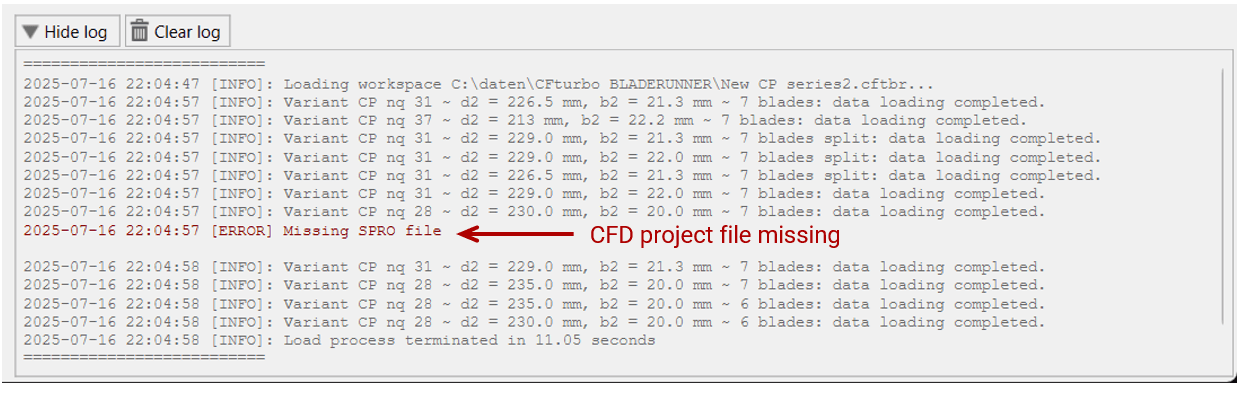
Possible errors such as missing files but also successful integrity checks are displayed in the log window. So it is advised to have a look there before continuing.
Press Save to save the workspace for the first time or to update the current workspace file, or press Save as to save the workspace under a new file name.
When opening a workspace, the Save icon appears gray and is inactive. As soon as changes are made to the workspace, for example when adding a variant or a performance curve, the Save icon appears black and is active. CFturbo BLADERUNNER saves the workspace automatically each time a flow simulation is started, so the Save icon also changes automatically from active to inactive. The Save as icon is always active.

To close a workspace but leave CFturbo BLADERUNNER open press Close. If there are changes to be saved an according dialog box appears.
Set up a project and create a workspace
To analyze a CFturbo design using flow simulations, at least project - study - variant - performance curve - operating point structure has to be created in CFturbo BLADERUNNER. This can be done quickly and easily
from CFturbo or
directly in CFturbo BLADERUNNER
Project setup from CFturbo
The task comprises these four steps:
Have the design ready in CFturbo
Set its Export settings
Save the CFturbo design to a CFturbo .cft file
Launch CFturbo BLADERUNNER from within CFturbo
A CFturbo design, for example the centrifugal pump “CP nq28”, is first to be opened in CFturbo. In the dialog window found under PROJECT - Export, the solver Simerics has to be selected from the Export interfaces - CFD, FEA list on the left.

All surfaces like blades and flow ducts are parametrically defined in CFturbo and have therefore to be converted into polygonal 2D surface grids by means of triangulation to be used by the CFD solver. Their resolution is set in the Geometry tab within the Settings section on the right. The default setting Fine provides the most accurate result, but leads to a longer calculation time when creating the grids and to larger geometry files, which are saved in STL format.
In the second Settings tab named Mesh the quality of the 3D CFD mesh - not to be confused with above 2D surface grids of the geometries - may be adjusted for the whole model or in detail for each component. Setting size specification to all CAD surfaces the dimensionless values defined for cell size on surfaces, maximum and minimum cell size are related to the overall dimensions of the model, which is recommended, while the option selected CAD surfaces relates cell sizes to the individual dimensions of each component. Choosing "Fine" ensures a very high resolution of the flow domains and therefore precise CFD results, but also a longer calculation time. The mesh settings can be adjusted later on in CFturbo BLADERUNNER.
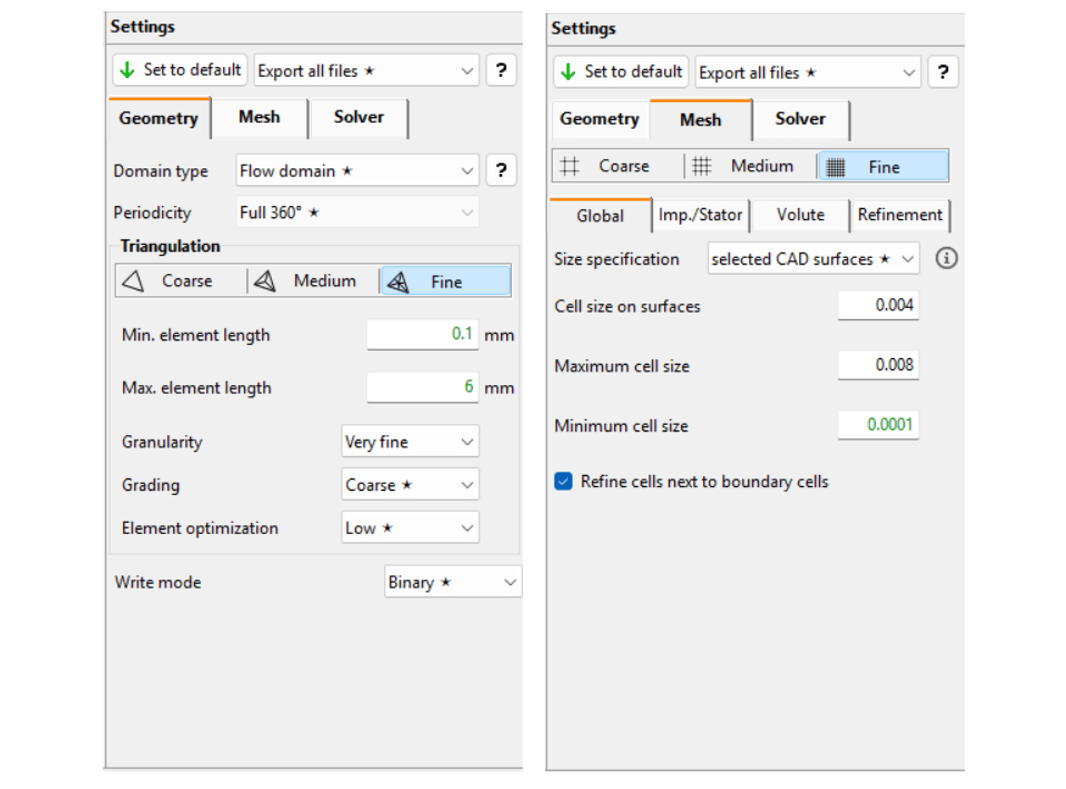
Geometry settings for triangulation (left), setings for the Simerics MP/MP+ mesher (right)
The third Settings tab refers to the Solver to be used, either Simerics MP or Simerics MP+. All Steady and Transient settings are transferred to CFturbo BLADERUNNER and may be edited there. They will be explained in detail in the solver settings section.
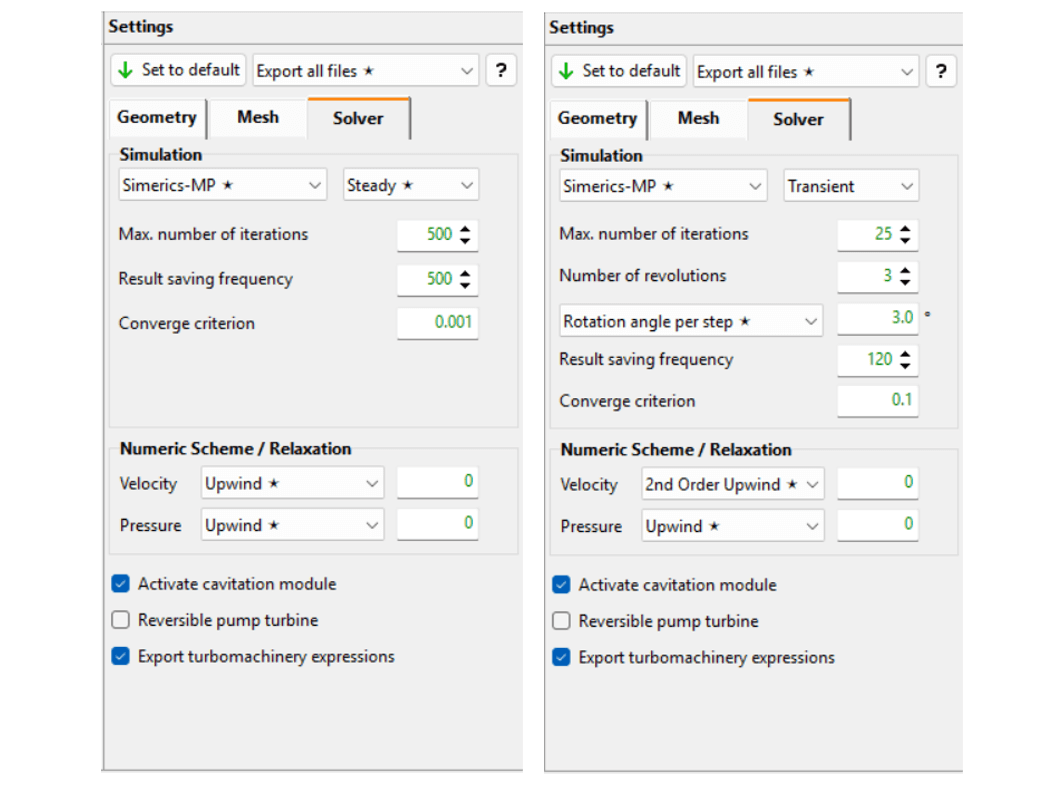
Steady settings (left) for frozen rotor computations, Transient (right) for transient computations
For liquids cavitation may occur. By checking Activate cavitation module the Simerics MP/MP+ cavitation model - if licensed - is used for CFD. Some special pump designs allow for being used as turbines in a reversed flow. Checking Reversible pump turbine makes CFturbo BLADERUNNER reverse the flow domain order and change the boundary conditions. Export turbomachine expressions may be enabled to use enhanced Simerics MP+ evaluation options for turbomachinery.
CFturbo BLADERUNNER takes over all settings by accessing the CFturbo file, which must therefore be saved beforehand.
CFturbo BLADERUNNER is then launched from within CFturbo by clicking the appropriate icon in the PROJECT tab.
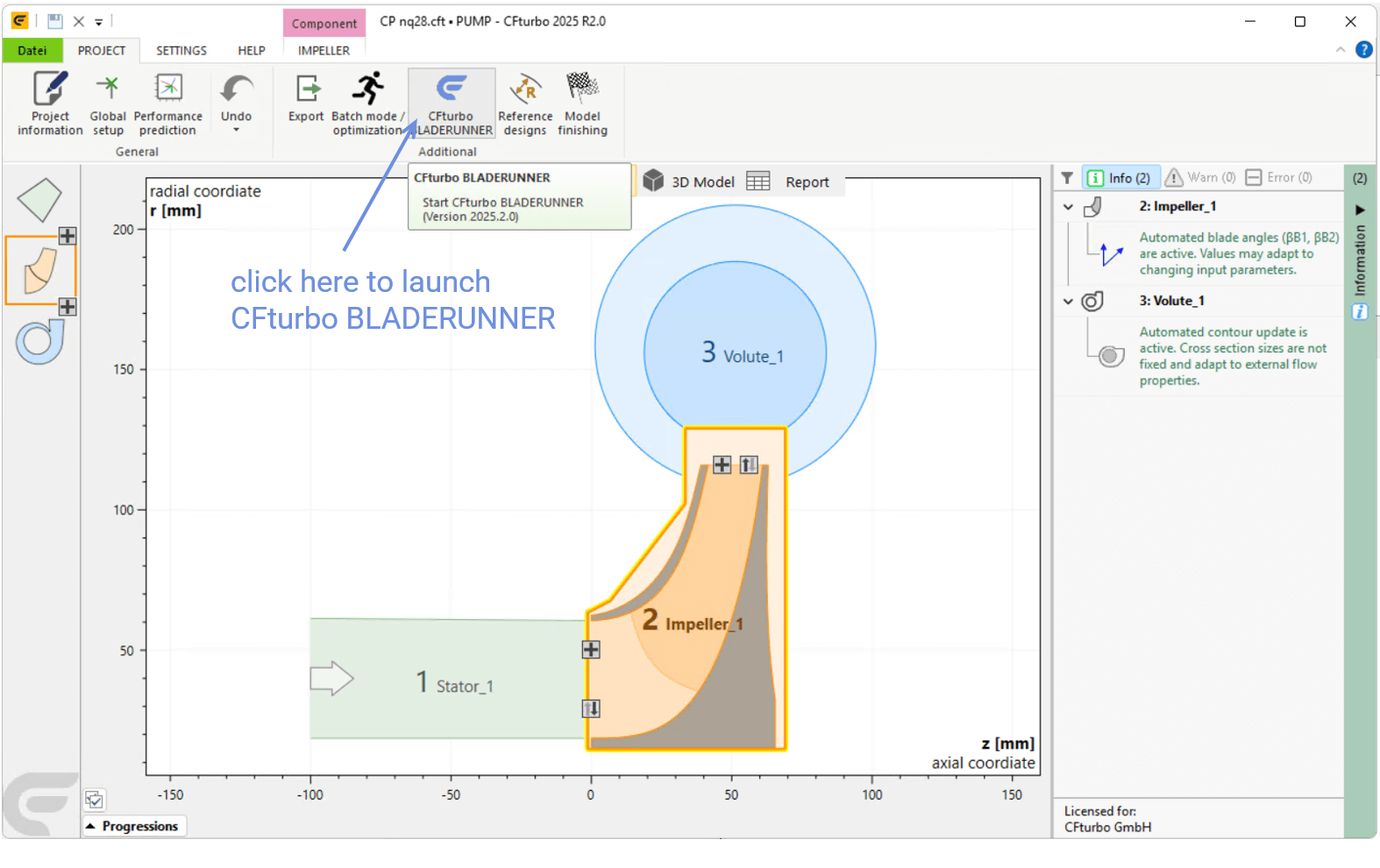
Location of the CFturbo BLADERUNNER launch icon in CFturbo
Finally, a new CFturbo BLADERUNNER instance appears, and the project is automatically created with a first study, a first variant and a first performance curve containing a single operating point. The rotational speed and the flow rate defined for the performance curve and the operating point, respectively, are derived from the design point chosen in CFturbo.
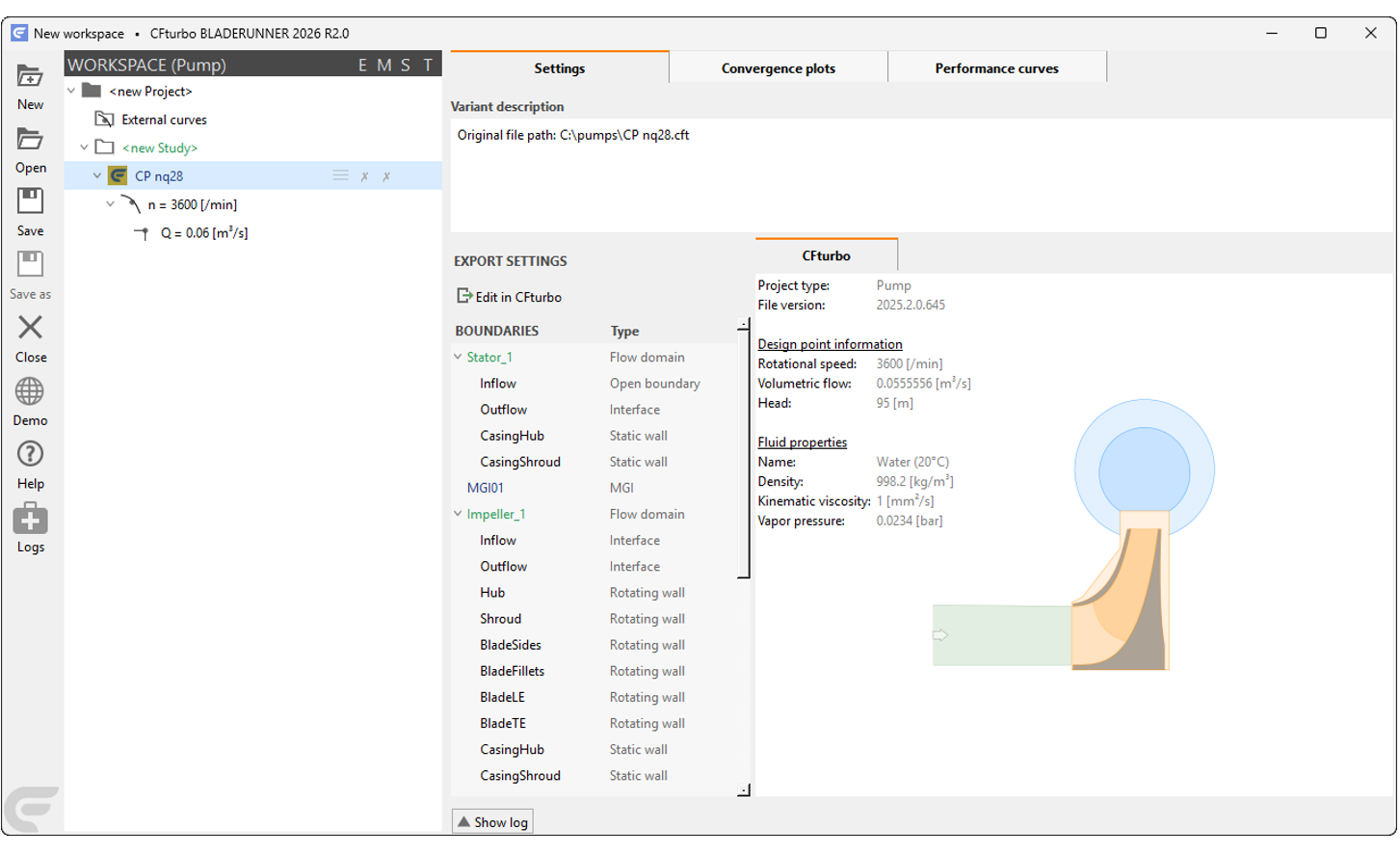
The variant is assigned the CFturbo file name. All information shown in the Settings tab belongs to this variant and will be explained in the model preparation section along with the meshing process. Solver settings will be explained in the solver setup section.
Before continuing with the first flow simulation, it's time to save the new workspace under a convenient name by pressing the Save icon in the toolbar.
Since all settings have already been defined in CFturbo it is perhaps a good idea to skip the explanations about meshing and solver setup for now and jump directly to the first flow simulation by choosing the Start command in the context menu of the variant!

The CFD run can now be monitored as explained in the simulation runs section.
Setup in CFturbo BLADERUNNER
There are two ways of setting up a project directly in CFturbo BLADERUNNER:
by using an existing CFturbo design or
by using a new CFturbo design
Using an existing CFturbo design is almost identical to starting the project from CFturbo as described above:
Have a CFturbo design finished and saved to a CFturbo file with all Export options set
Launch CFturbo BLADERUNNER with an empty workspace
Press the New icon in the toolbar and select New project: EXISTING CFturbo design

Select the appropriate file from the dialog window that opens
The same workspace tree as before is built up.

Using a new CFturbo design to start a project is somewhat a combination of the two methods above. CFturbo BLADERUNNER launches CFturbo for creating a new CFturbo design, which won't be saved as a separate CFturbo file but handed over to CFturbo BLADERUNNER to be directly saved in the workspace data structure.
Launch CFturbo BLADERUNNER
Add a new project by pressing New in the toolbar
Choose the option New project: NEW CFturbo design

After CFturbo has been launched choose a turbomachine type for a new design or open an existing design.

Having completed the layout and design of the turbomachine, return to CFturbo BLADERUNNER by selecting Exit. Note that the Export settings are not available since being set in CFturbo BLADERUNNER.

Again a workspace tree is built up. The variant is named new variant since no other name has been defined, and the Variant description defaults to New CFturbo design..
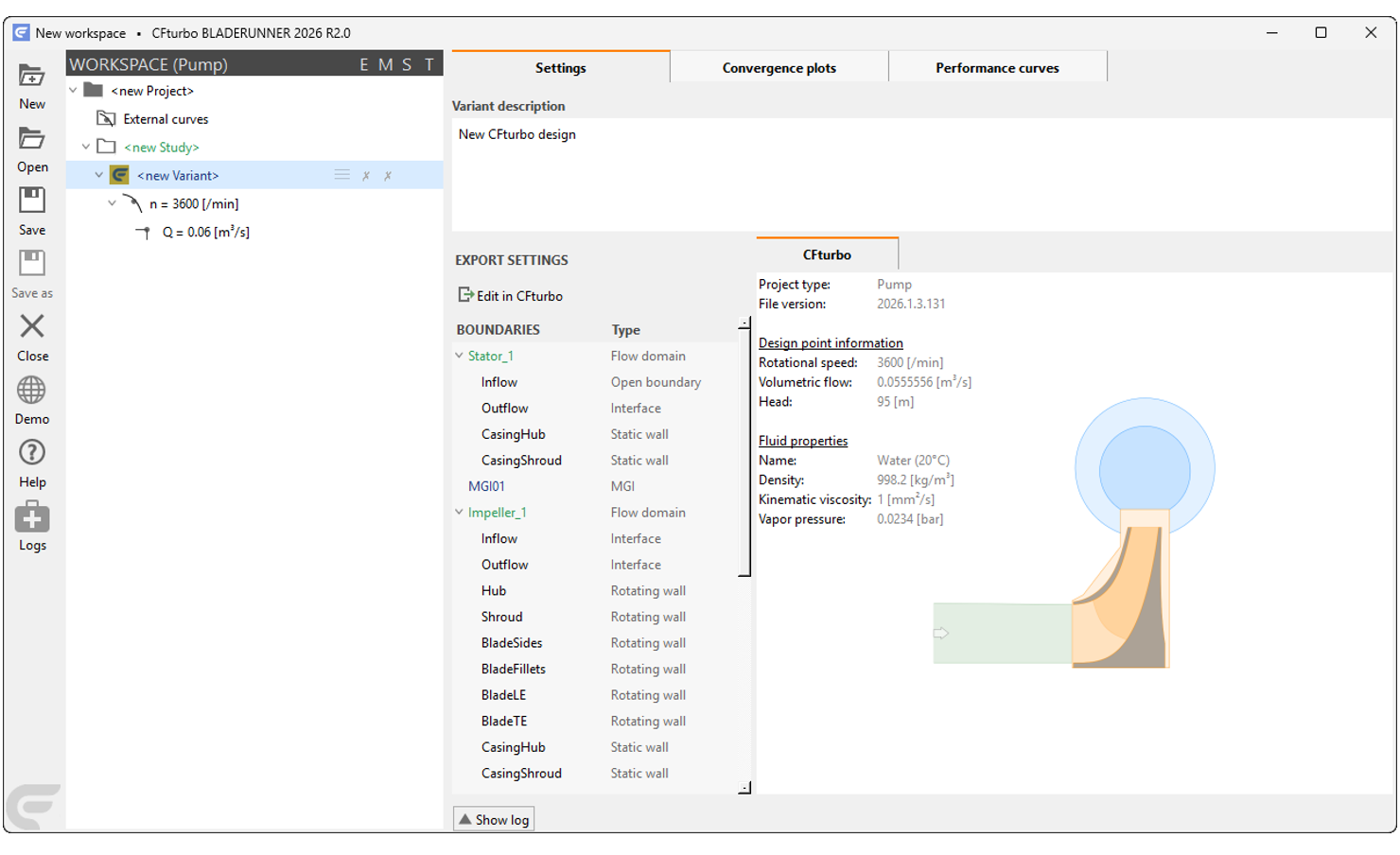
The workspace can be saved and a flow simulation can be started. Or you may wish to make additions as described below.
Additional projects, studies and variants
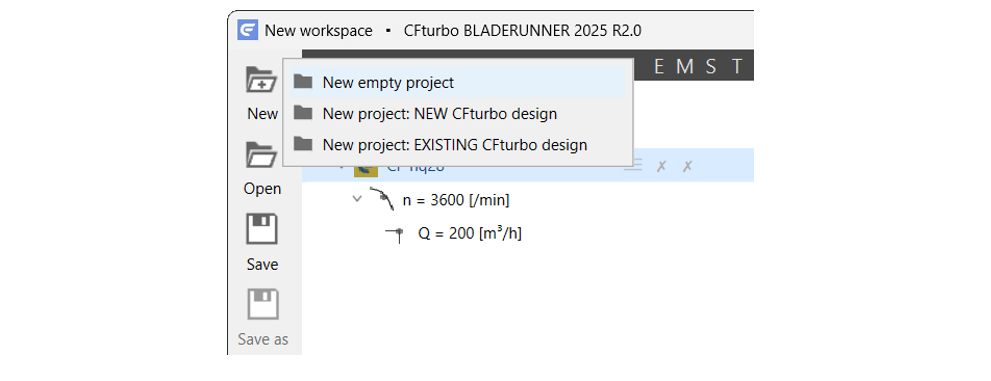
The workspace tree can be extended at any level, for example by an empty project created by pressing the New icon in the toolbar and selecting New empty project.
To this empty project an (empty) study may be added via the context menu or by pressing Ins.
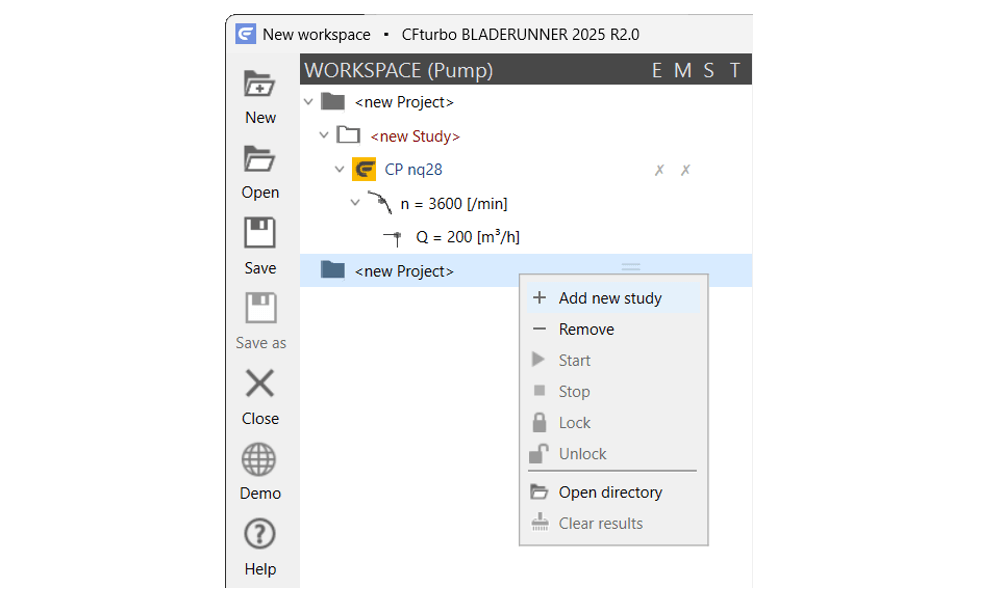
Variants can be assigned to this study, either via a new CFturbo design or via an existing CFturbo design from the context menu.
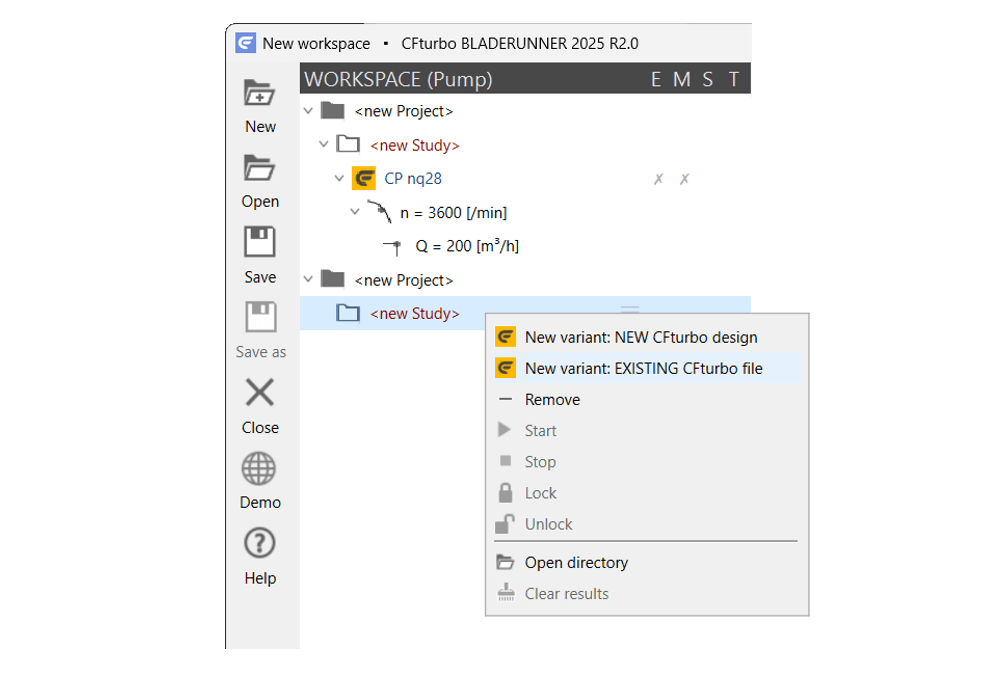
A context menu is always opened by right-clicking the object (project, study etc.) in the workspace tree or by clicking on the small menu bars that appear when the object is activated. Objects are renamed in the usual Windows style by activating the label with a single left mouse click, briefly holding the cursor, then entering text and closing with enter.
Rearrangement of projects, studies and variants
Sometimes it is desirable to reorganize the workspace tree and aggregate results.
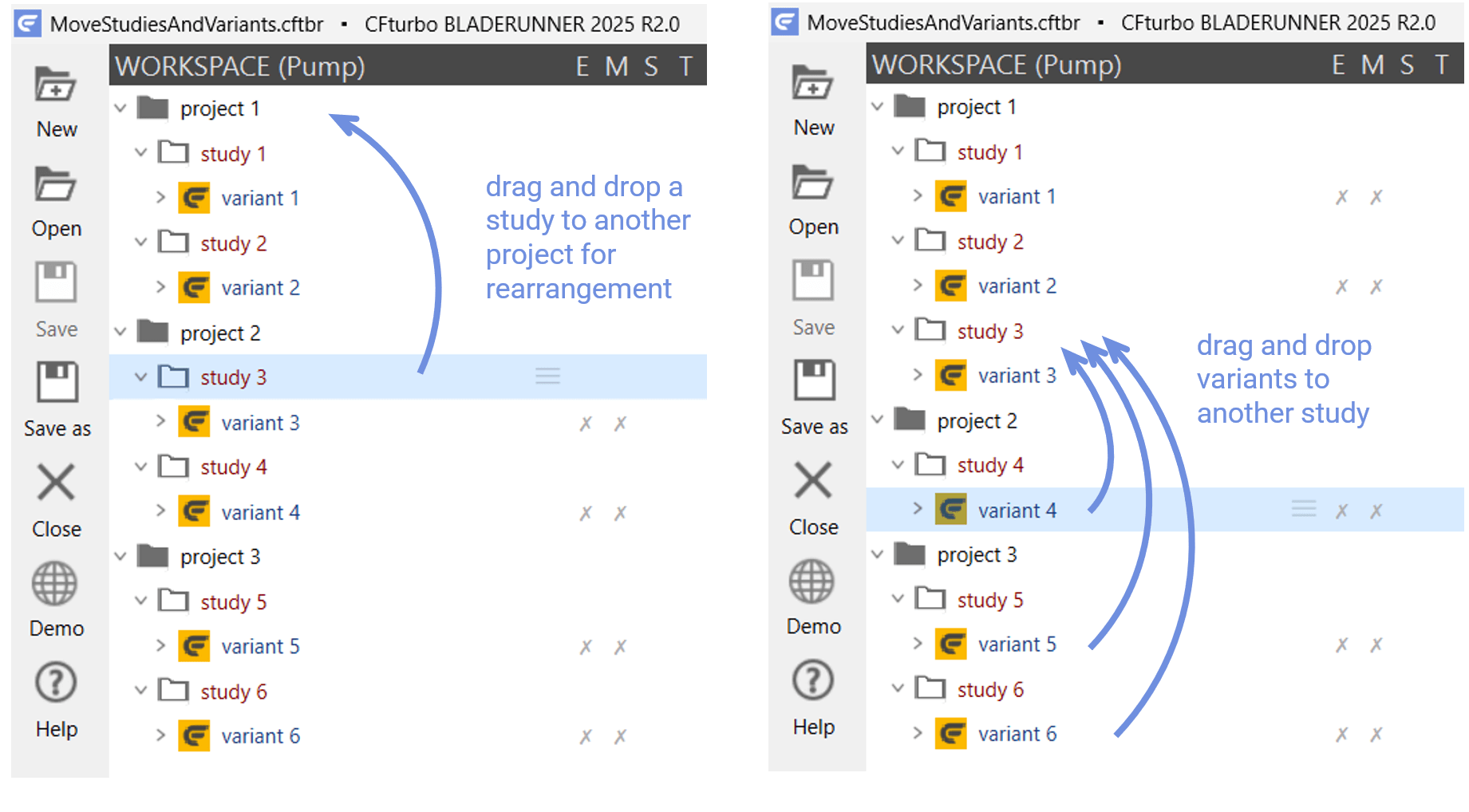
To move objects between structures such as
studies from one project to another or
variants from one study to another
use drag and drop, whereby the associated data structures are also moved.
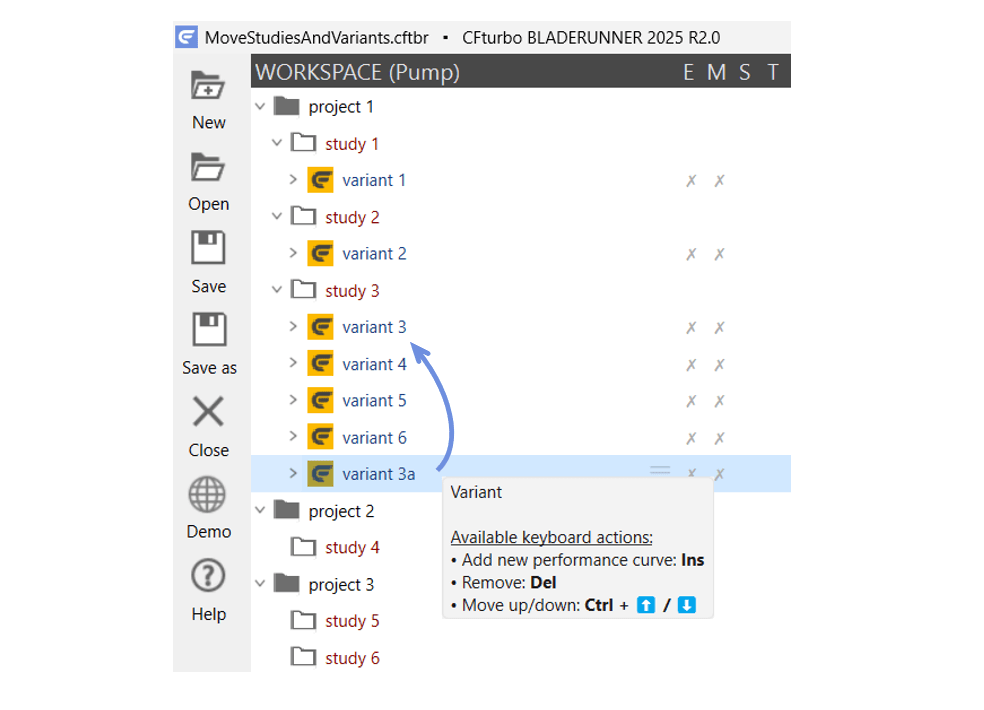
To rearrange objects within the same structure such as
projects within the workspace
studies within a project or
variants within a study
first mark the object by a left mouse click and then move it up or down by holding down the Ctrl key and using the up or down arrow key.
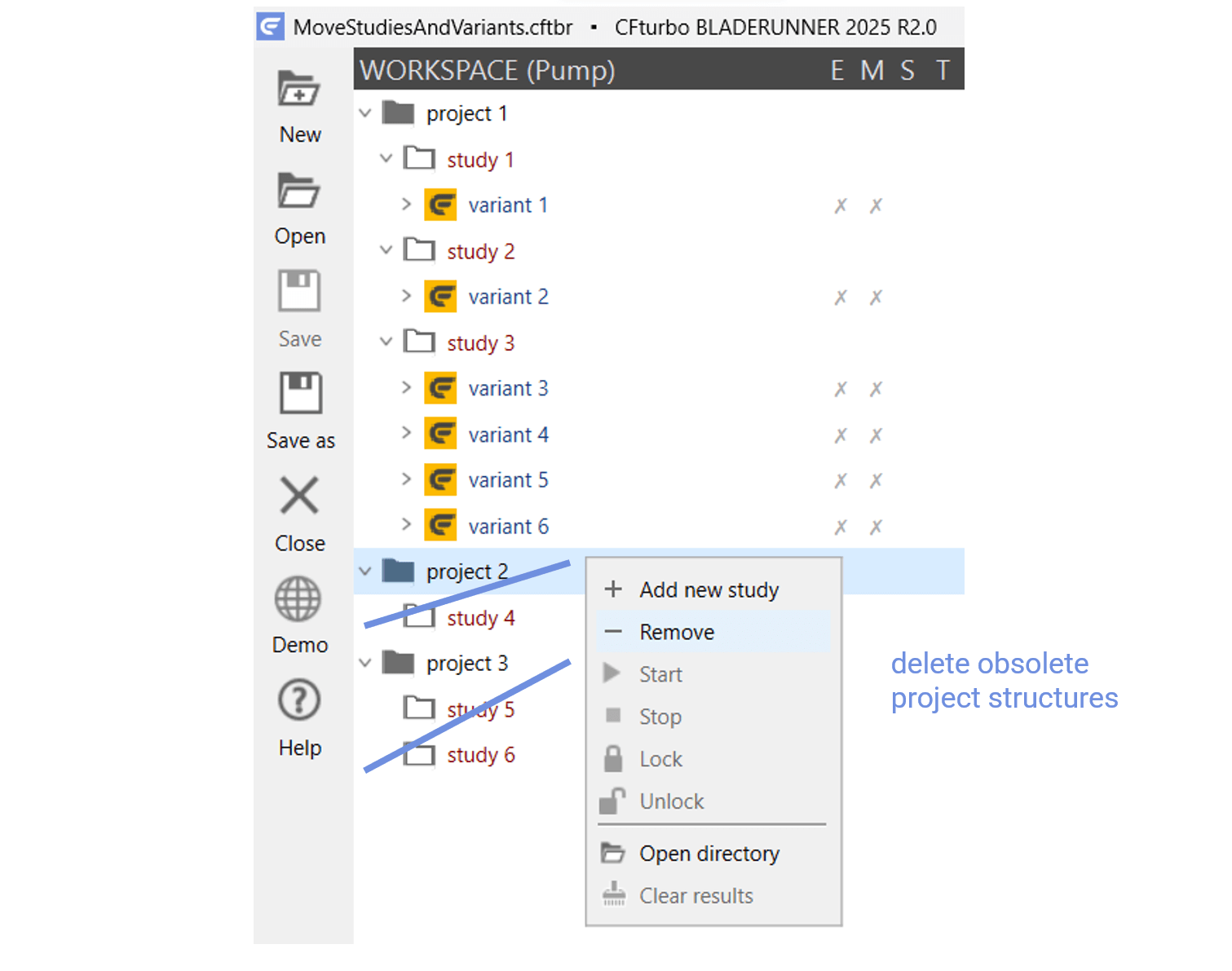
Moving variants to other studies or studies to other projects may leave whole project structures empty. These empty projects and studies and also dispensable variants may be deleted along with their data structures by selecting Remove from the context menu or by marking the object and pressing Del.
Cloning variants
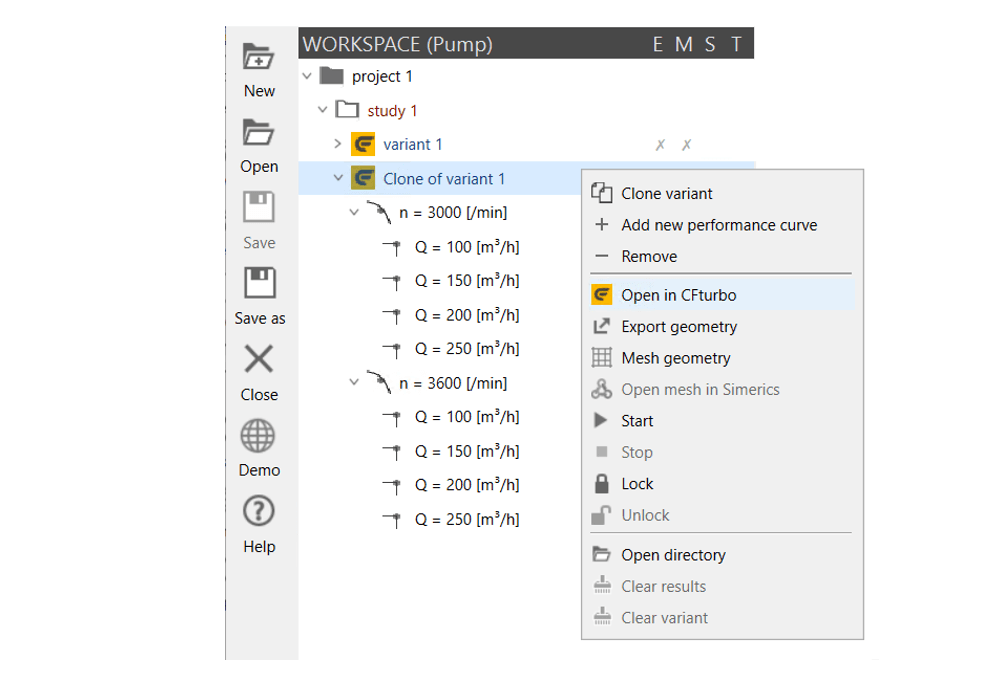
A very elegant way to further develop an existing CFturbo design is to clone a variant, which is executed via the Clone variant command in the context menu of the respective variant. CFturbo BLADERUNNER creates a new variant with the prefix Clone of in the workspace tree and links it to a copy of the data structure.
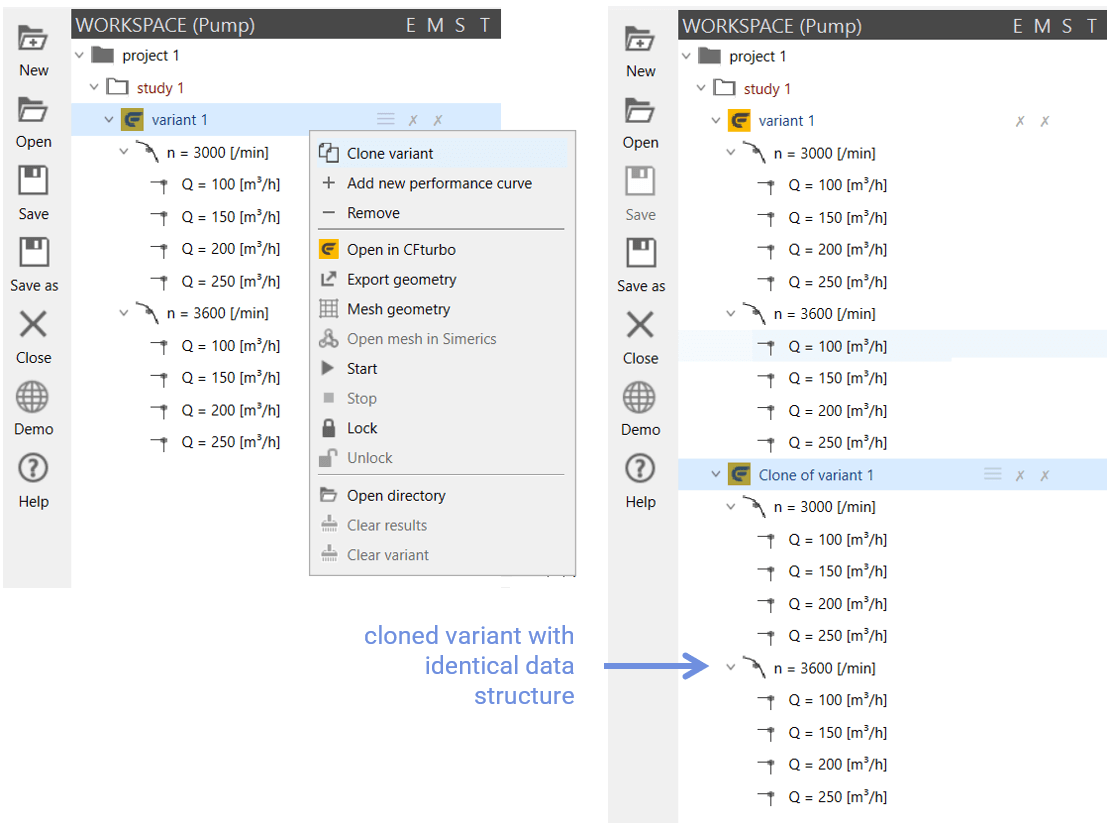
The CFturbo file of the cloned variant is then opened and edited in CFturbo via the Open in CFturbo command in the context menu. By changing the number of blades or the blade angles, for example, the existing CFturbo design can be systematically modified, and its fluid-dynamic behavior can be compared with that of the original geometry by means of CFD.
Creation of performance curves
The characteristic curve of a certain variable, denoted performance curve in CFturbo BLADERUNNER, is always defined for a specific rotational speed - as is usual for turbomachinery. It is formed by a number of operating points. When creating a variant, CFturbo BLADERUNNER reads in a CFturbo file and automatically generates a performance curve in the workspace tree using the rotational speed defined for the design point. A first operating point is also automatically created for this performance curve using the design volumetric flow or mass flow.
In the case of the centrifugal pump "CP nq37 (end-suction)", which is one of the CFturbo sample projects, the design rotational speed is n = 3,600 rpm and the design flow rate is Q = 227 m³/h. Further operating points are added by choosing + Add new operating point in the context menu of the performance curve.
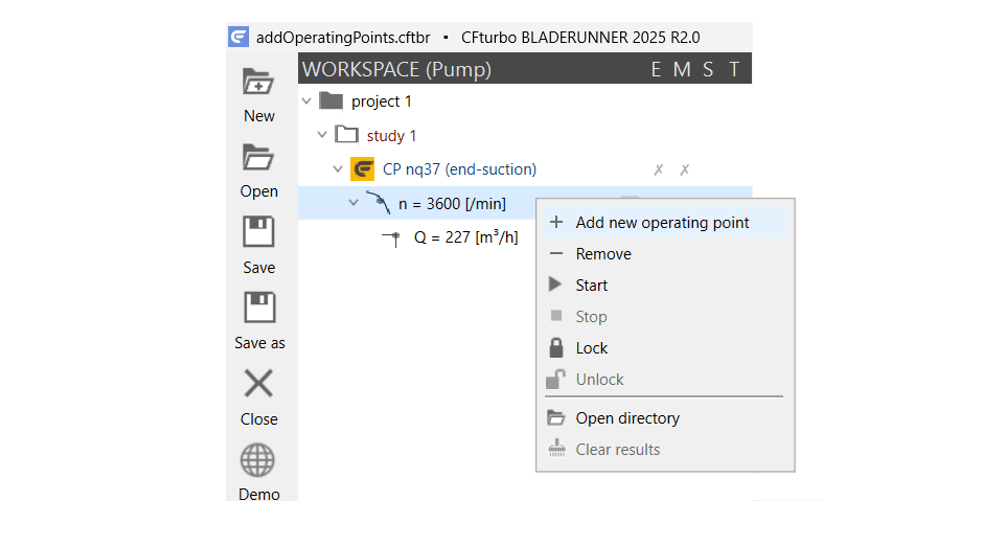
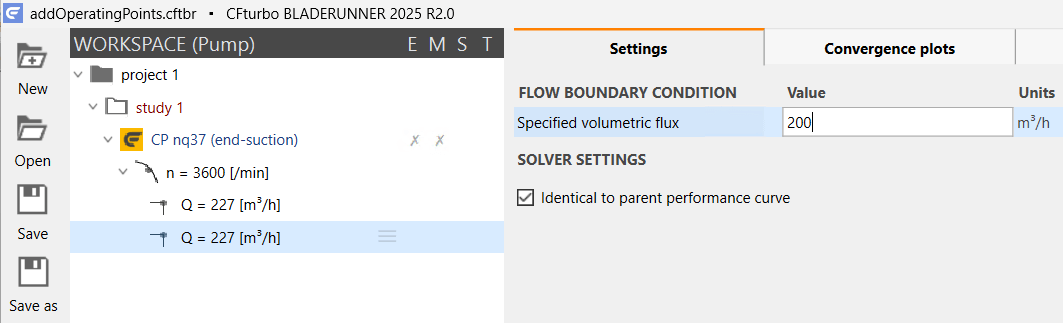
These new operating points are initialized with the same value as the first operating point, which can be changed by clicking on the respective operating point in the workspace tree and by editing its value in its Settings tab.
Further performance curves are inserted by selecting + Add new performance curve in the context menu of the corresponding variant to form a performance map.
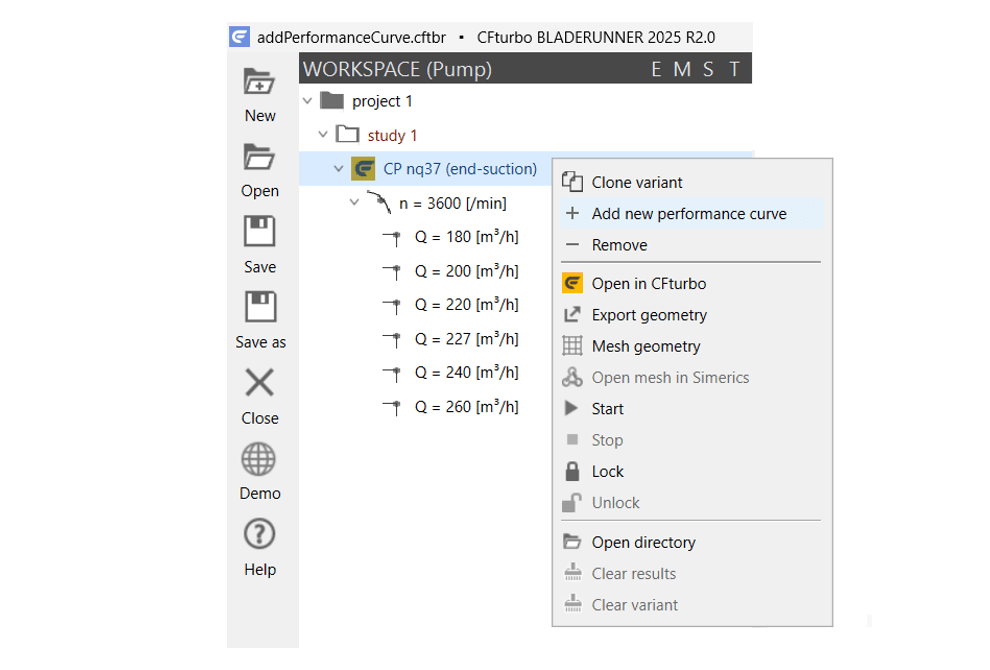
New performance curves are also initialized with the same value as the first one, and the value may be edited in the Settings tab.
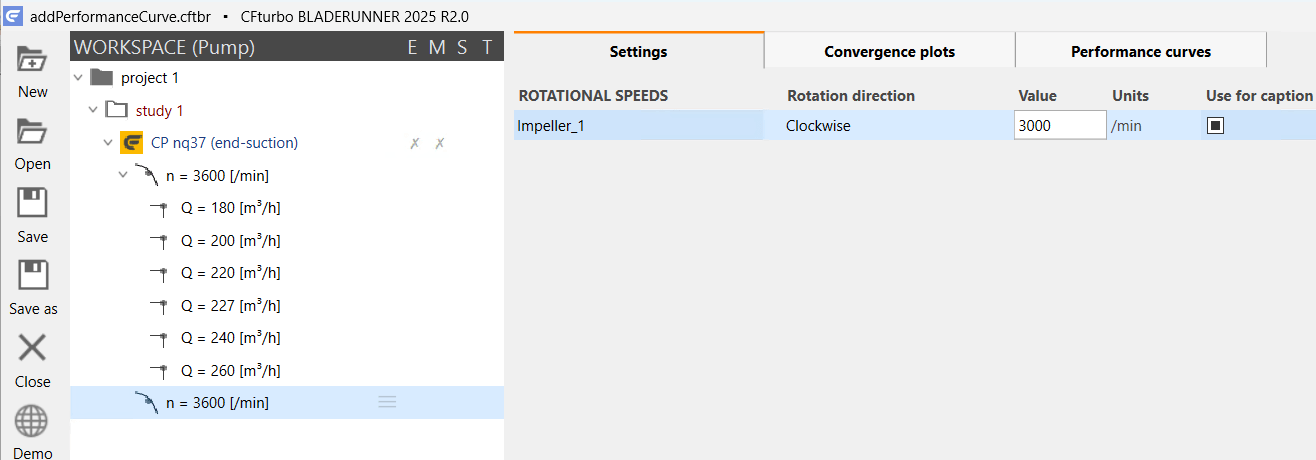
Geometry generation and meshing of the flow domains are the subject of the model preparation section. The solver settings will be explained in the solver setup section. However, since default values are all set, pressing the Save icon in the toolbar to save the workspace and selecting Start in the context menu of the variant would be an opportunity to start a series of automatic flow simulations for the new performance curves defined and jump to the simulation runs section.
Access workspace data
CFturbo BLADERUNNER workspace files with the extension .cftbr are XML text files that describe all objects and settings of the workspace and can be opened in any text editor.

Section from the XML code of a CFturbo BLADERUNNER workspace file
The underlying data such as the CFturbo files with the parametric geometries, the project files and result files of the CFD solver as well as all the performance curves are stored in a separate directory structure that follows the nodes of the workspace tree.
The main directory corresponds to the workspace node and is therefore given the same name as the corresponding workspace file, but with the addition of ~files. "New CP series.cftbr" then becomes the associate data directory "New CP series~files".
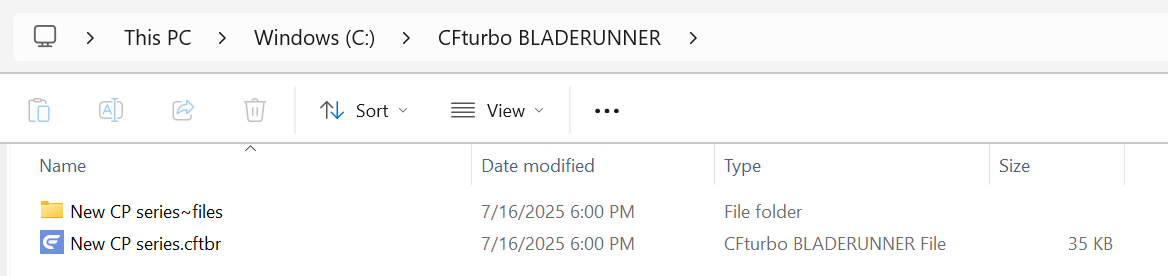
The subdirectories follow the object structure project - study - variant - performance curve - operating point and are labeled Project - Study - Variant - Curve - Point, whereby each label is made unique and unmistakable by appending a code.
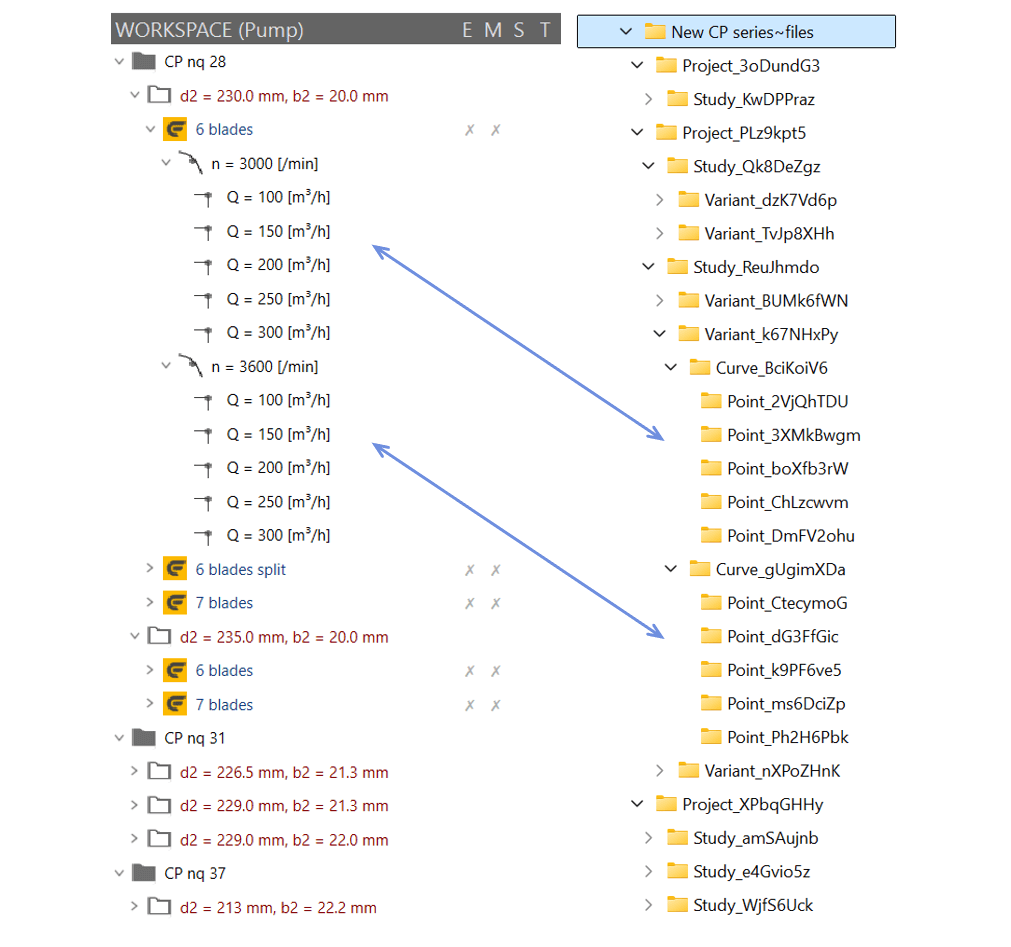
Workspace tree and associate directory structure: corresponding performance curves
The directories are sorted alphabetically and therefore depend on the codes appended. Their order is usually not identical to the order of the nodes in the workspace tree. However, the Open directory command in the context menu of each object in the workspace tree can be used to easily access the correct directory.
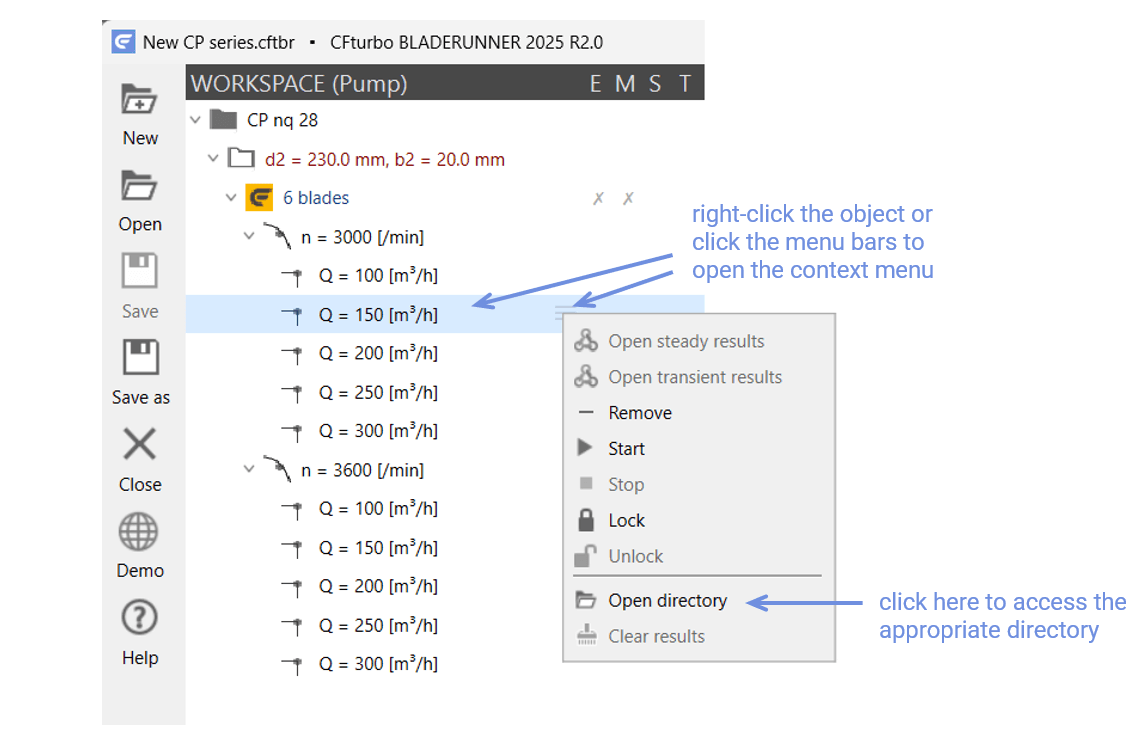
Context menu of an operating point: use Open directory to access its data