Monitoring and analyzing CFD runs
By the animated icons  and
and  and the status symbols in the workspace tree CFturbo BLADERUNNER provides a perfect overview of which flow simulation is currently running, which simulations are scheduled and which have already been completed.
The Convergence plots tab immediately reveals whether a flow simulation will be successful or not by showing a live view of the current simulation that gives trends of important quantities such as efficiency and of the residuals.
In the Performance curves tab, the characteristic curves for all variants, denominated performance curves in CFturbo BLADERUNNER, are shown in direct comparison. The value currently computed by means of CFD is displayed in real time, so that the performance curve dynamically emerges before the user's eyes making the turbomachine's behavior clear during the ongoing CFD run.
Convergence plots
Two diagrams - Convergence and Residuals
The Convergence plots tab is divided into two diagrams. The Convergence diagram at the top shows the development of variables and expressions over the number of iterations for steady-state simulations or over the simulated time for transient simulations.
Variables are integral quantities calculated by the Simerics MP/MP+ solver at interfaces and surfaces, such as
mass flow, total pressure, average static pressure or torque
Expressions are other integral quantities that are calculated from these variables and defined in the .spro project file, such as
efficiency or total pressure rise
The Residuals diagram below shows the development of the residual of one of the solution variables
pressure
velocity
turbulent kinetic energy or
turbulent energy dissipation
over the number of iterations for steady-state simulations or over the simulated time for transient simulations.
The curves displayed are based on the object selected in the workspace tree.
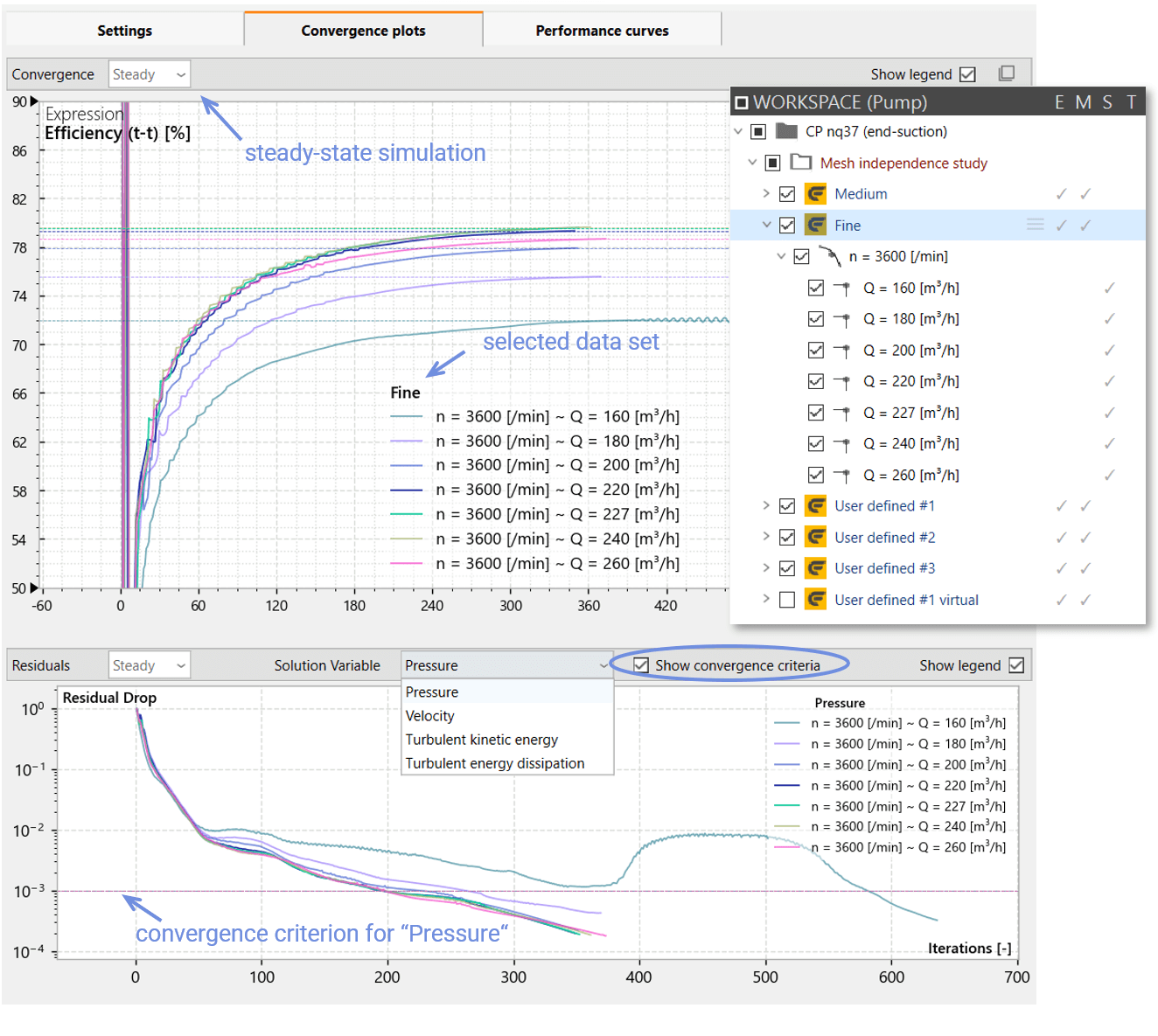
Convergence diagram (top) and Residuals diagram (bottom): data set Fine, steady-state simulation: development of expression efficiency (t-t) and residuals over the number of iterations
In this case, the total to total efficiency curves and the pressure residuals for all the operating points of the Fine variant of the centrifugal pump CP nq37 (end-suction) are shown in the course of a mesh independence study. The rapid convergence of the total to total efficiency curves to a constant value is clearly visible. After approximately 350 iterations the residuals have reached the convergence criteria, and the simulations are terminated. The exception is the partial load case Q = 160 m³/h, which runs through to 637 iterations before reaching the convergence criteria.
With the checkbox Show convergence criteria enabled, the convergence criterion for each solution variable is plotted as a thin, dashed line.
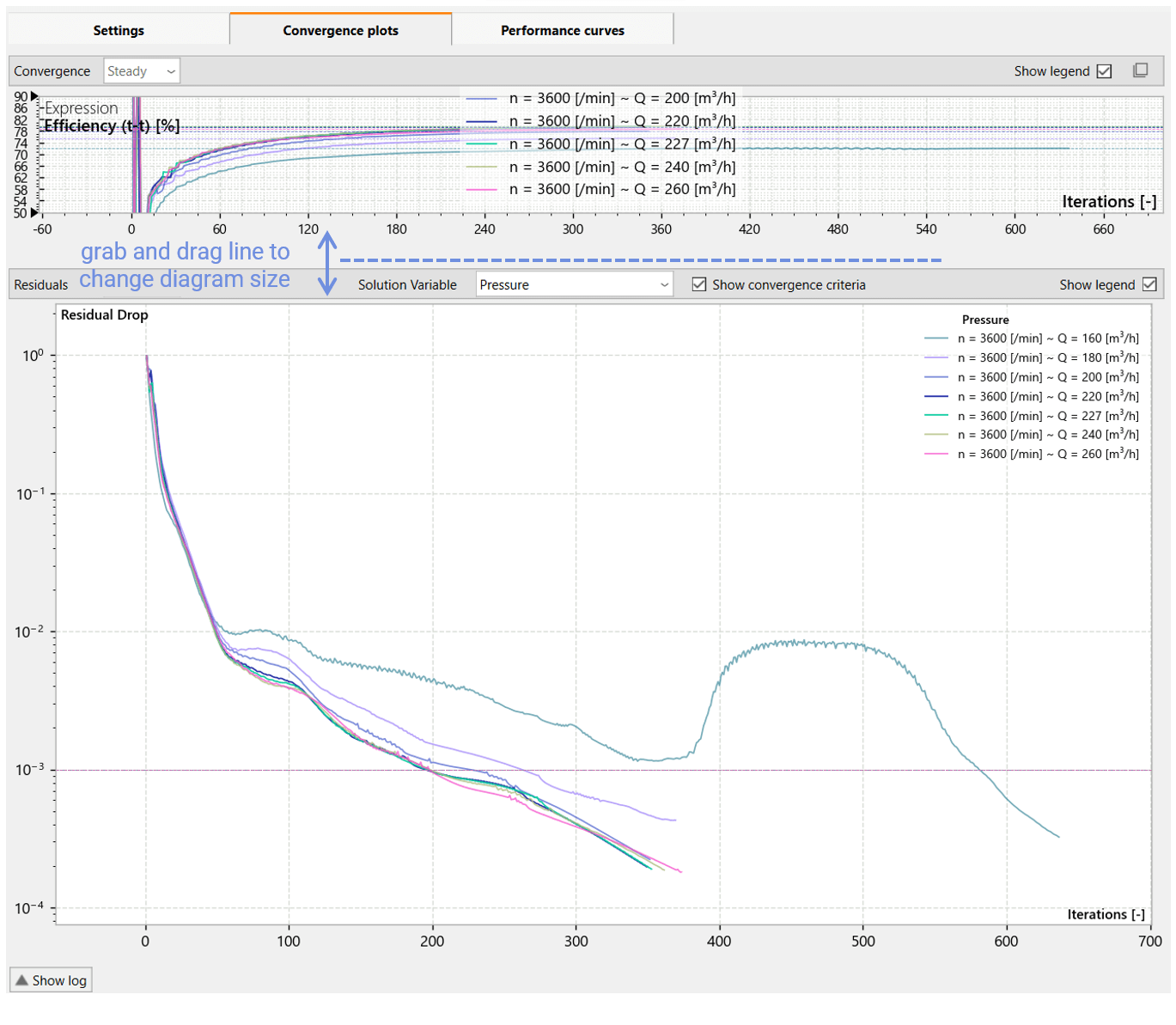
By grabbing the invisible frame line between the diagrams, where the cursor changes, and dragging it up or down one diagram is enlarged to better examine its content while the other is reduced in size.
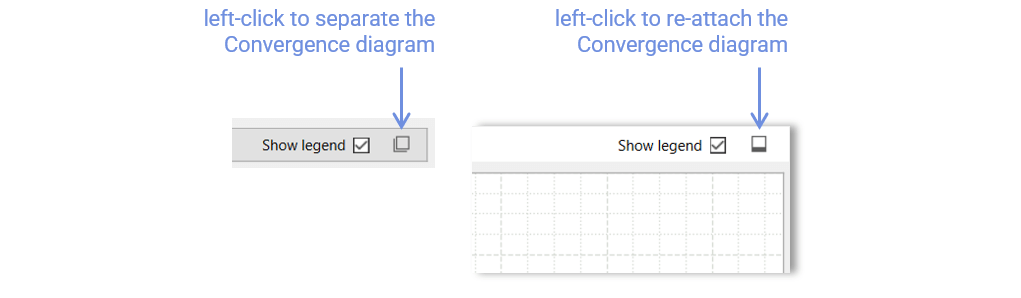
Another way to maximize the diagrams is to separate the Convergence diagram from the tab by left-clicking the icon in the upper right corner. Click again to re-attach it.
Convergence - displaying exact values
The exact value of a variable or expression that Simerics MP/MP+ returns for an operating point for each iteration can be obtained by moving the cursor close to the corresponding curve. A hint then appears and displays, among other things, the iteration value and the value of the variable or expression closest to the cursor position.
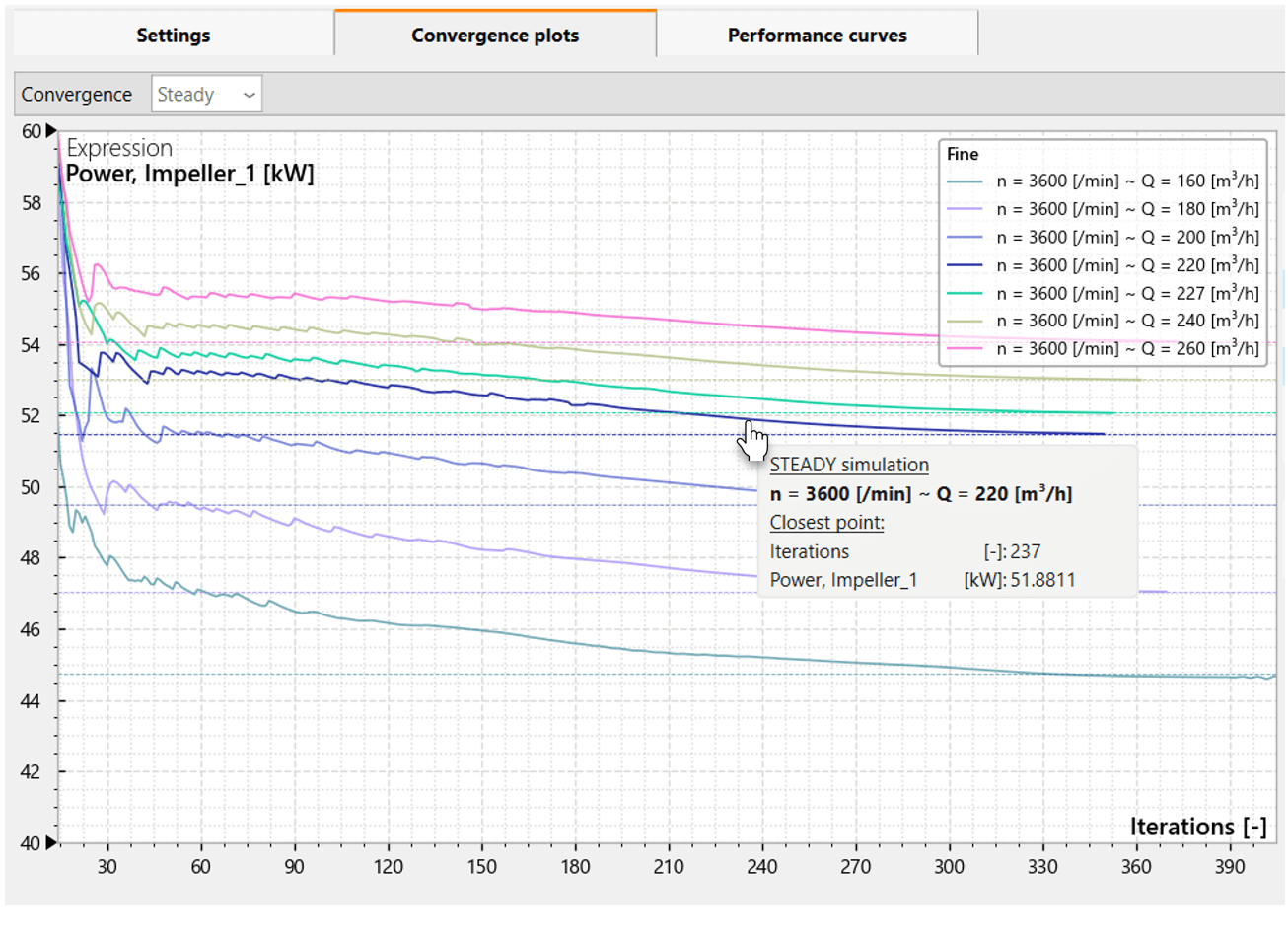
Hint showing the iteration number and the value returned for the respective operating point
Convergence - formatting the diagram
In the Convergence diagram, the variable with its associated location or the expression to which the curves refer is displayed at the top left. Left-clicking on this information or on the numbering of the Y-axis opens a configuration menu on the right, which allows these values to be changed. Also the Y-axis and its label may be formatted here.
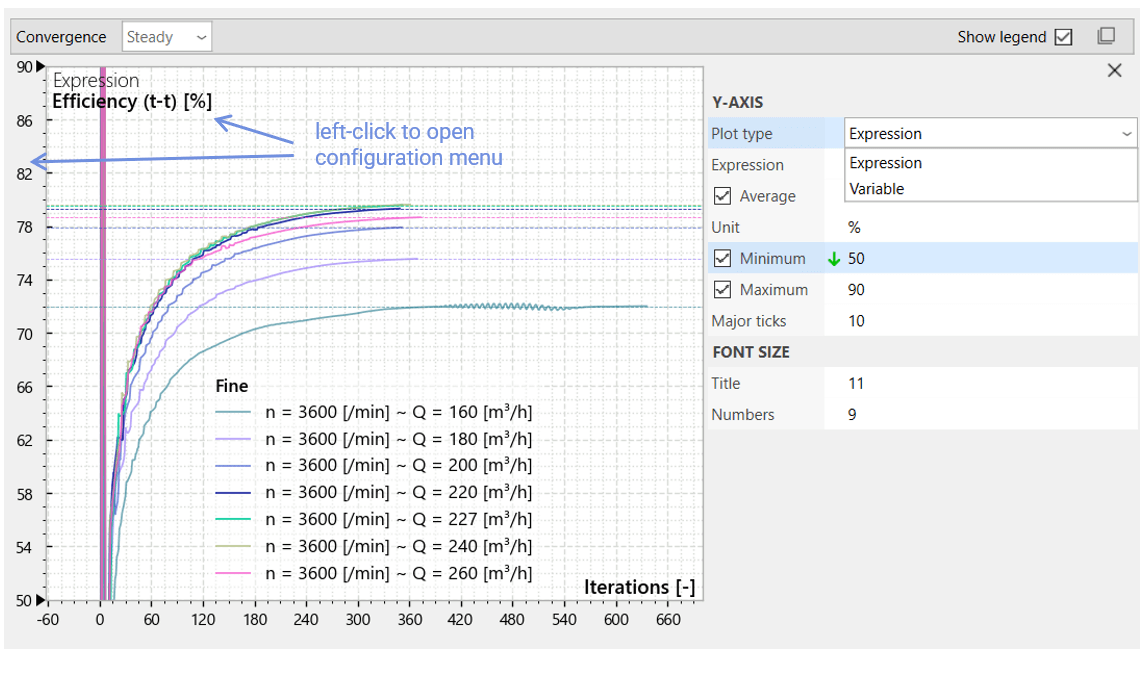
The Plot type option is used to select either a variable or an expression.

The Variable list shows all the variables used in the object that has been selected in the workspace tree. Once a variable has been chosen, the corresponding location can be selected from the Location list. Only locations where the variable is defined are displayed. The variable Mass flow rate + is limited to MGIs, for example.
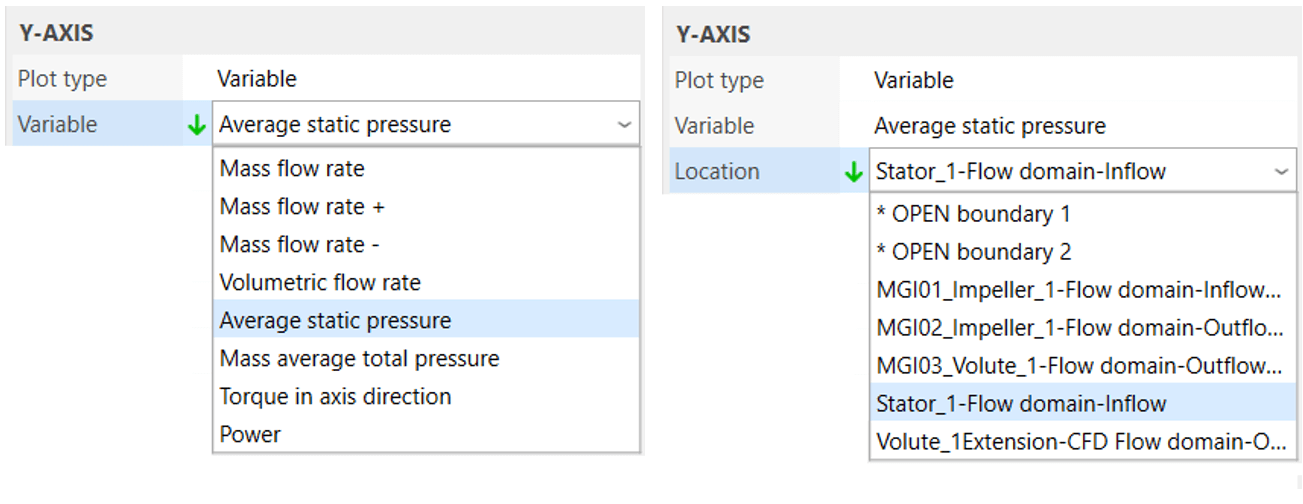
Please note that when selecting a study or a whole project onl
y locations common to all variants of this study or project are listed. As long as the standard CFturbo nomenclature is used, Impeller_1, Stator_1 etc., the names of the locations will most probably match. But when renaming Stator_1 to just Stator, for example, two different inflow boundary names occur, Stator_1-Flow domain-Inflow and Stator-Flow domain-Inflow, which are not visible in the list since they cannot be selected at the same time. So the curves of the variables at these locations can only be evaluated on the variant level.
*OPEN boundary 1 and *OPEN boundary 2 are names defined by Simerics MP/MP+ which correspond to the inflow and outflow boundary, respectively. In this example these boundaries are identical to those named Stator_1-Flow domain-Inflow and Volute_1Extension-CFD Flow domain-Outflow in CFturbo.
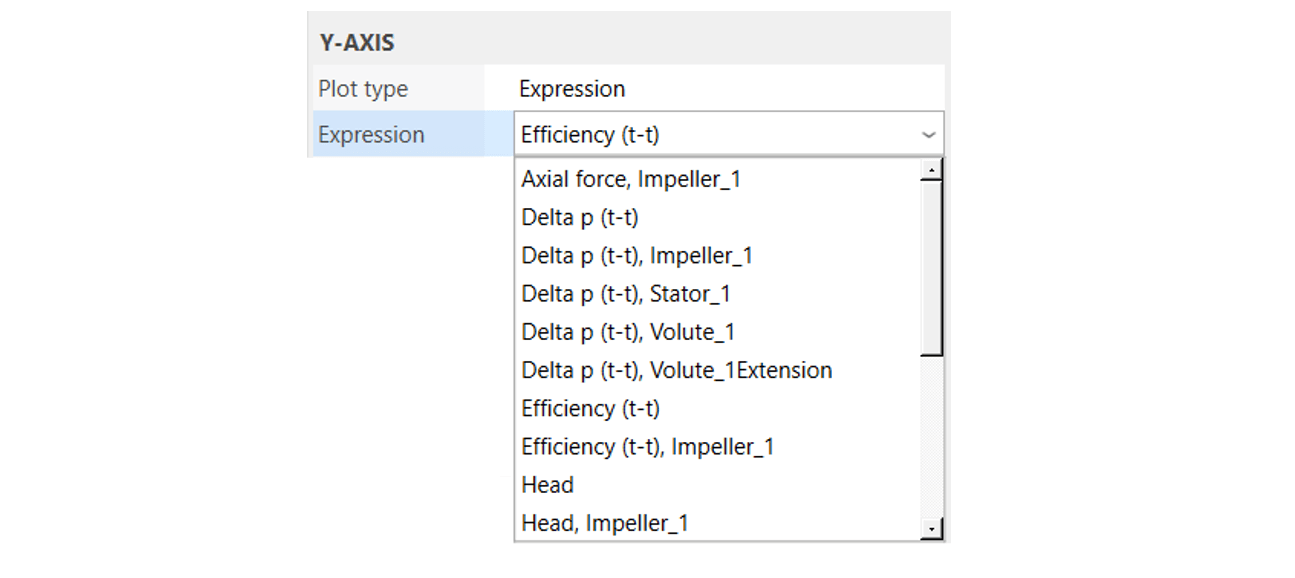
The Expression list shows all expressions used in the selected object.
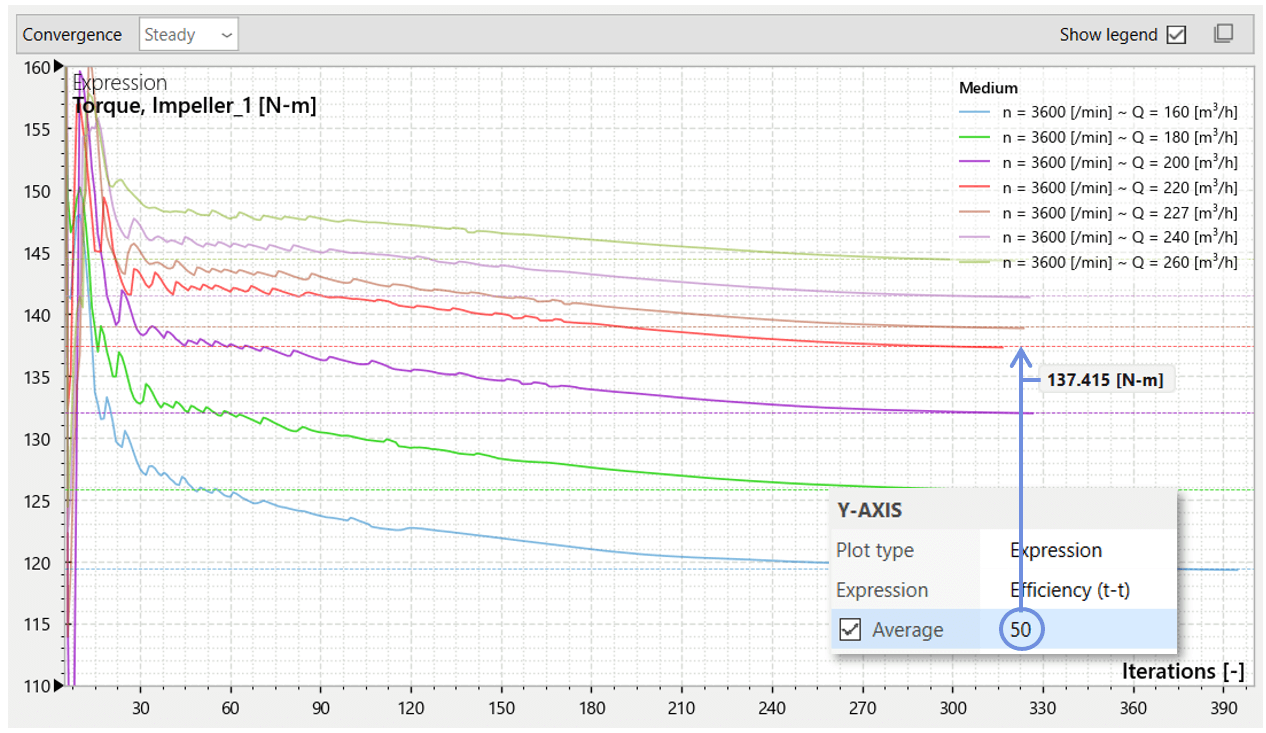
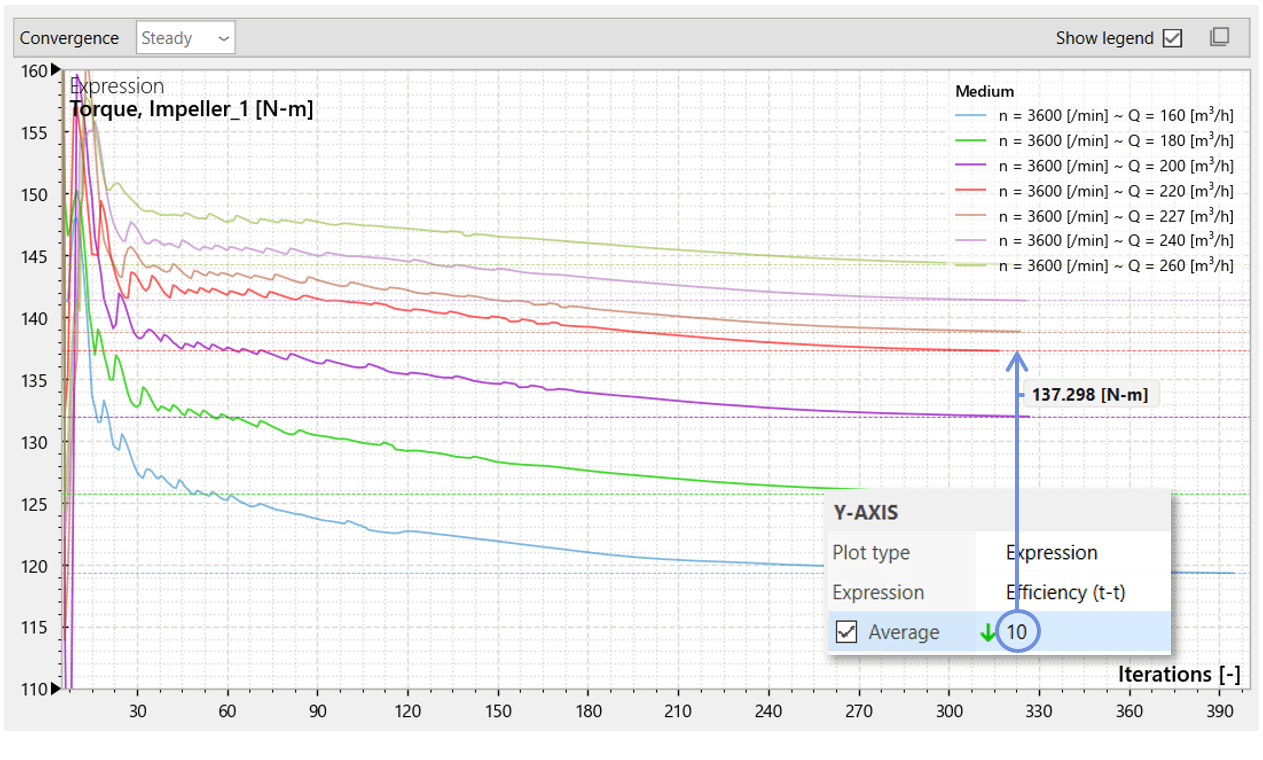
The Average value of the selected variable or expression is very useful for evaluating the convergence of flow simulations. It is calculated from the specified number of most recently stored values of the respective variable or expression and displayed as a thin, dashed line. The default value for averaging is 50. When moving the cursor close to the line, the average value of the variable or expression is displayed.
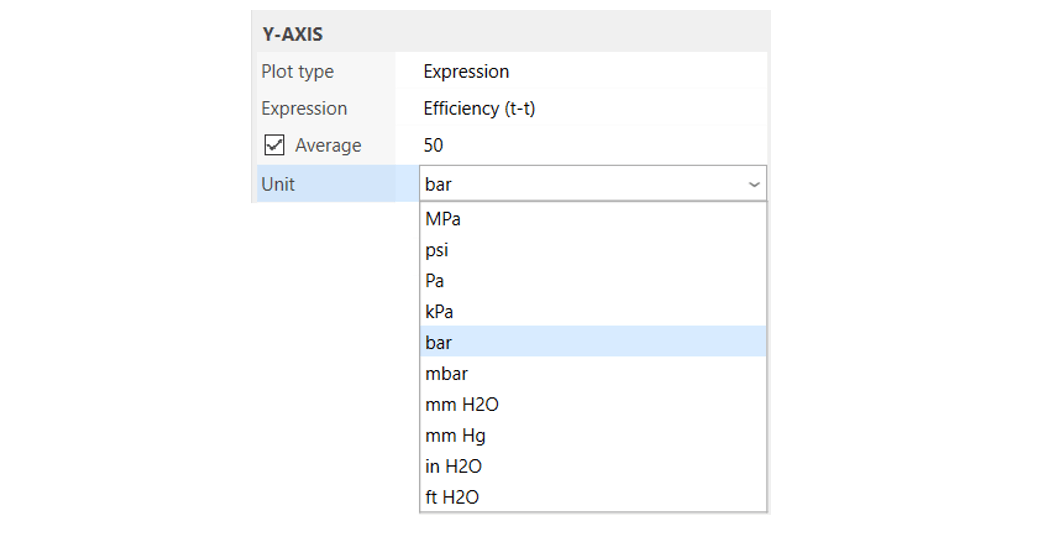
The unit of a variable or expression can be changed at any time, regardless of its original definition in CFturbo, in order to make simulation results comparable with other data or to use units that are common in the respective country.
A font size of up to 14 px can be set for the title and the numbers of the X-axis and Y-axis. The default settings are 11 px for the title and 9 px for the numbers. As with the Y-axis, left-clicking the title Iterations [-] or the numbers of the X-axis opens a configuration menu.

Font sizes of the X-axis and Y-axis: standard size (left), maximum size (middle and right)
Clicking on a curve also opens a configuration menu on the right of the diagram to edit the label shown in the legend and to change the appearance of the line. Modifications also apply to the associated curve in the Residuals diagram.
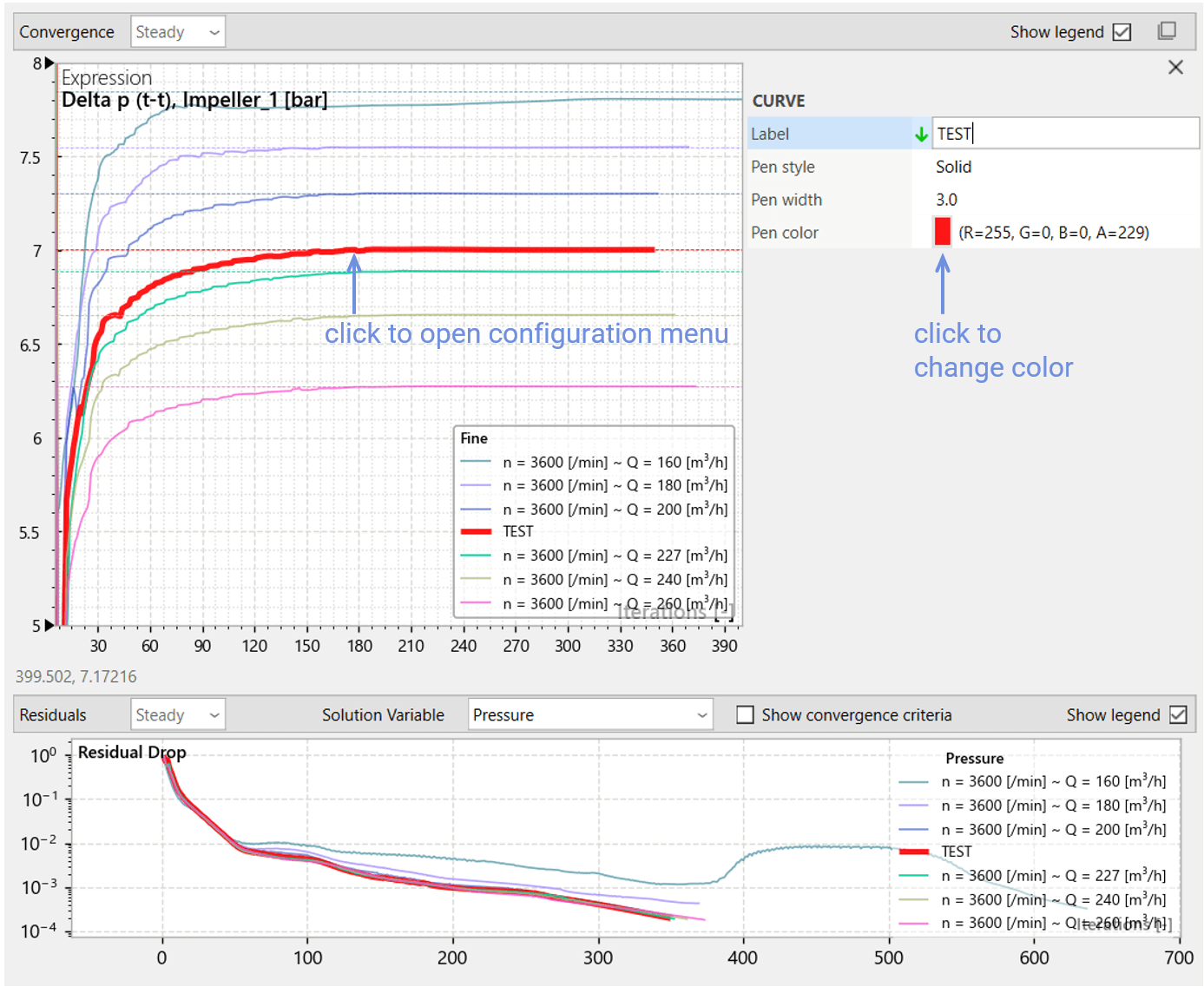
Pair of Curves with their color changed to red and their label changed to TEST
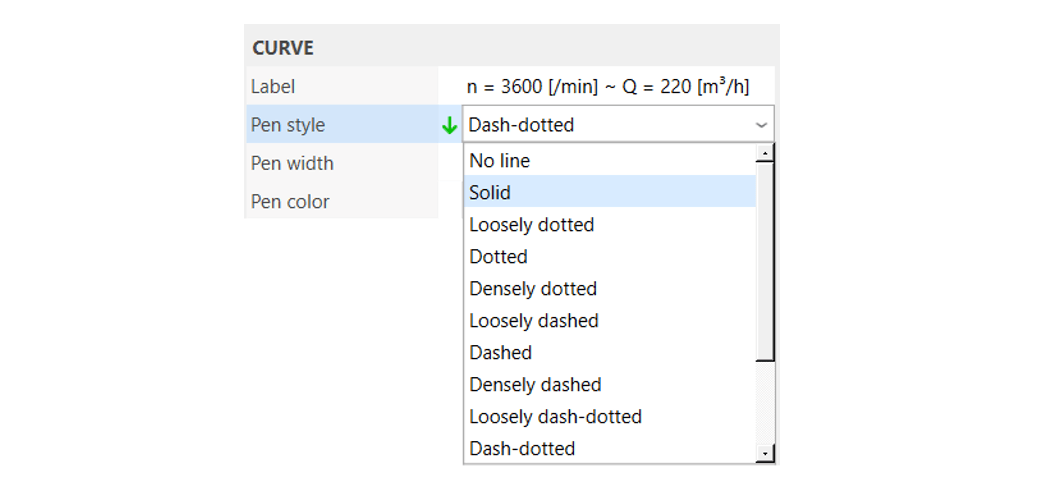
A variety of pen styles is available to set the curve apart from others.
While the pen width is set directly, a dialog window opens when clicking on the color field to change the color, and transparency (alpha channel) of the curve. An alpha value of 0 provides complete transparency, while a value of 255 makes the curve opaque.
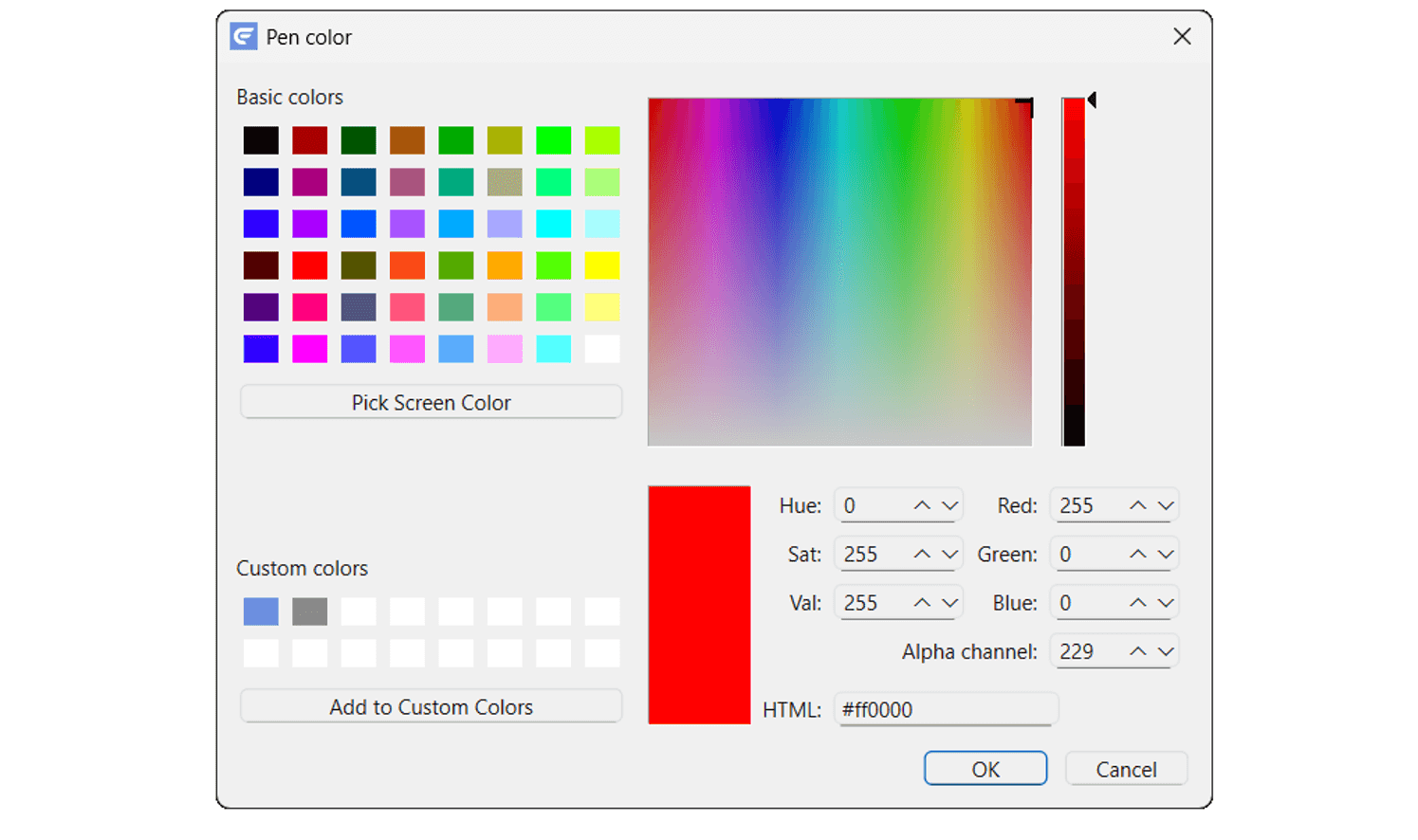
Dialog window to set the RGBA (red-green-blue-alpha) values of the curve: range 0 .. 255
Clicking on the legend also opens a configuration menu on the right of the diagram to define its position, font size and the colors of its border and the background.
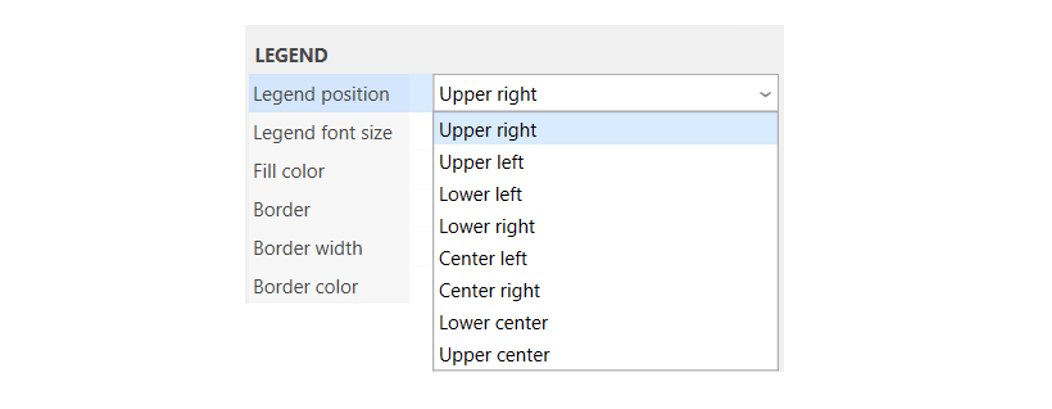
Various position options for the legend
A high alpha value for low transparency is sometimes useful to make the legend easier to read in front of the curves.
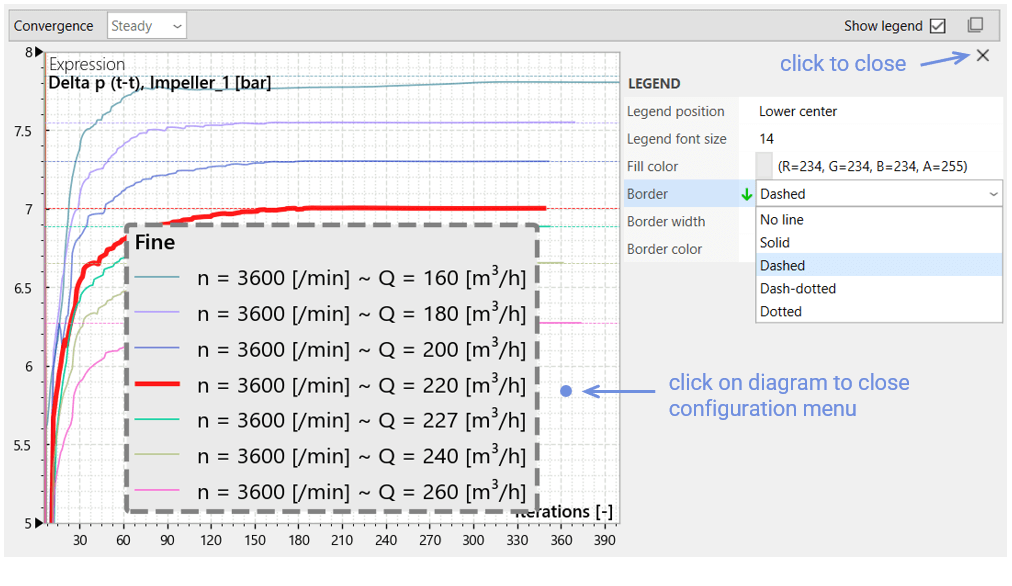
Different border options and maximum font and border size for the legend, opaque background
In all cases, the configuration menu can be closed by clicking on X in the upper right corner or on the diagram area.
Convergence - scaling the axes
Both the X-axis and the Y-axis scale automatically during a simulation. For a more detailed analysis of curve trajectories, you can easily zoom in and out using the mouse wheel or by spreading two fingers on a touchscreen or touchpad. The curves can be moved by left-clicking and dragging or by tapping on a touchscreen or touchpad with a finger and dragging.
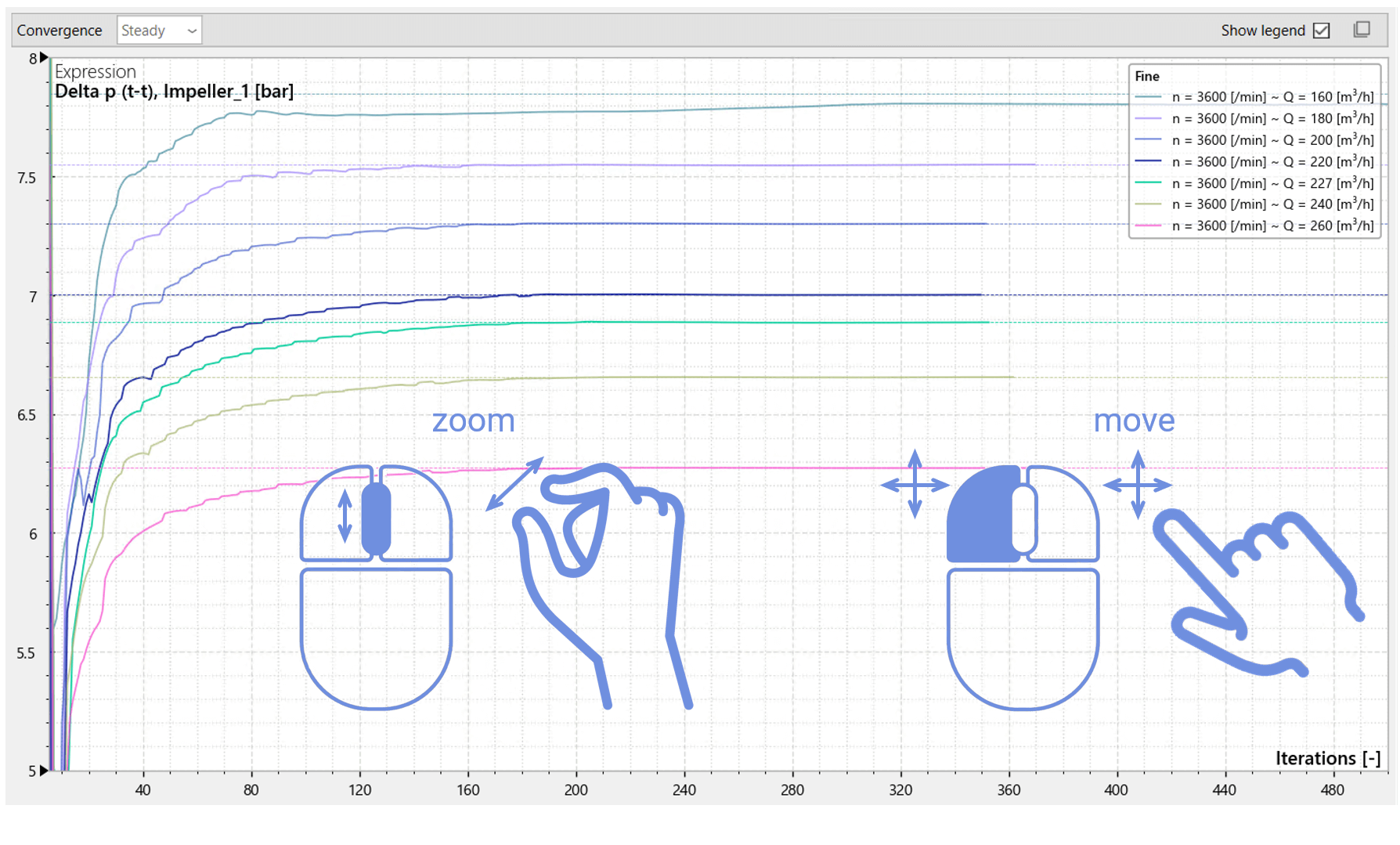
For more targeted zooming, select the Zoom window option from the context menu of the diagram area and then draw a box around the area you want to enlarge.
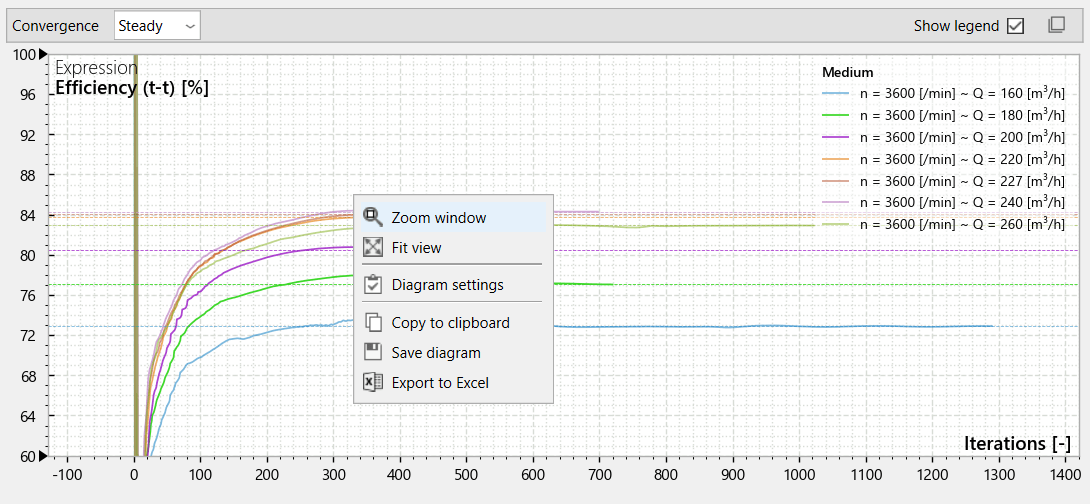
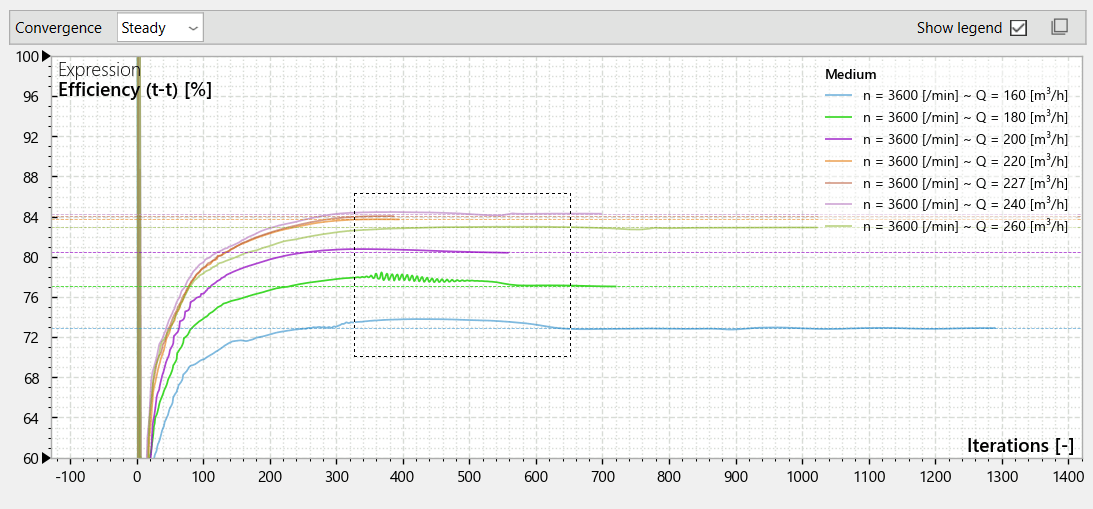
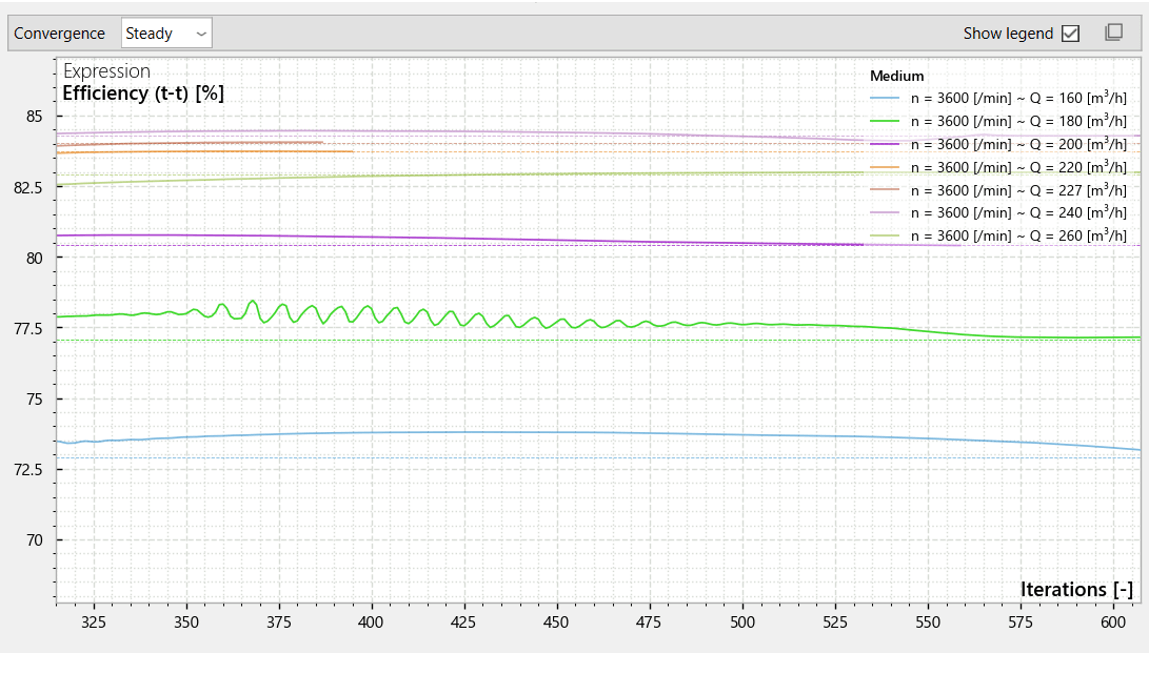
Zoom in on an area using Zoom window in the context menu (top) and dragging a box (center) to get the enlarged view (bottom)
Using Fit view in the context menu of the diagram area, the diagram can be reset to the original axis limits.

To get a precisely defined area the diagram can also be scaled manually by specifying the Minimum and Maximum values for each axis. The number of intervals between them is defined by Major ticks. If the checkboxes are enabled the values entered for Minimum and Maximum apply, and the diagram can no longer be zoomed or moved in the according axis using the mouse or your fingers.

Residuals - analyzing single or multiple operating points
The selection of variants, studies, entire projects, or even a single operating point made for the Convergence diagram also applies to the Residuals diagram, with one detail: While all solution variables are shown for a single operating point, only the solution variable chosen in the dropdown menu is displayed for multiple selections. On one hand, this provides a detailed view on the convergence of each solution variable for a single operating point. On the other hand, a comparison of the convergence behavior of many operating points is possible, and operating points with poor convergence can be reworked by changing the solver settings.
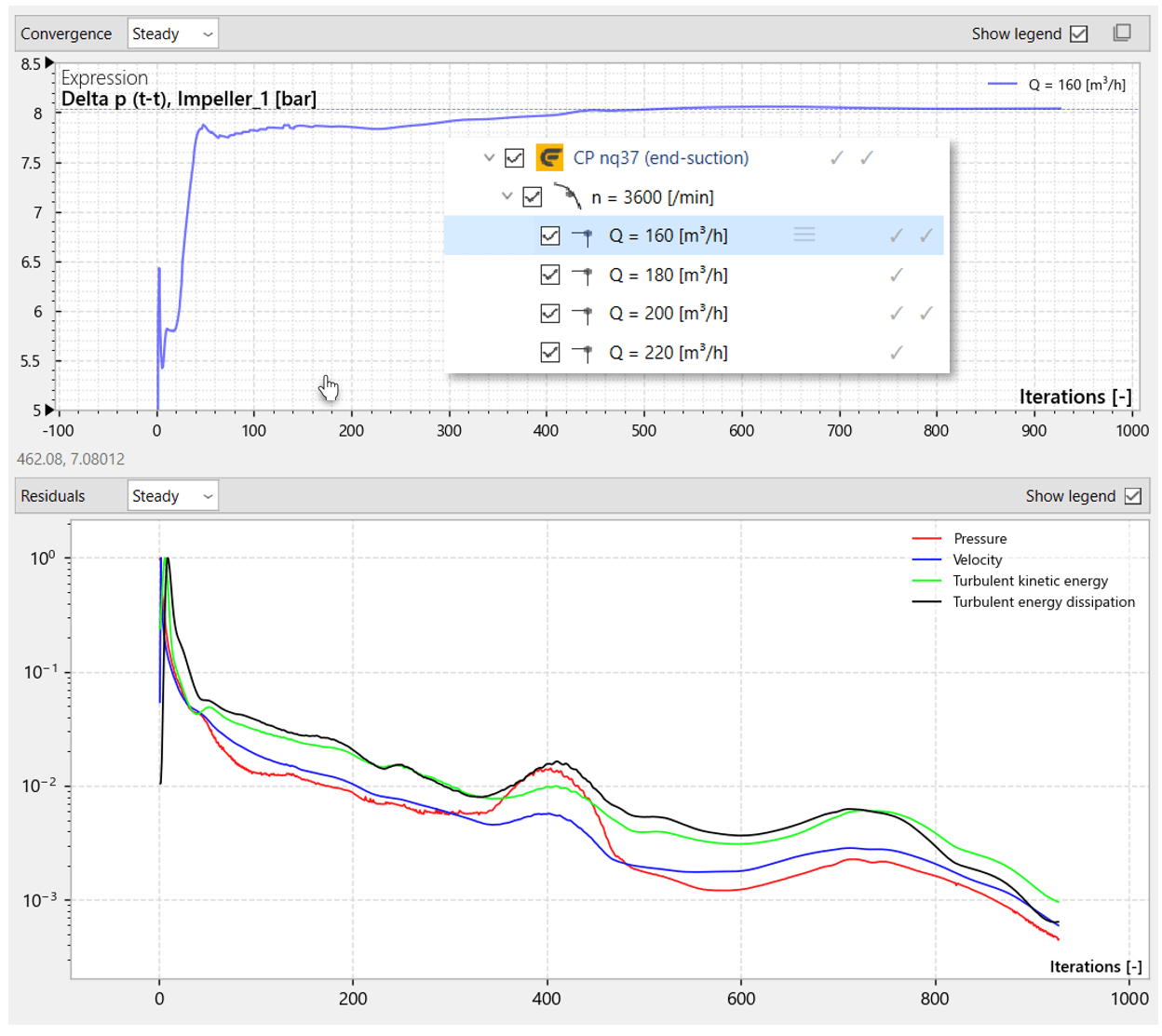
Convergence of a single operating point: all solution variables shown in the Residuals diagram
The image above shows the convergence behavior of a single operating point. The steady-state flow simulation ended after 928 iterations when the convergence criterion of 0.001 was reached for all four solution variables. Turbulent kinetic energy was the last to reach this criterion and thus determined the duration of the simulation.
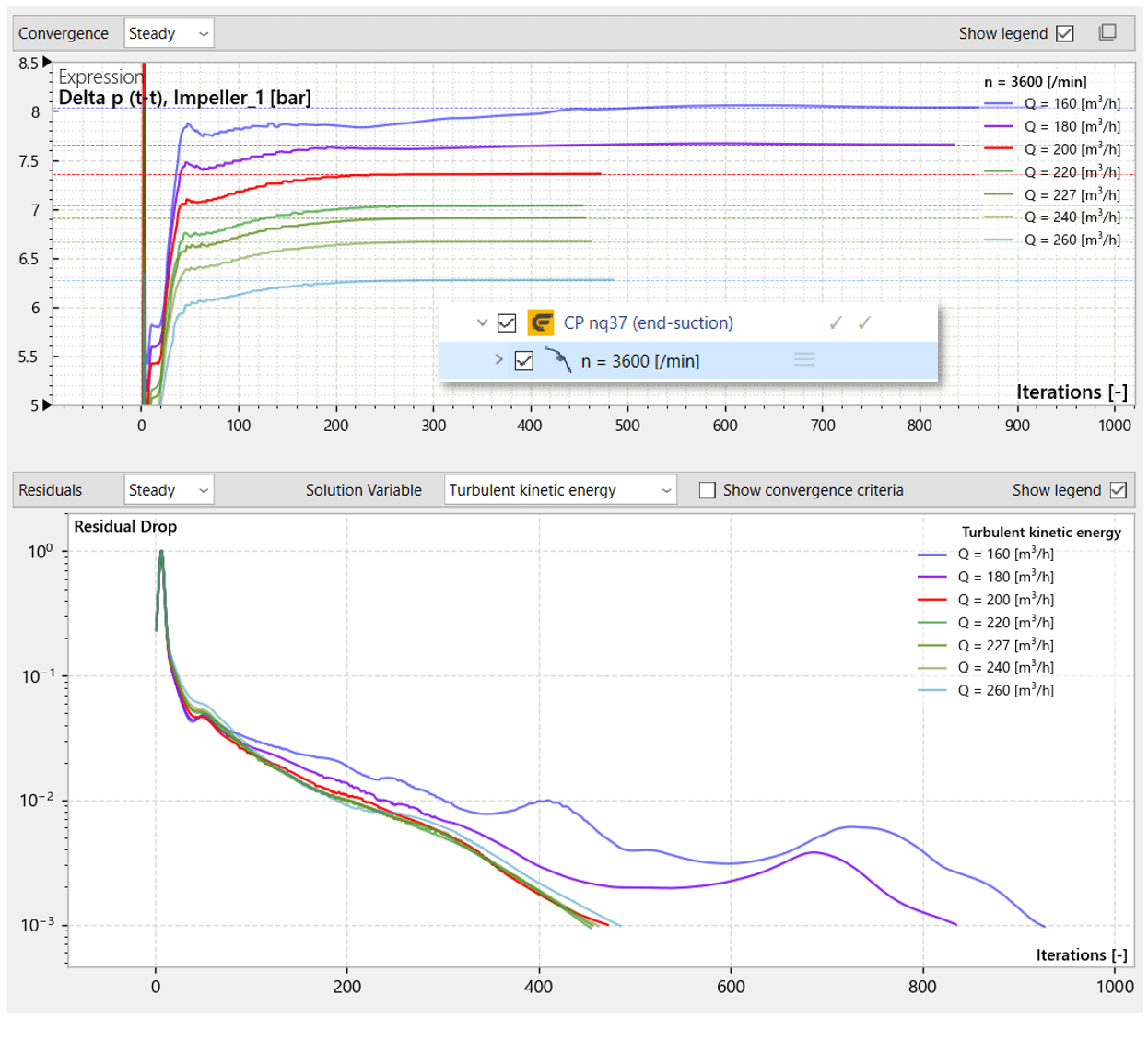
Convergence of turbulent kinetic energy of an entire performance curve
The second image shows the residual curves for all operating points of the performance curve. In these cases, too, turbulent kinetic energy is the decisive factor for terminating the flow simulations.
Monitoring transient flow simulations
The previous sections have focused on the convergence of steady-state flow simulations.
As soon as the first transient time step has been computed, indicated by , or transient results are available, indicated by check marks in column T of the workspace tree, the corresponding curves can be selected by choosing the transient option at the top left of the Convergence or the Residuals diagram.
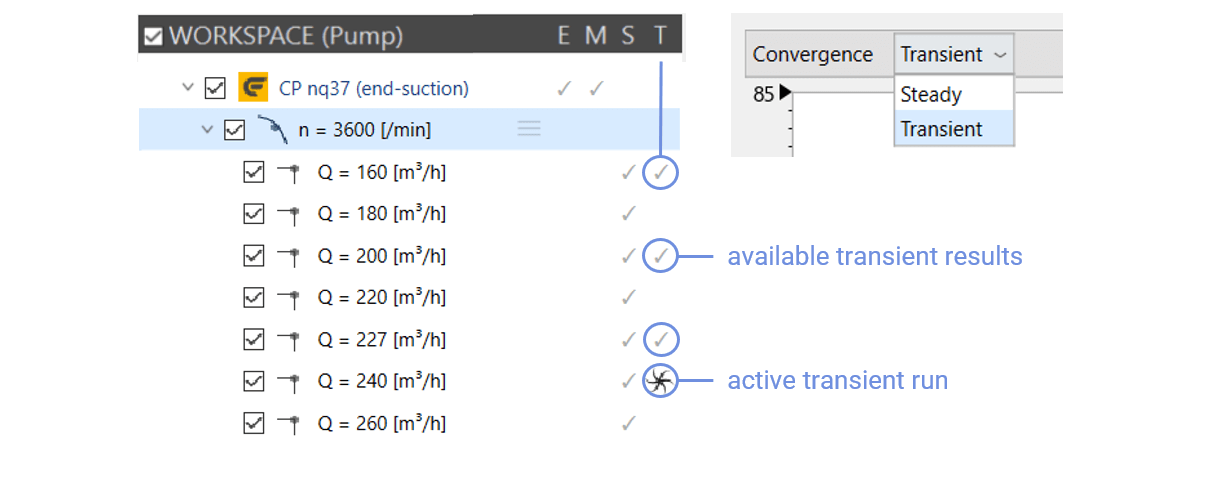
There are some differences in the visualization of transient simulations: In the Convergence diagram, the value of a variable or expression is plotted over the simulated time span, as are the residuals of the solution variables in the Residuals diagram. The simulation converges when this variable or expression reaches a constant value over time or oscillates periodically around an average value. The frequency of this oscillation directly corresponds to a blade passage frequency or the frequency of a rotor-stator interaction.
The Residuals diagram shows the residuals of the solution variables at each time step after a loop of inner iterations. Ideally, the simulation converges so well that the convergence criteria, residuals smaller than 0.001, for example, are met.
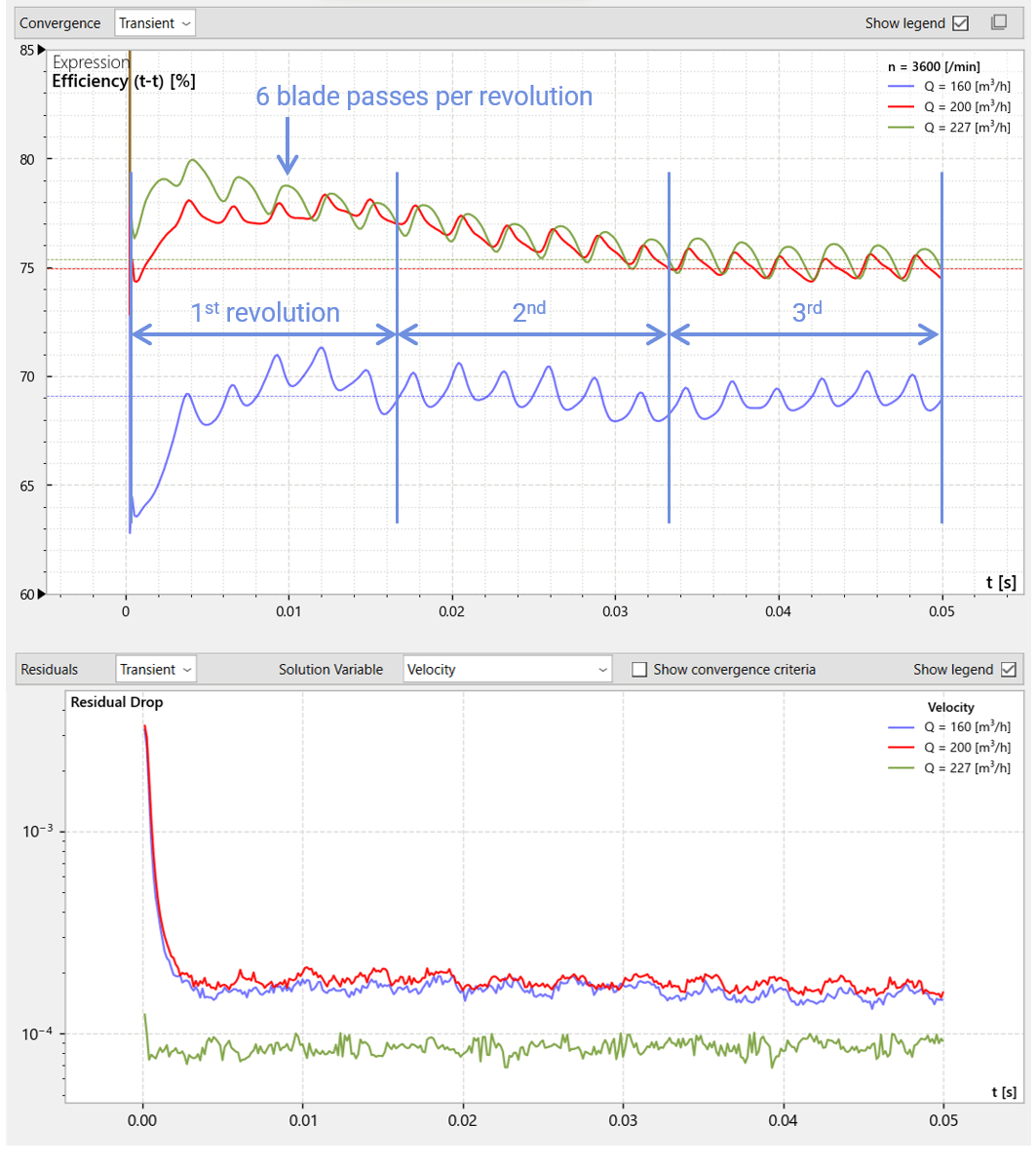
Convergence and Residuals diagrams of a transient flow simulation: transient response of the efficiency over three revolutions (top), velocity residuals well below the convergence criterion of 0.001 (bottom)
In the image above, the transient response of the total-to-total efficiency over time using the example of the centrifugal pump CP nq37 (end-suction) is displayed. Three revolutions of the six-bladed impeller at a rotational speed of 3600 rpm, resulting in a simulation time of 0.05 s, were set and are sufficient for the efficiency (t-t) to reach a stable level, while the residual of the velocity already meets the convergence criterion after two blade passes at the volute's cutwater. Resolving each rotation into 120 angular steps is therefore completely sufficient for excellent convergence and a detailed view on the transient process.
The efficiency (t-t) is a calculated value that, for centrifugal pumps, sets the total pressure built up over the entire stage, including the total pressure losses in the volute, and the volumetric flow rate for a specific operation point in relation to the required shaft power.
The total pressure rise Delta p (t-t) and the shaft power Power, Impeller_1 both experience periodic fluctuations. However, the shaft power oscillation decreases from the partial load range at Q = 160 m³/h to the design point at Q = 227 m³/h, since backflow in the impeller then usually disappears in contrast to the partial load flow field. Thus the static pressure on the blade surfaces is less affected when the blade passes the cutwater.
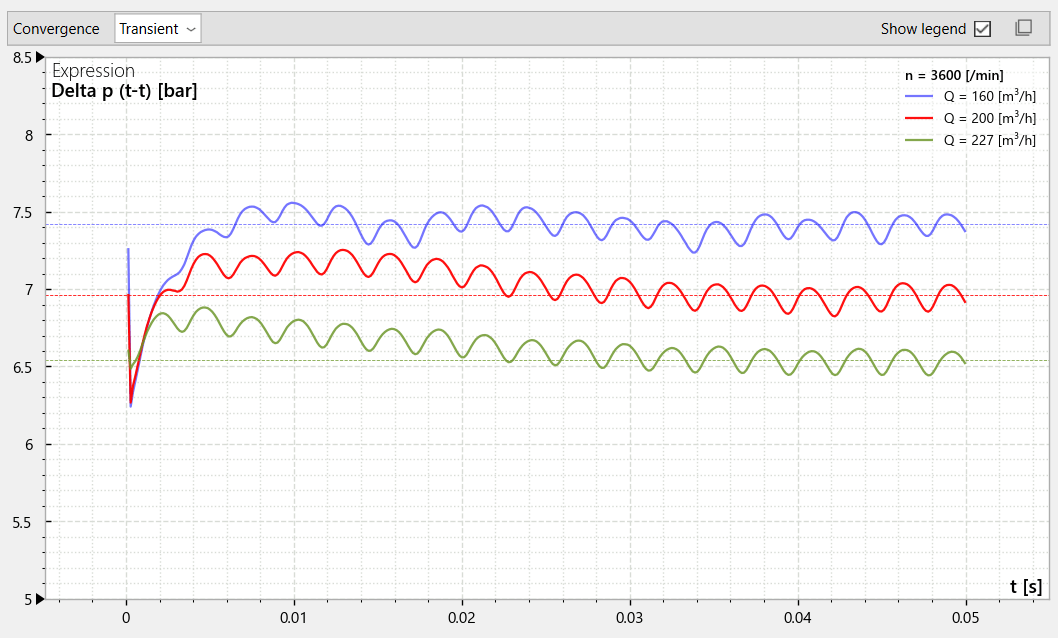
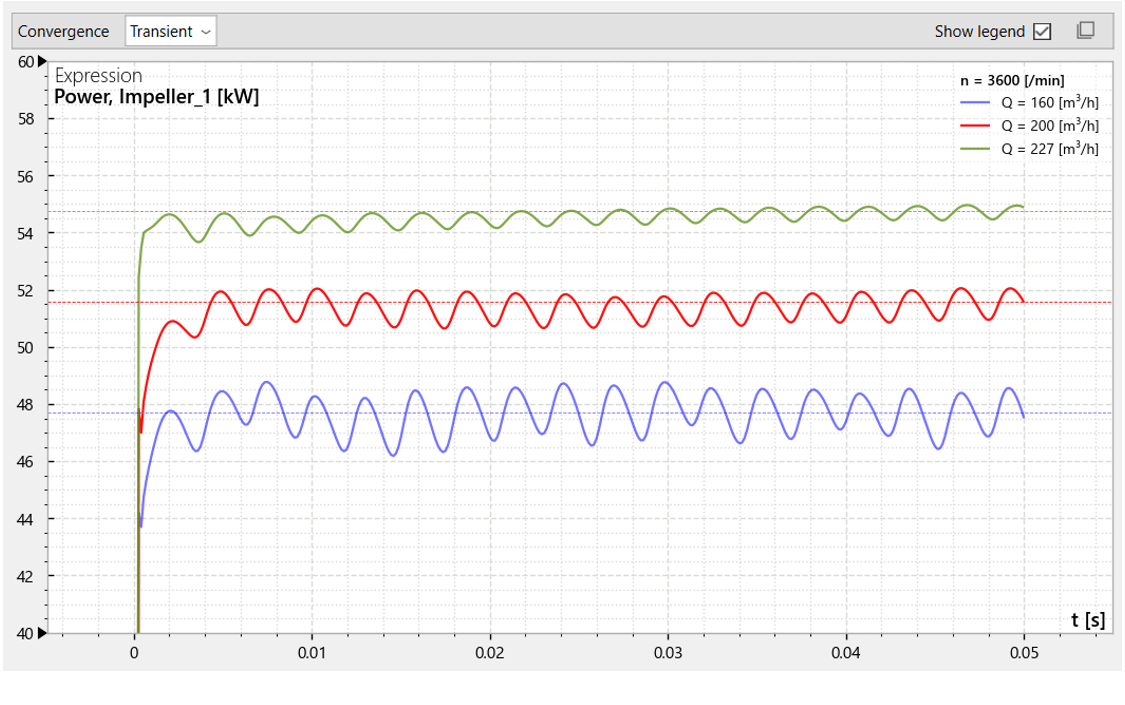
Total pressure rise of the entire stage (top) and shaft power (bottom) for CP nq37 (end-suction)
Performance curves
Performance diagram - overview
The Performance diagram in the Performance curves tab is the main tool in CFturbo BLADERUNNER for describing and analyzing the behavior of turbomachines by displaying performance curves obtained from flow simulations. It is identical in appearance and operation to the Convergence diagram in the Convergence plots tab, but shows complete performance curves consisting of several operating points rather than convergence curves for individual operating points.
The display is live, i.e., the symbol of the operating point currently being computed moves across the diagram area with each iteration or time step according to its X and Y values.
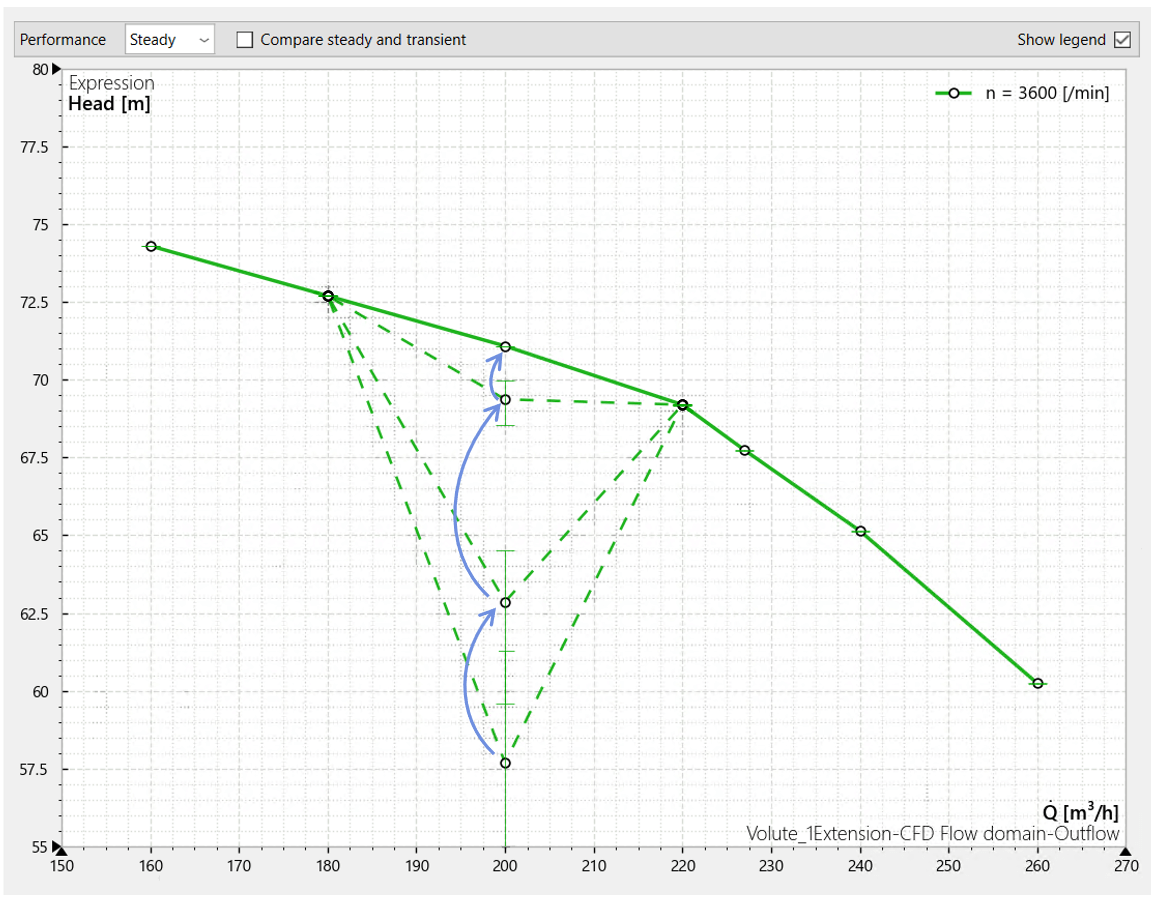
Efficiency (t-t) curve created by steady-state flow simulations (solid line) with previous computation steps of an operating point (dashed lines)
Performance diagram - configuration
Selecting variables and expressions, configuring the axes and formatting the curves and the legend is executed as described for the Convergence diagram.
There is just one difference: In the configuration menu of the X-axis, you can choose between mass flow rate and volumetric flow rate as the variable and also specify the location where this variable is evaluated.

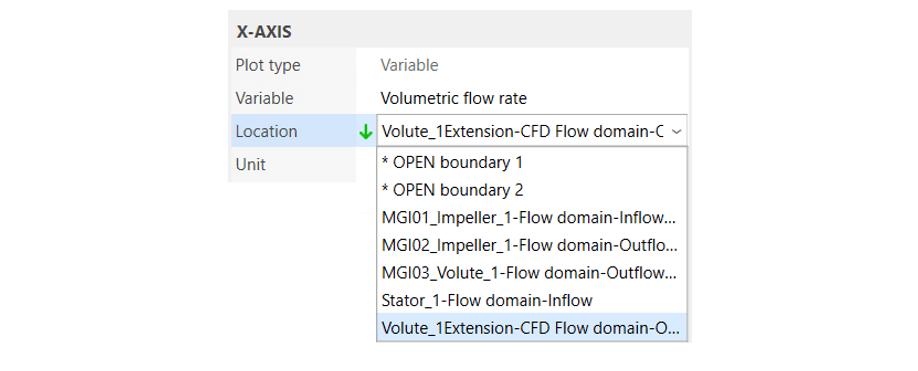
Selection of steady-state and transient data
As with the Convergence and Residuals diagrams, the Performance diagram displays the data selected in the workspace tree. This can be, for example, a single performance curve for a variant, or several performance curves for the same variant, which then form a characteristic map, or even a comparison of several variants.
For each operating point, steady and/or transient results may be available, which can be selected using the drop-down menu at the top left. By activating the Compare steady and transient checkbox, the complementary data sets are also displayed, allowing a direct comparison of the results.

The curves are then labeled Steady and Transient, respectively.
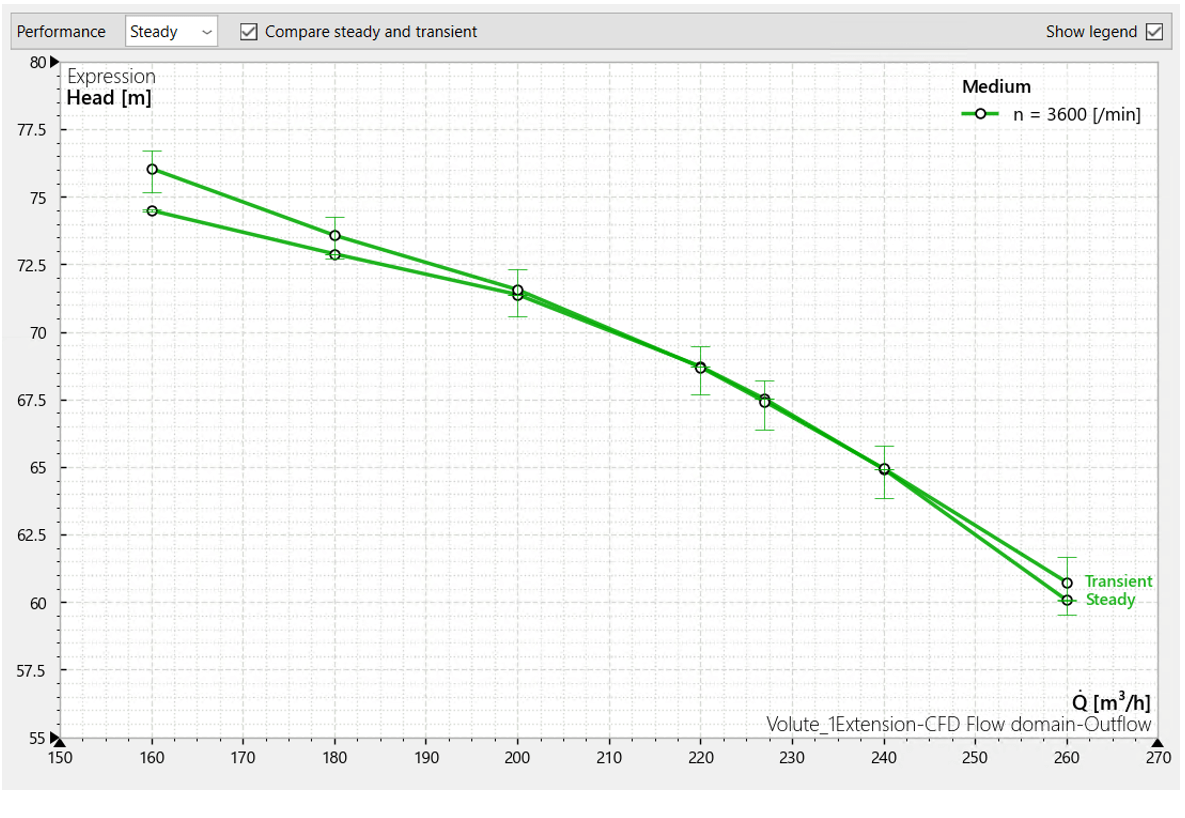
Head curve: comparison of steady-state and transient results
If only a single operating point is selected in the workspace tree, the entire performance curve to which the operating point belongs is still displayed. To display only individual operating points, deselect the remaining operating points using the checkboxes. It is then advisable to display only these individual operating points instead of a shortened performance curve. To do this, click on the relevant performance curve, which will open the configuration menu on the right. There, you can set the No line option under Pen style.
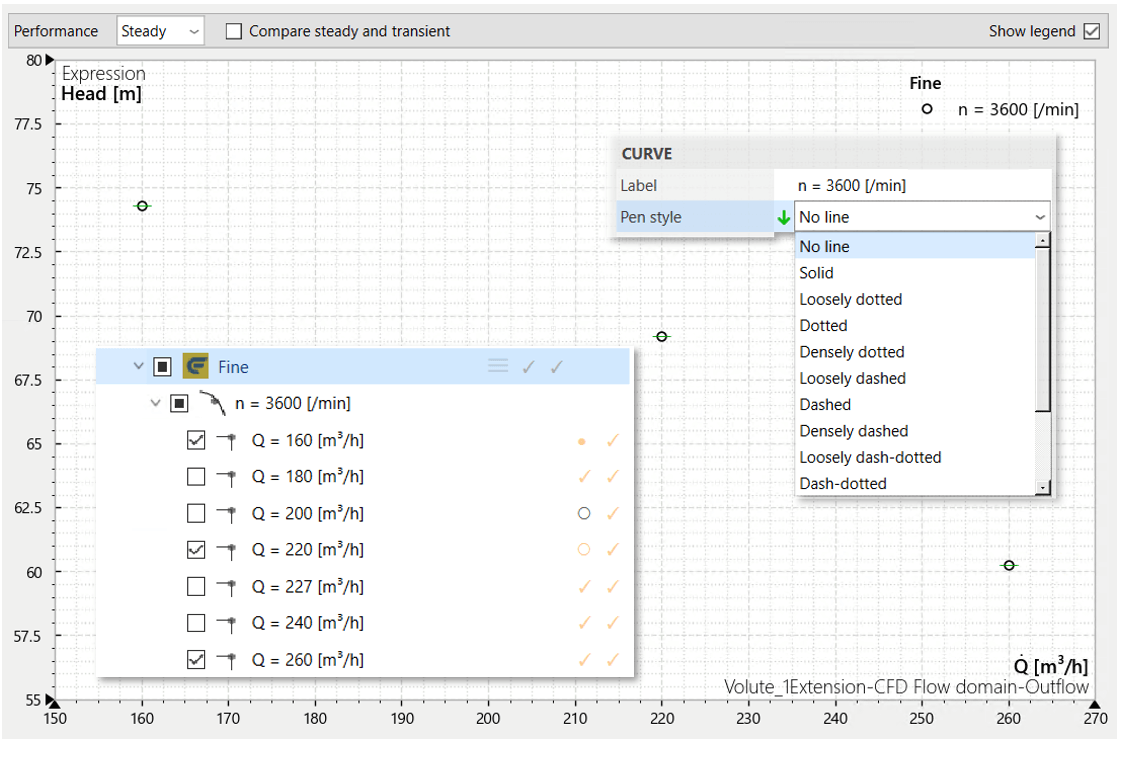
Only three single operating points displayed by deselecting the other ones and by choosing No line
Uncertainty of the displayed values
For each operating point Y-value, an error bar is displayed representing its uncertainty. It is formed from the minimum and maximum value of the last number of iterations or time steps defined by the average value. The value of the variable or expression itself is calculated as the average of precisely this number of calculation steps.
The following image shows, as above, the convergence of the Efficiency (t-t) value of an operating point in a steady-state flow simjulation. The length of the error bar decreases continuously until convergence is reached.
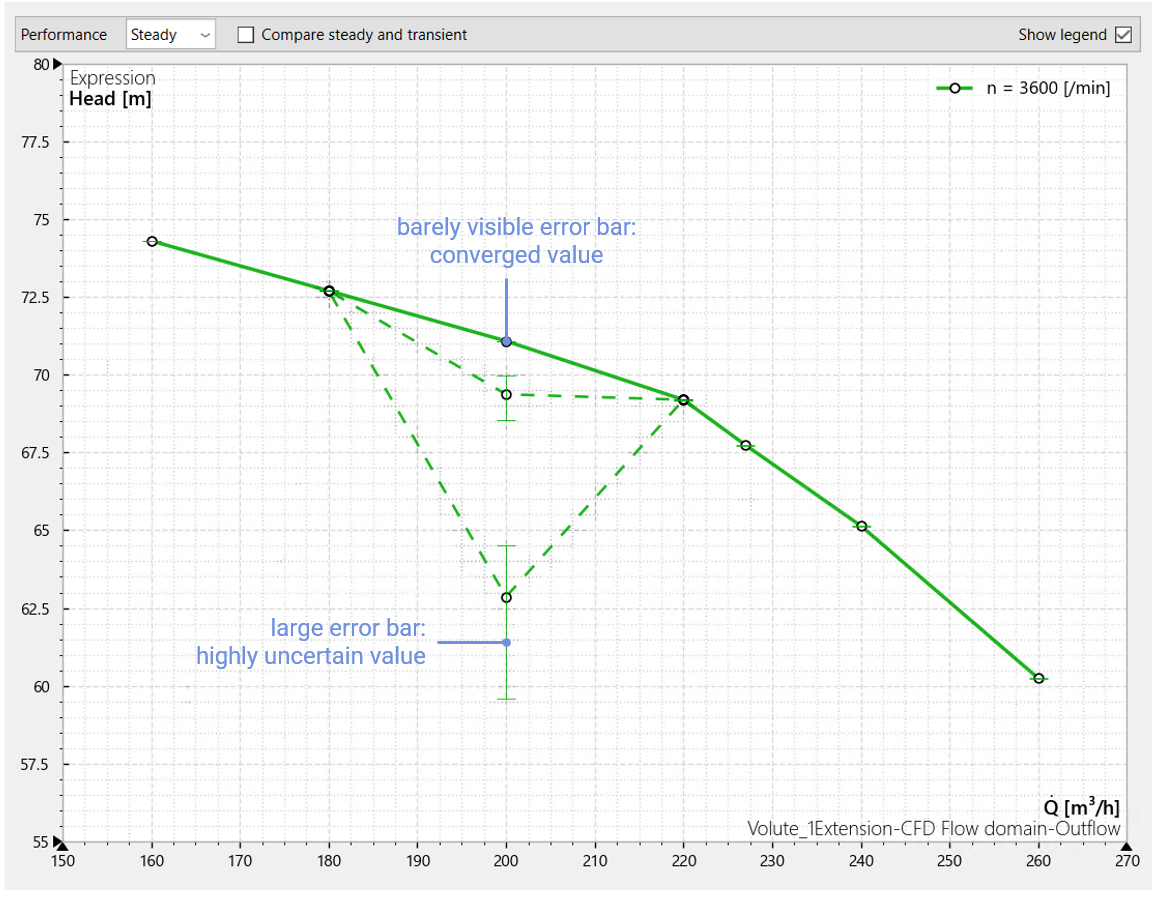
Efficiency (t-t) curve curve created by steady-state flow simulations: development of error bars from bottom to top
For well-converged steady-state simulations, there is of course a minimal error bar that barely extends beyond the symbol of the operating point's value. The value of the operating point also remains virtually unchanged, regardless of whether the averaging comprises 10 or 50 values.
In transient simulations, the error bar captures a possible oscillation in the value of a variable or expression. In the example of CP nq37 (end-suction), the rotation by one blade pitch is resolved with 20 time steps. An average value of 20 thus captures exactly one period of the oscillation and therefore also reliably its minimum and maximum, so the fluctuation range of the value is correctly displayed. When averaging over five time steps, the error bar shrinks noticeably and thus no longer reflects the possible fluctuation of the value, and the value itself changes.
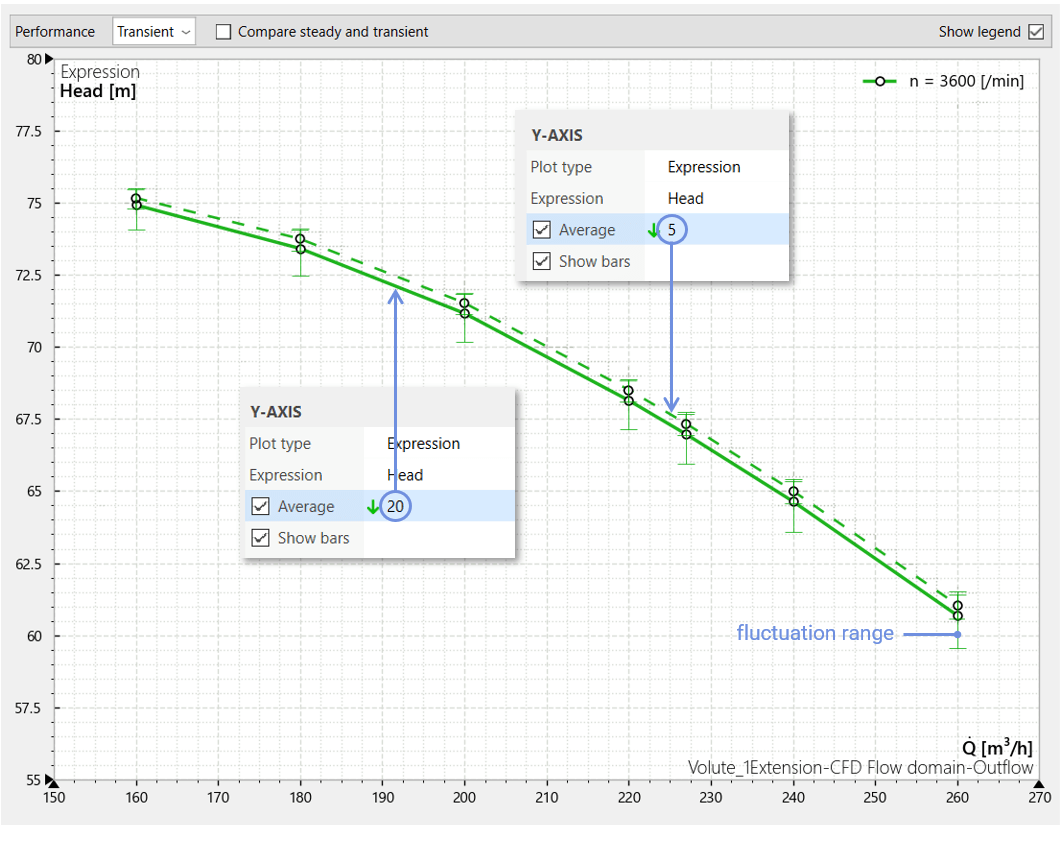
Head curve created by transient flow simulations: fluctuation displayed depends on average value
If you prefer not to display the error bars, you can deselect the Show bars option in the Y-axis configuration menu.

CFD data analysis
... with Simerics MP
As soon as simulation results are available for an operating point—as indicated by ✓ or ●/○—the flow field can be analyzed in Simerics MP/MP+. Depending on whether steady-state or transient data—or both—are available, selecting Open steady results or Open transient results, respectively, from the context menu of the according operating point launches Simerics MP/MP+ directly with the corresponding latest SRES result file.
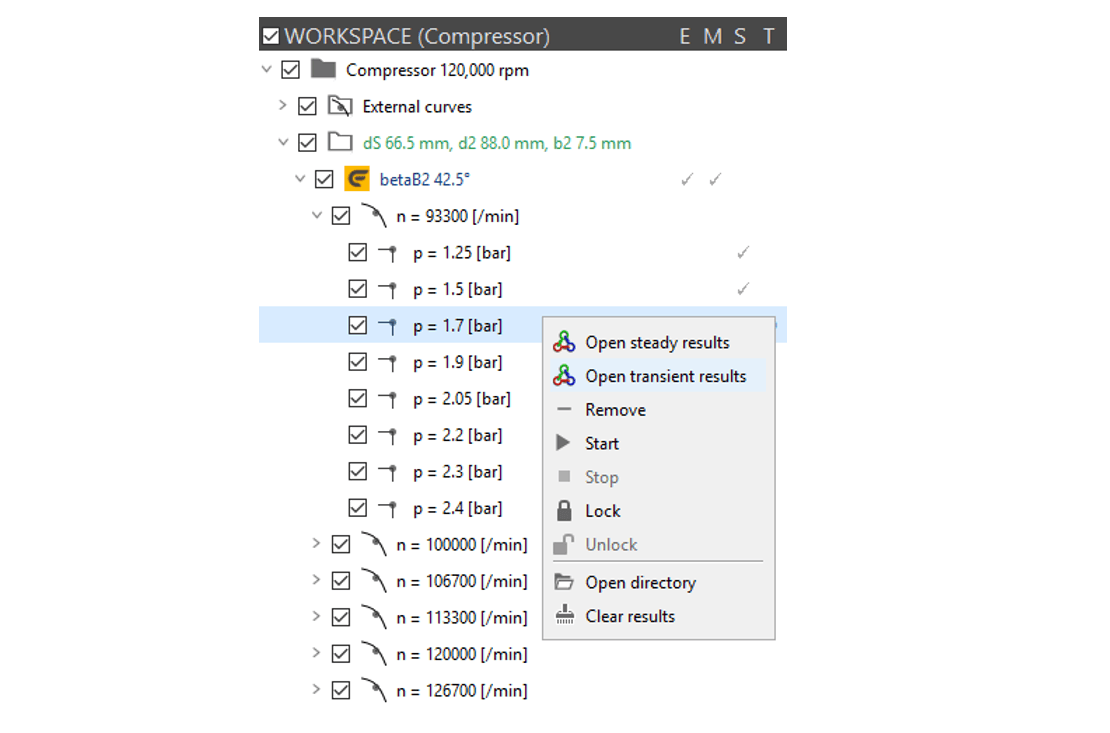
Launching Simerics MP/MP+ with the latest steady-state or transient SRES result file for analysis
The flow-field analysis in Simerics MP/MP+ offers extensive visualization options, such as streamline plots, multiple surface plots displayed simultaneously, and a perspective view. However, the analysis takes time, and the image data is not available in CFturbo BLADERUNNER.

Extensive analysis capabilities in Simerics MP/MP+
... with CFturbo BLADERUNNER
An easier way to analyze flow fields than using Simerics MP/MP+ is available via the Postprocessing tab, which appears when an operating point is selected in the workspace tree. Various settings can be used to generate the desired images, such as this one showing the static pressure reise in the impeller in a cascade view provided by the Simerics MP/MP+ TurboPost module. CFturbo BLADERUNNER calls Simerics MP/MP+ in the background for this purpose and displays the images in a clear, organized list.
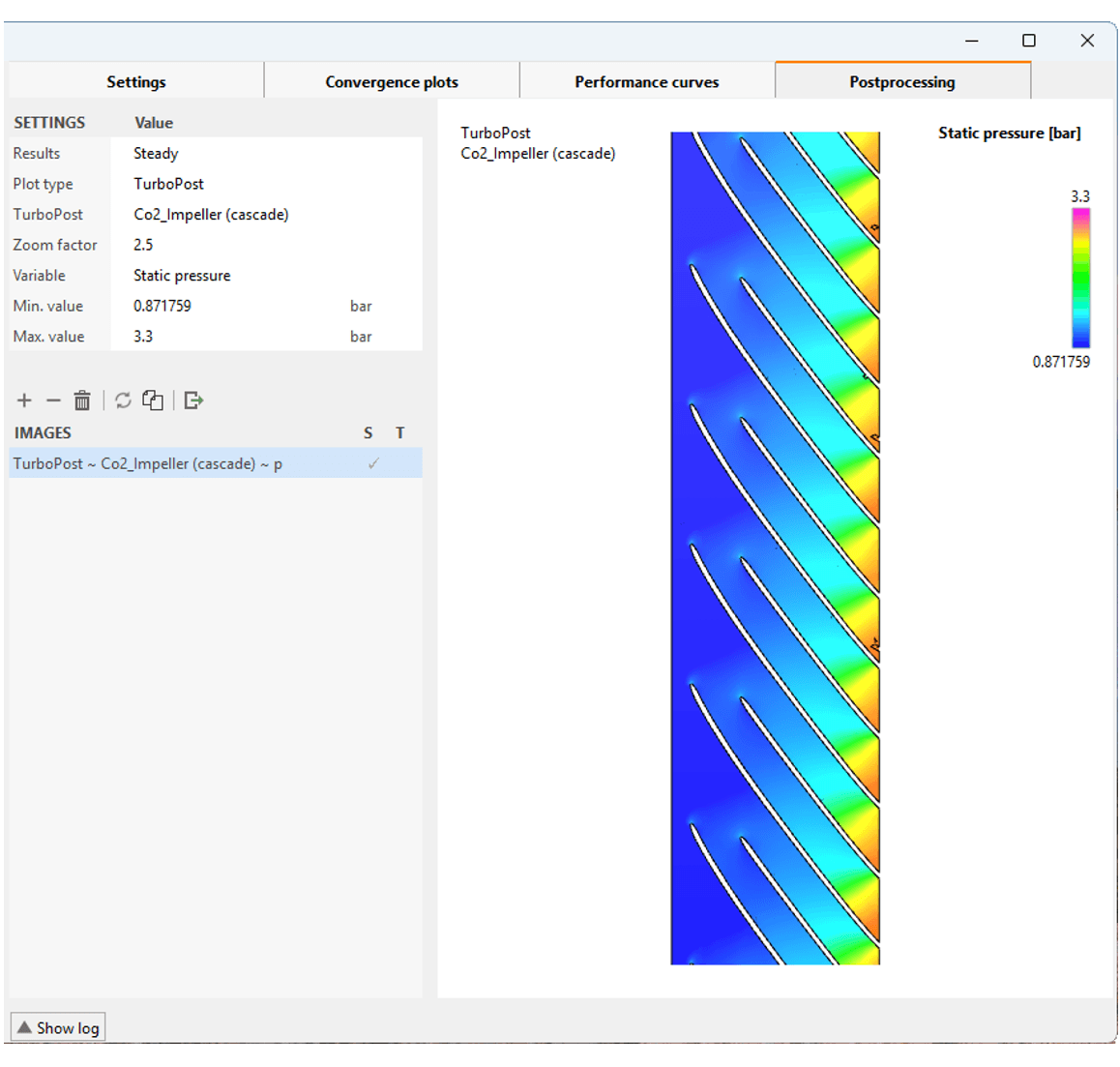
Integrated flow-field analysis in CFturbo BLADERUNNER
Currently, images are limited to surface plots. The first step is to specify the type of case to be analyzed—steady-state or transient—and the type of surface—cross section or TurboPost:
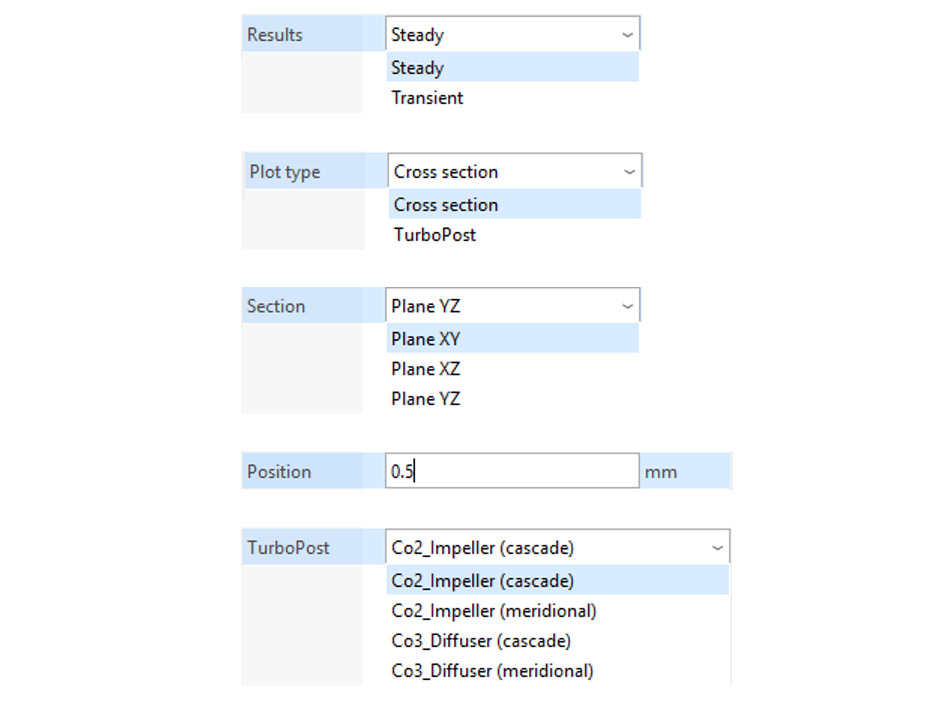
Results – analysis of the ""Steady**-state or Transient solution for an operating point
Plot type – either a plot on a Cross section or on a TurboPost surface
Section – the plane to be selected for a Cross section: either XY, XZ, or YZ
Position – the axial position of the Cross section plane selected
TurboPost – the TurboPost component to be shown either in a meridional section or in a cascade view
In the second step, the image size is set and the variable or expression to be displayed selected. The value range at the current operating point is preset by default and can be changed manually:
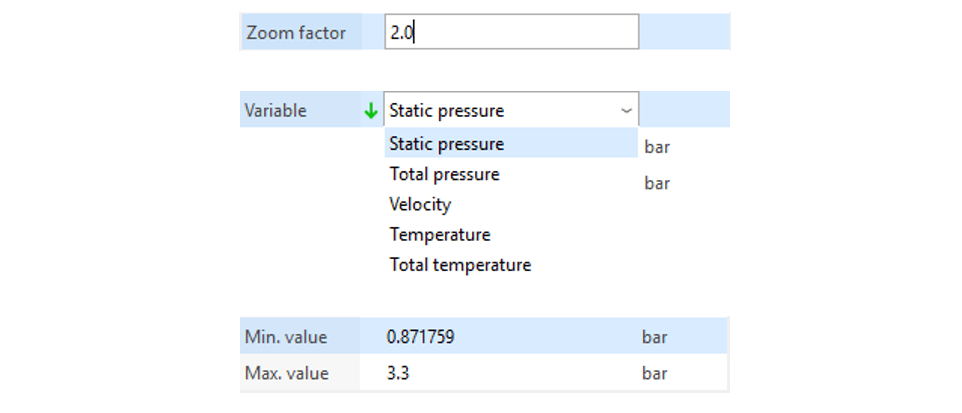
Zoom factor – relative size of the plot on the drawing area
Variable – selection of the Simerics MP/MP+ variable or expression to be displayed
Min. value/Max. value – value range of the Variable selected
Once the settings are configured, clicking + adds the image to the IMAGES list. However, the image is only generated upon clicking the Generate/update image icon that is displayed in the S (steady-state result) or T (transient result) column.

One particularly convenient feature is the ability to apply the format of the generated images to all other operating points of the Variant, which ensures a consistent display and thus allows for a quick comparison of the flow fields of the various operating points. Of course, the images may also be exported.

Image management toolbar in the Postprocessing tab
Comparison with measurement data
Flow simulations provide flow fields for the various operating conditions of a turbomachine with unprecedented resolution and accuracy, and usually in much less time than would be possible with measurements. Nevertheless, bench tests are necessary to describe the actual behavior of the turbomachine and to identify any deviations from the simulations. Also extensive measurement data is often available for older designs, which can now be verified using flow simulations.
CFturbo BLADERUNNER offers the ability to directly compare measurements and flow simulations by importing measurement data. To do this, characteristic curves are individually imported into the workspace tree via
importing a text file
pasting data from the clipboard
manual entry point by point
for display alongside the simulation results.
Measurement data is assigned to a project in the workspace tree under the External curves entry, directly below the project name. To import measurement data, first select External curves and then click Add curve in the Settings.
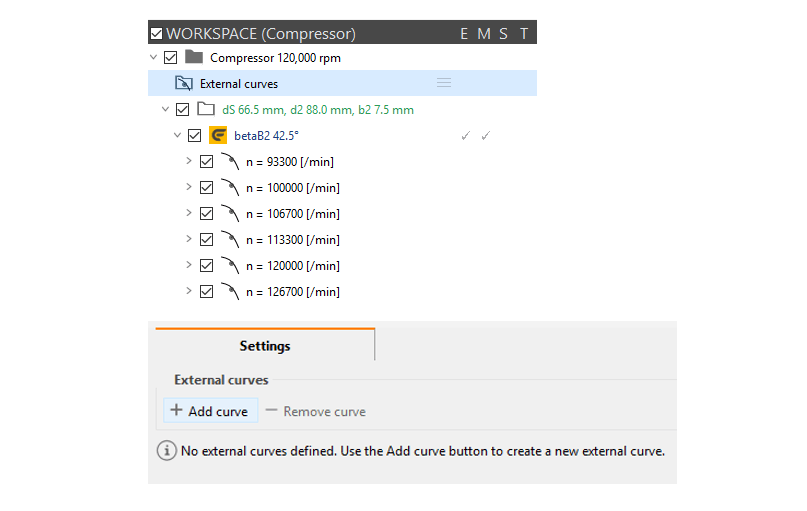
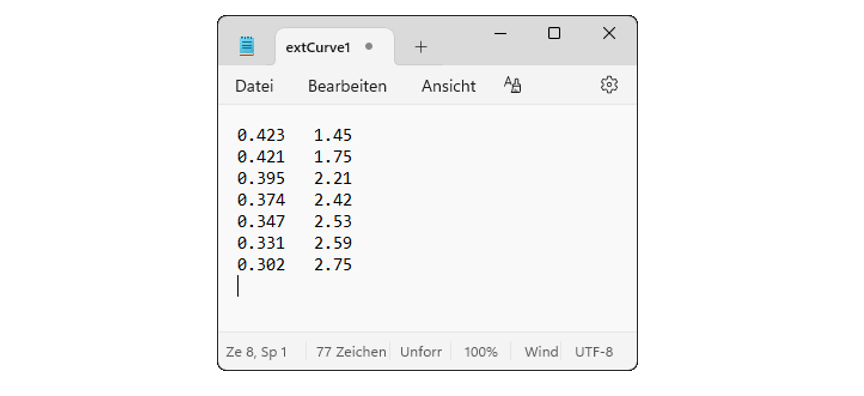
Data should be arranged in two columns of numerical values without caption to be imported via the clipboard or as a text file.
In this example, two data sets were imported that show the measured pressure ratio relative to the mass flow rate. Accordingly, Mass flow rate was selected for the X-axis and Pressure ratio for the Y-axis. The data sets were appropriately named under Curve caption, and the variant to which the measured values refer was specified under Description. The imported data is displayed as a curve in the diagram on the right and appears on the left in the workspace tree under External curves.
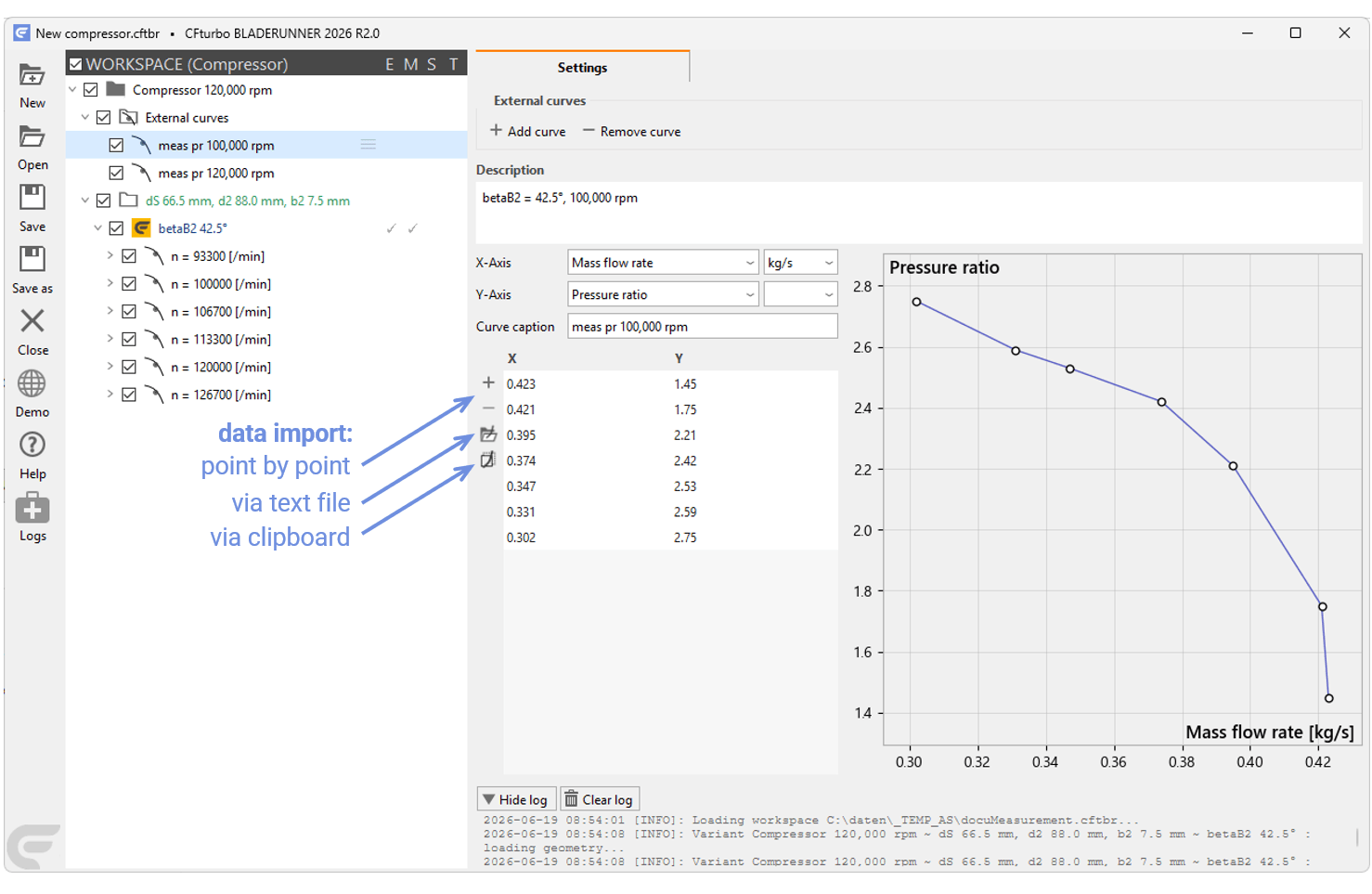
Imported external measurement data that appear as External curves
It is important to note that the External curves will only appear if the correct units have been selected for both the X-axis and the Y-axis. In the following example, the two imported curves for 100,000 rpm and 120,000 rpm are shown in combination with simulation data.
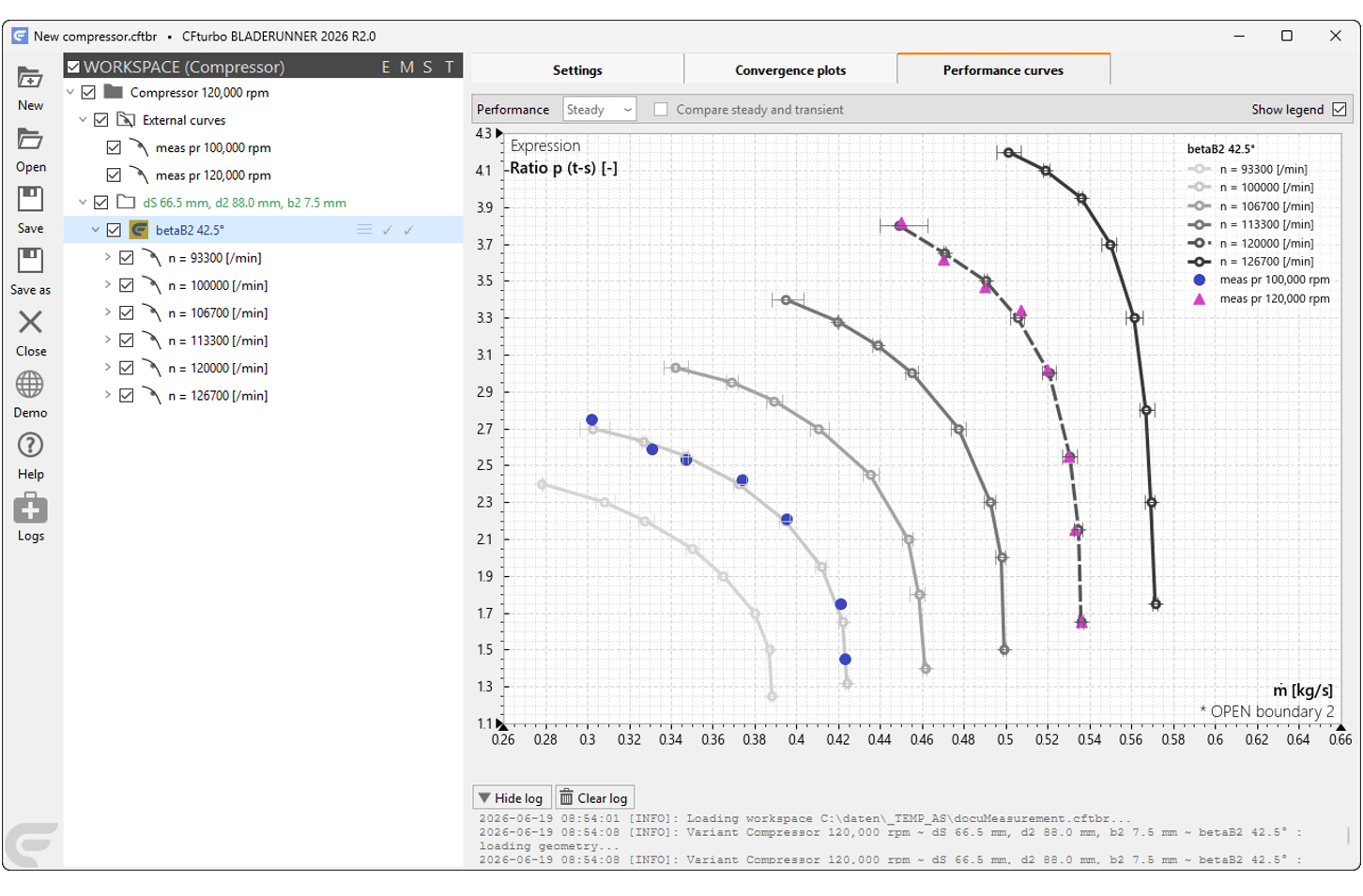
External measurement data in comparison with simulation results
External curves can be deleted using the Remove file option. If you simply want to hide them in a diagram, you can do so by deactivating them in the workspace tree.

CFD cases - mesh independence and transient effects
A brief mesh study
A brief study is conducted to show the dependence of flow simulation results on coarse meshes and on flow modeling by analyzing the shapes of the performance curves and by taking a look at the flow fields. For this purpose, three different meshes are generated for the centrifugal pump CP nq37 (end-suction) by selecting the presets Medium and Fine in the GLOBAL MESH PARAMETERS.
A further refined mesh, User-defined #1, is created using the following GLOBAL MESH PARAMETERS:
Specific length calculation: Using all CAD surfaces
Cell size on surfaces: 0.002
Maximum cell size: 0.004
Minimum cell size: 0.0001

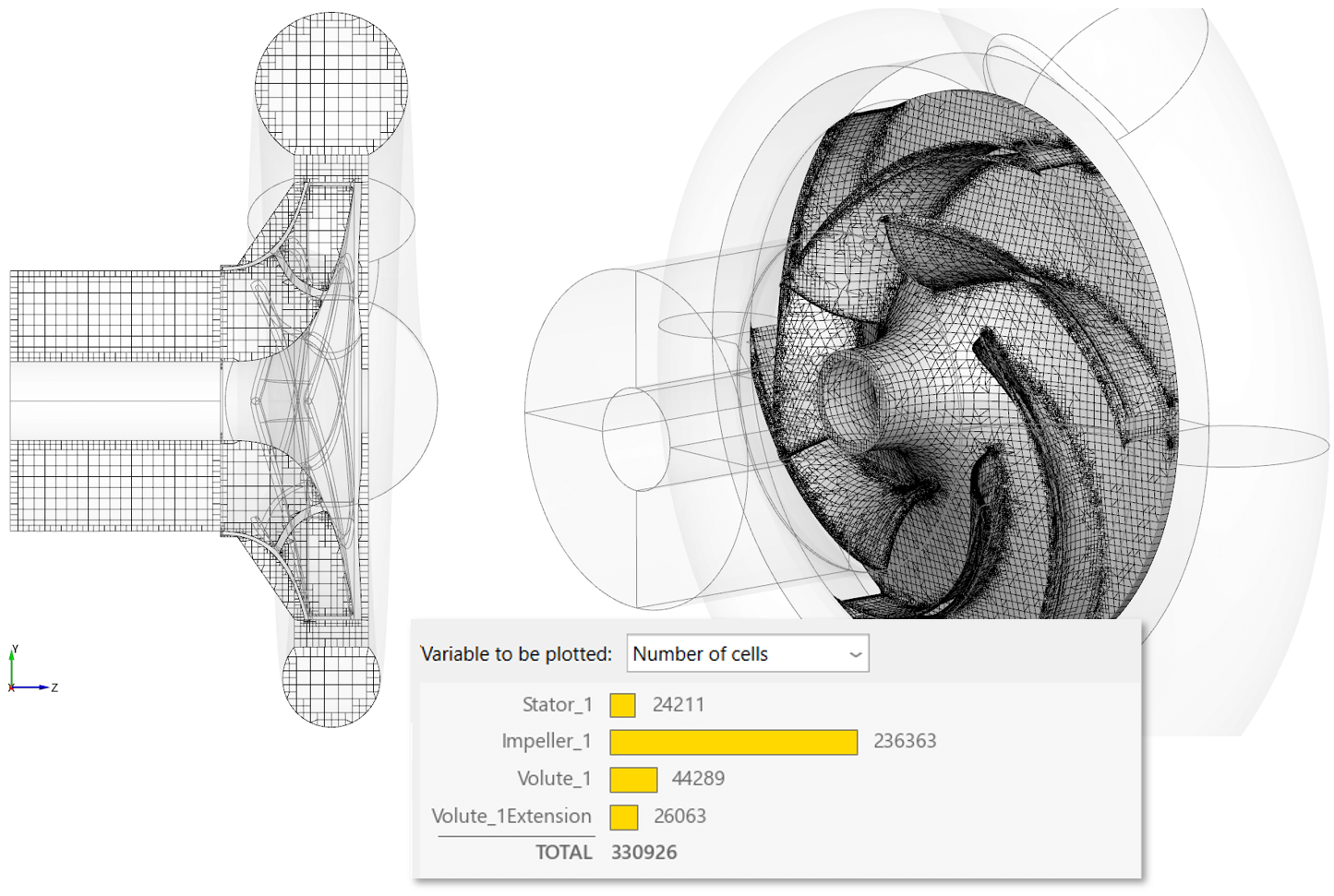
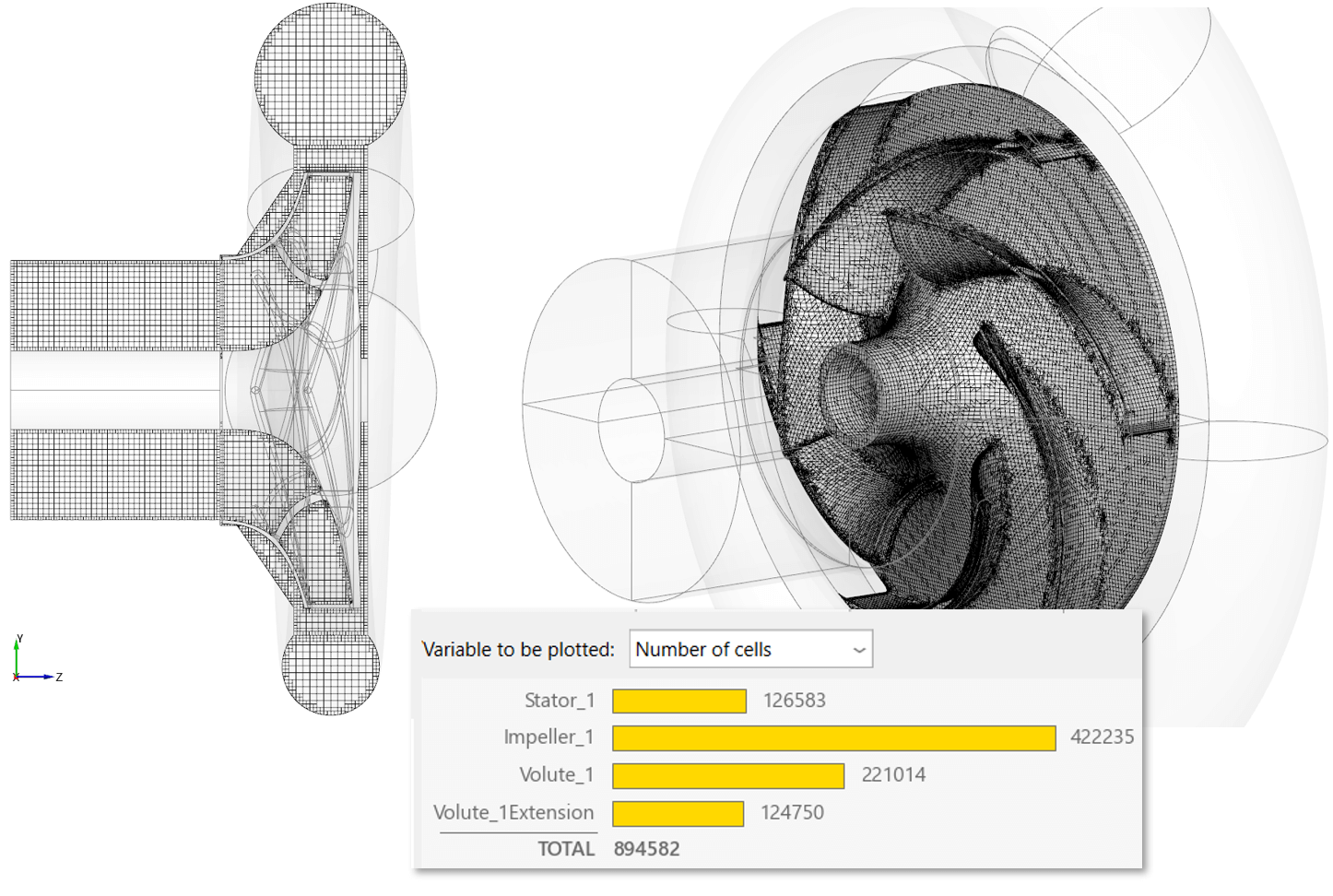
Meshes Medium, Fine, and User-defined #1 (top to bottom)
All of these meshes can be considered coarse. Their number of cells remains below 1,000,000 whereas mesh independence is expected at about 3,500,000 cells for this model. However, the number of cells in the volume and on the surface of the blades, and thus the resolution of the flow field and of the surface pressure distributions, increases systematically from grid to grid.
By applying the same numeric schemes the conditions for the flow simulations are kept constant for both steady and transient flow simulations:
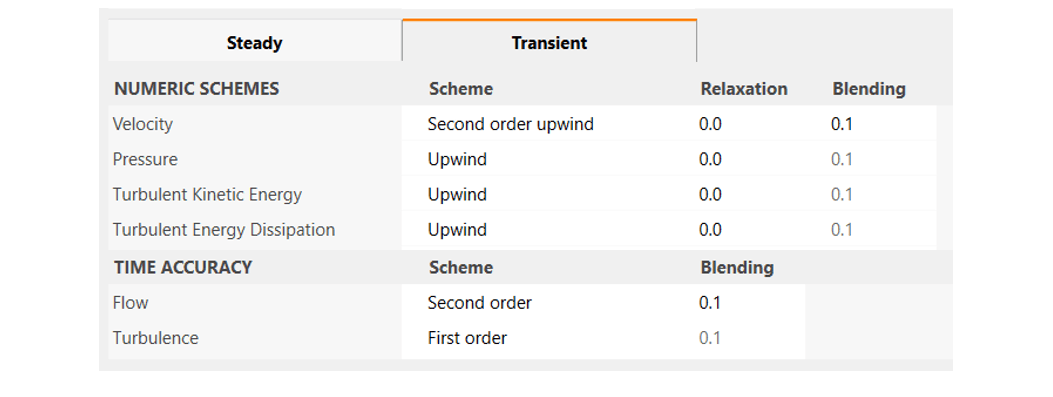
In case the convergence criterion is not reached for the steady simulations in the partial load regime due to residuals settling at a higher level, the blending factor of the velocity equation is gradually increased to a maximum of 0.6. Converged solutions are thus obtained for all operating points. For the transient simulations, the settings shown are sufficient to reach the convergence criterion. 20 iterations or time steps, equal to one blade pass, are used for averaging.
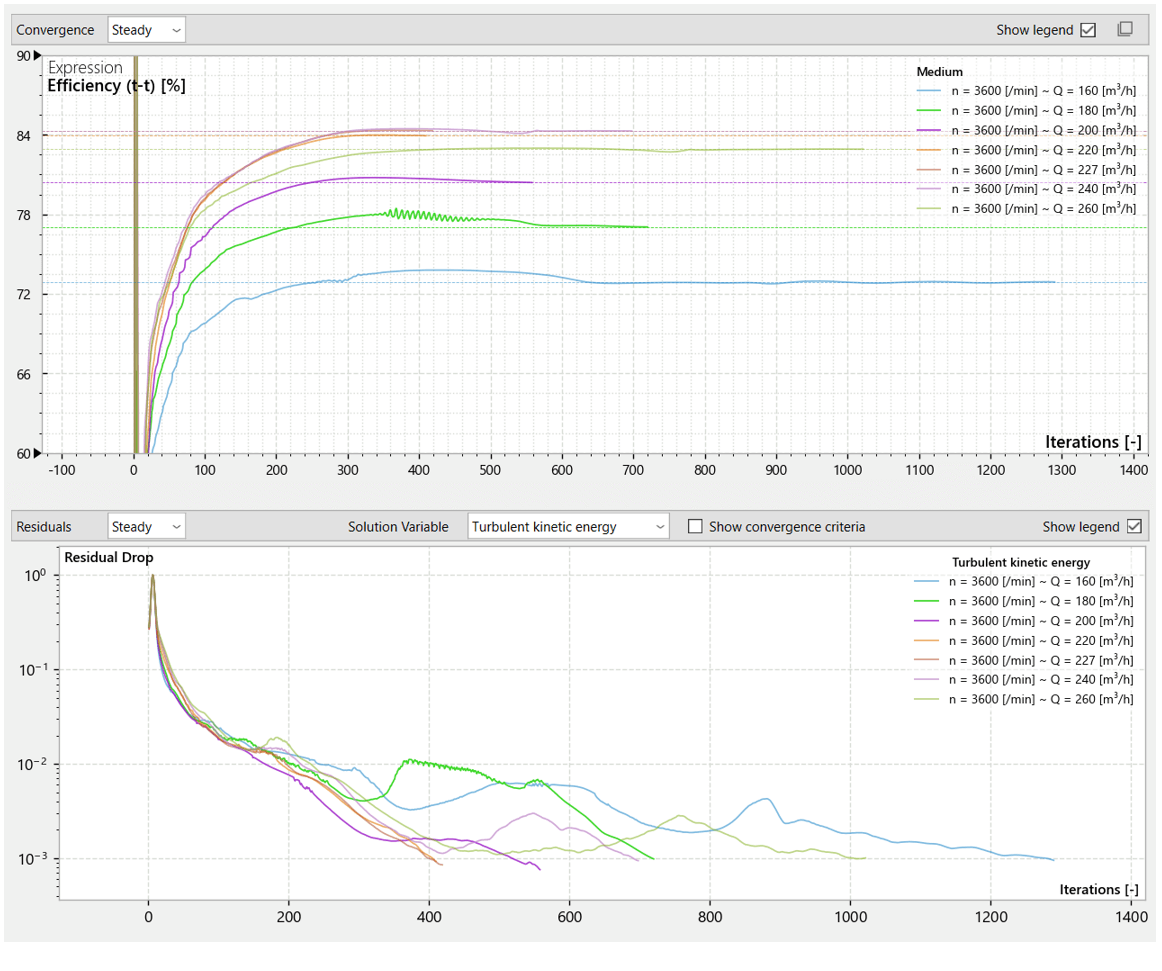
Convergence of the steady-state simulations for the Medium mesh
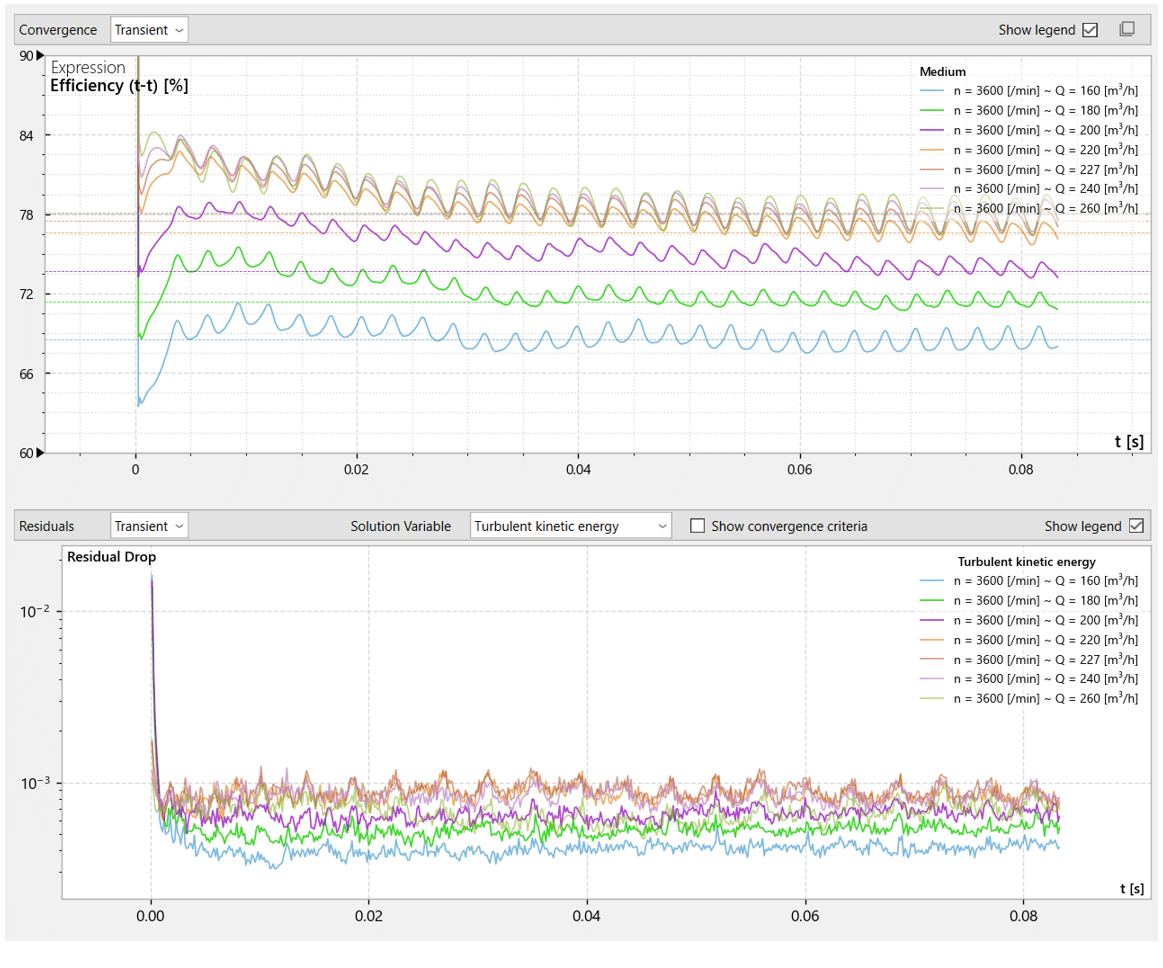
Convergence of the transient simulations for the Medium mesh
The most important performance curves for describing a centrifugal pump are head and shaft power, while the total-to-total efficiency is calculated from these values. In the Performance diagram, steady-state simulations with the three meshes provide almost identical curves for the head with a spread of only 0.5% at the design point. The exact value of a data point can be obtained by approaching the cursor.
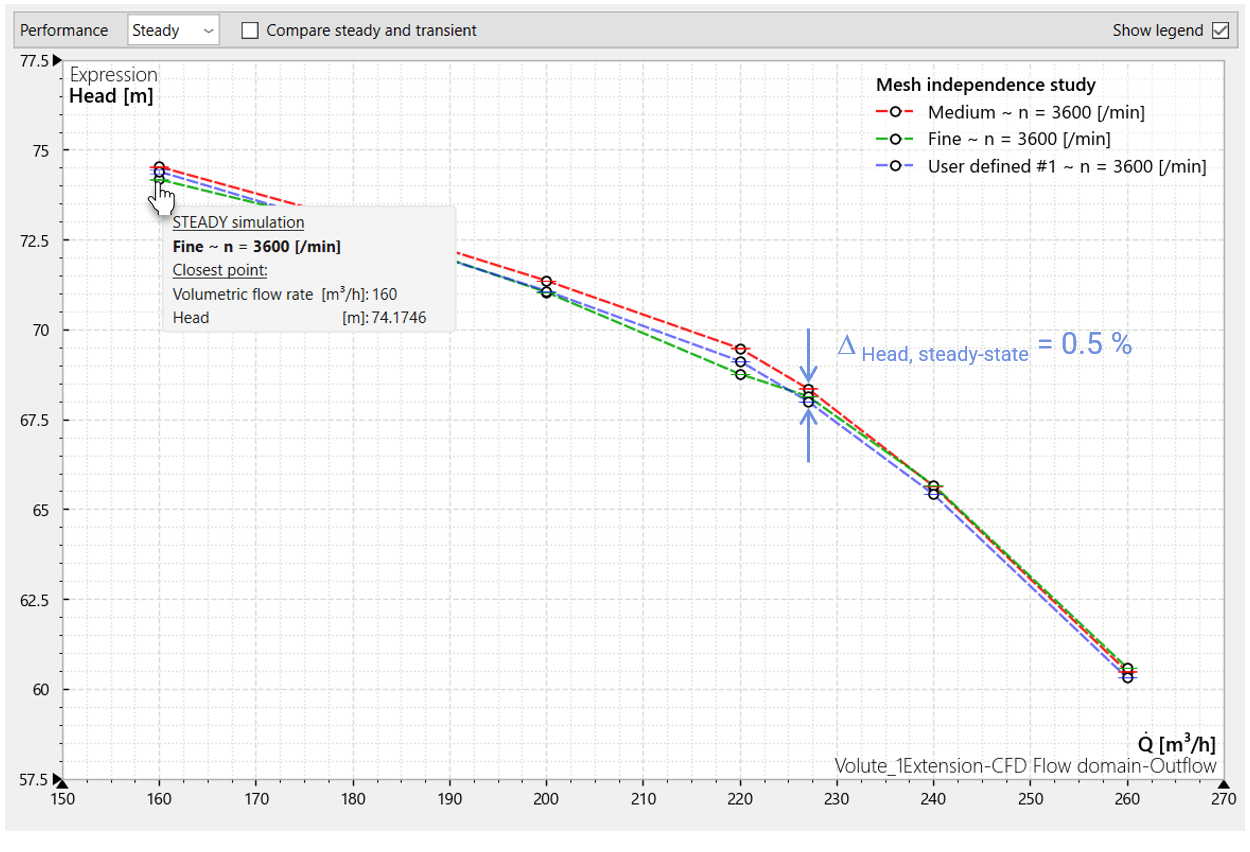
Almost identical head curves obtained by steady-state simulations
The head curves of the transient flow simulations are also almost identical.
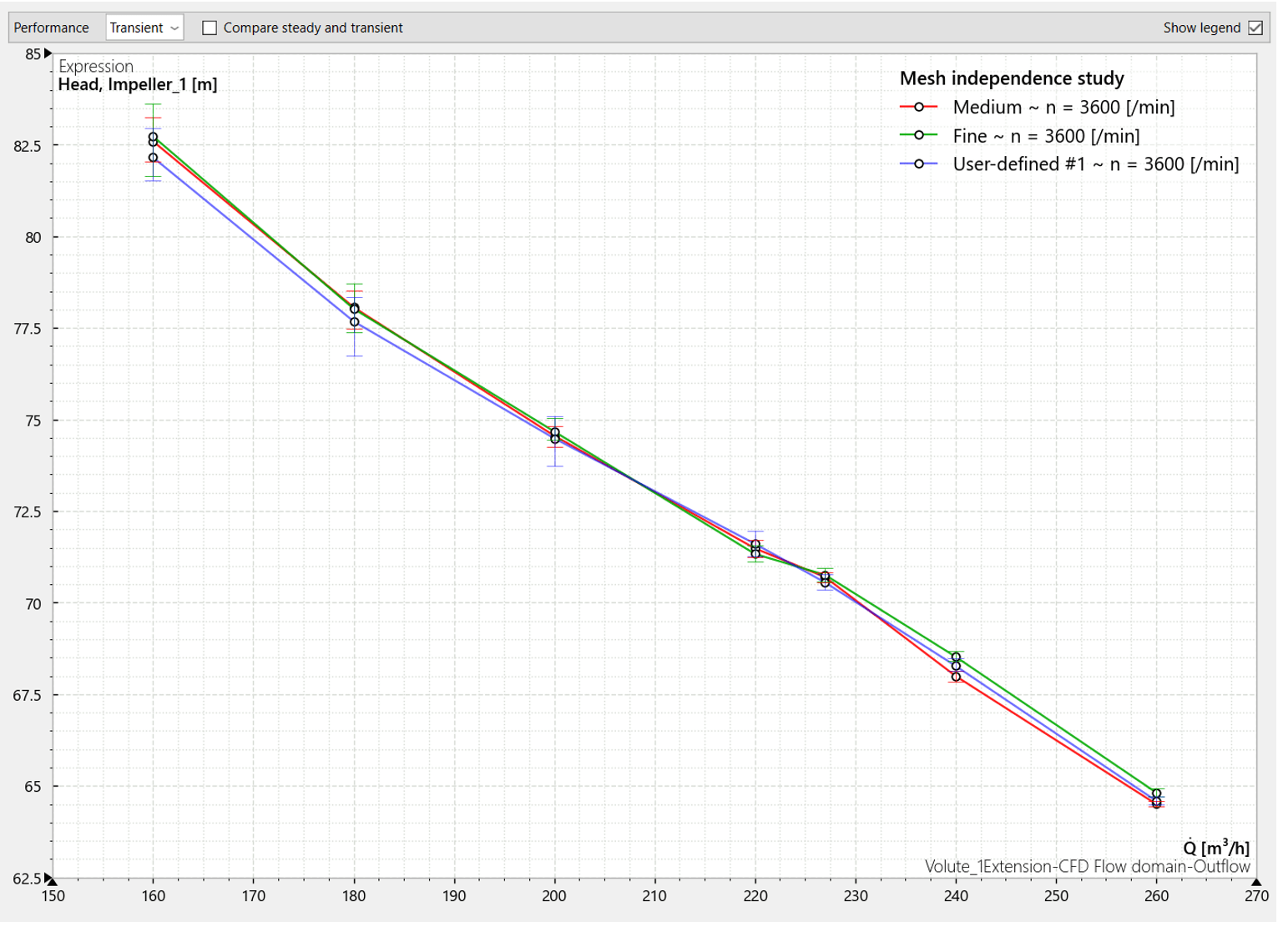
Head curves obtained by transient flow simulations
Combining the two sets of curves, the head curves obtained by transient flow simulations are very close to the steady-state results, but generally show a more linear progression with a minimum deviation of 3.0% for the User-defined #1 mesh in partial-load operation.
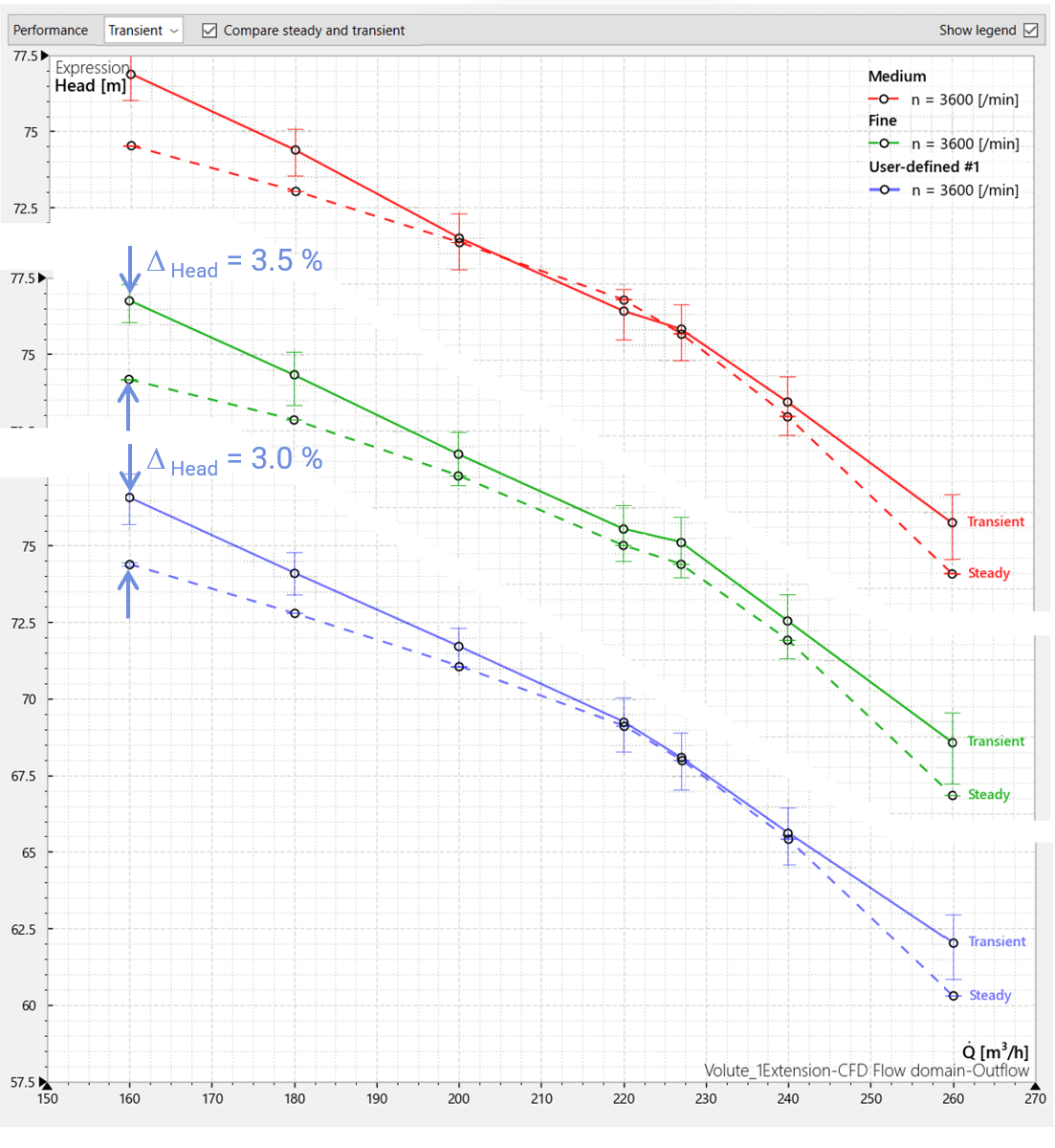
Head curves in a stacked view to directly compare steady-state (dashed lines) and transient simulations
This deviation should be visible in the flow field. For this purpose the steady-state and transient results for the partial load point Q = 160 m³/h are directly opened in Simerics MP/MP+ via the context menu.
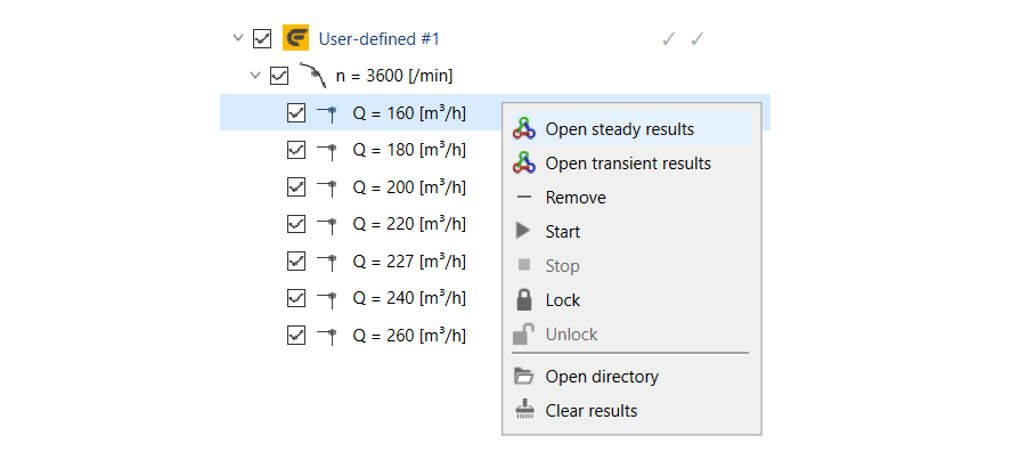
Context menu of the operating point for visualizing results in Simerics MP/MP+
The following image shows the velocity distribution in a section at half the blade height at the outlet. Even within the impeller Simerics MP/MP+ displays the velocity in stationary frame rather than the relative velocity in the rotating frame. Nonetheless, the differences in the flow field between the frozen rotor method used for the steady-state simulation (left) and the transient simulation (right) are clearly visible both in the wake of the blades and in the volute, particularly at the cut-water.
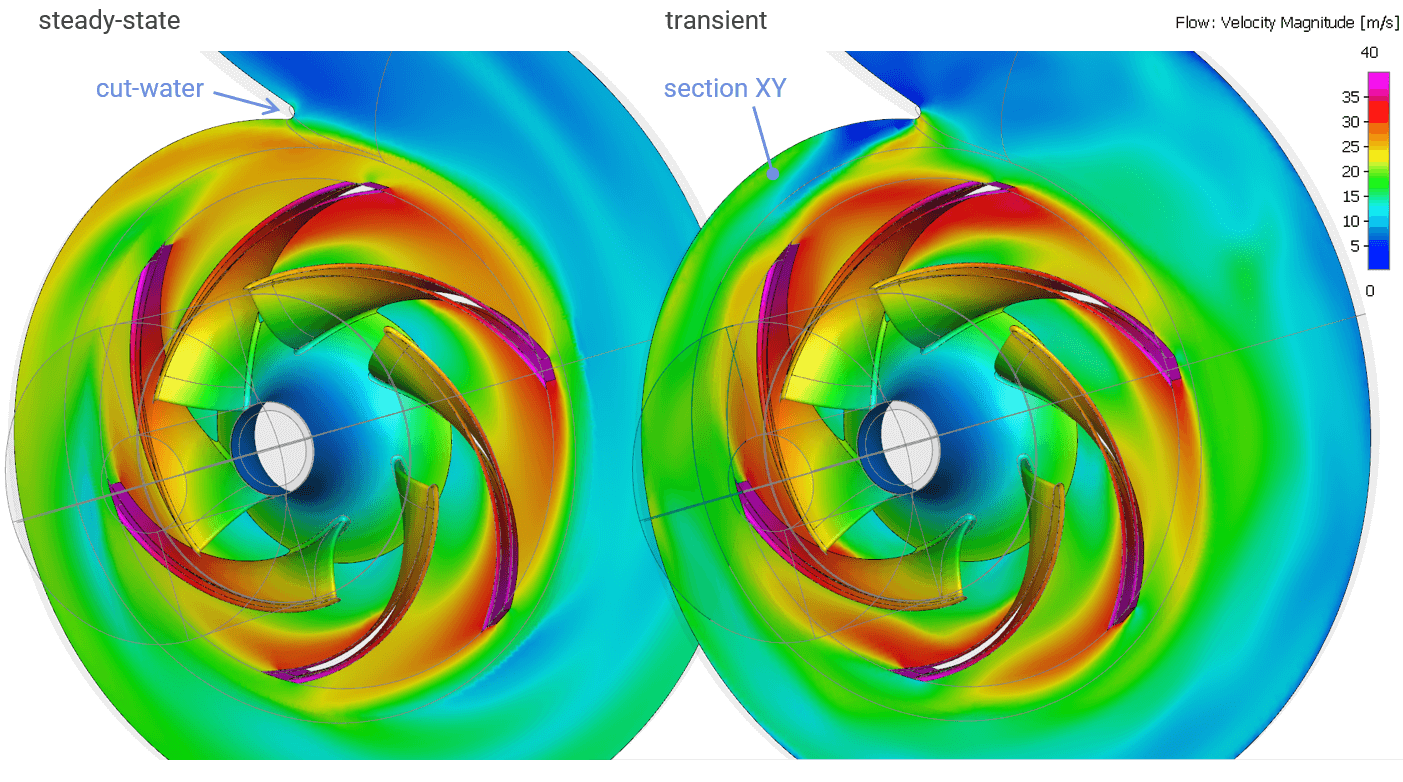
Velocity distribution on a section at half the outlet blade height for the operating point Q = 160 m³/h
Black and white stripes are useful to highlight the differences in the pressure field. In the transient simulation, a change to black can be seen near the cut-water, indicating a higher pressure build-up there than in the steady-state simulation.
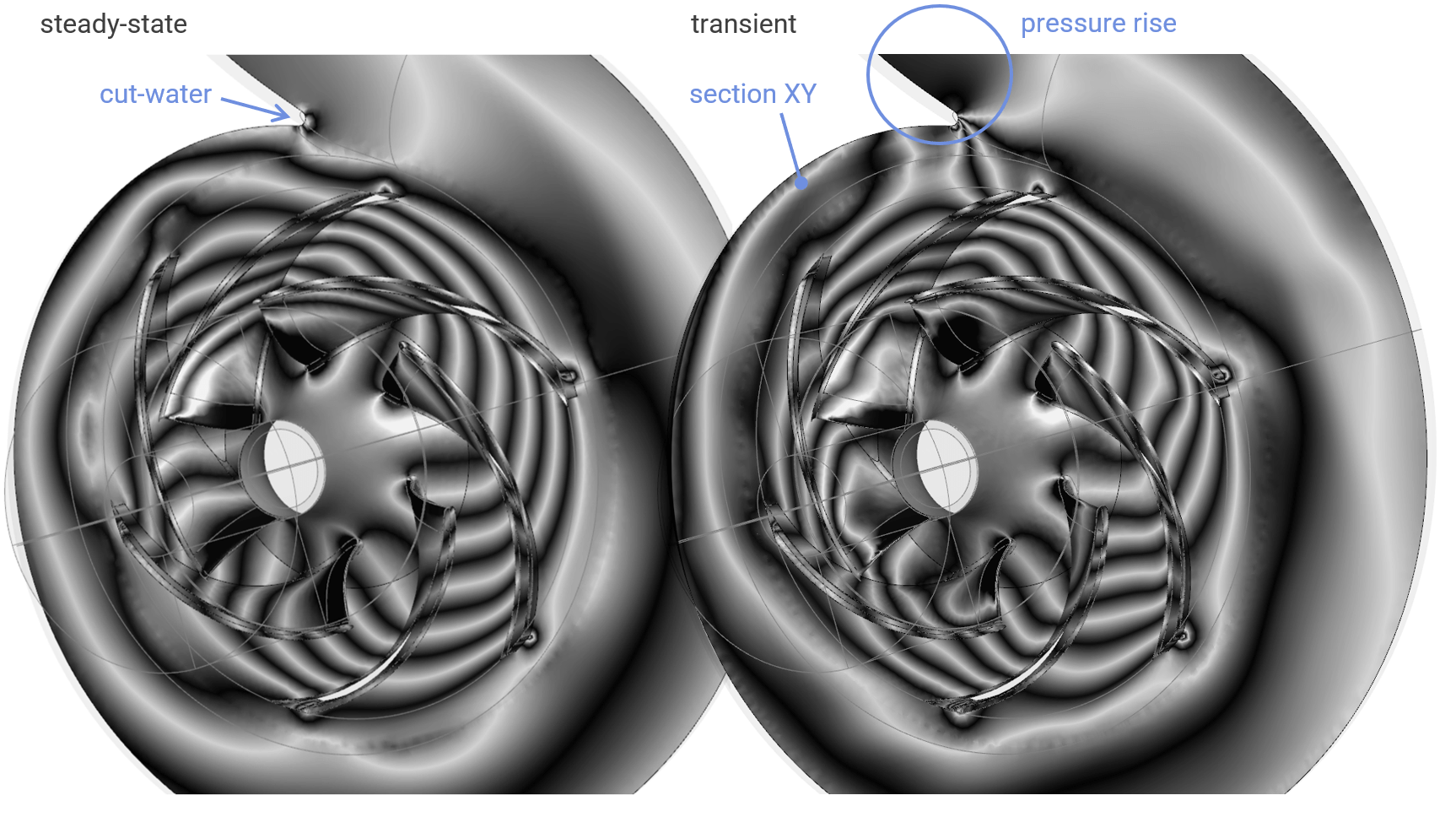
Pressure distribution on the same section: higher pressure rise with the transient solution (right)
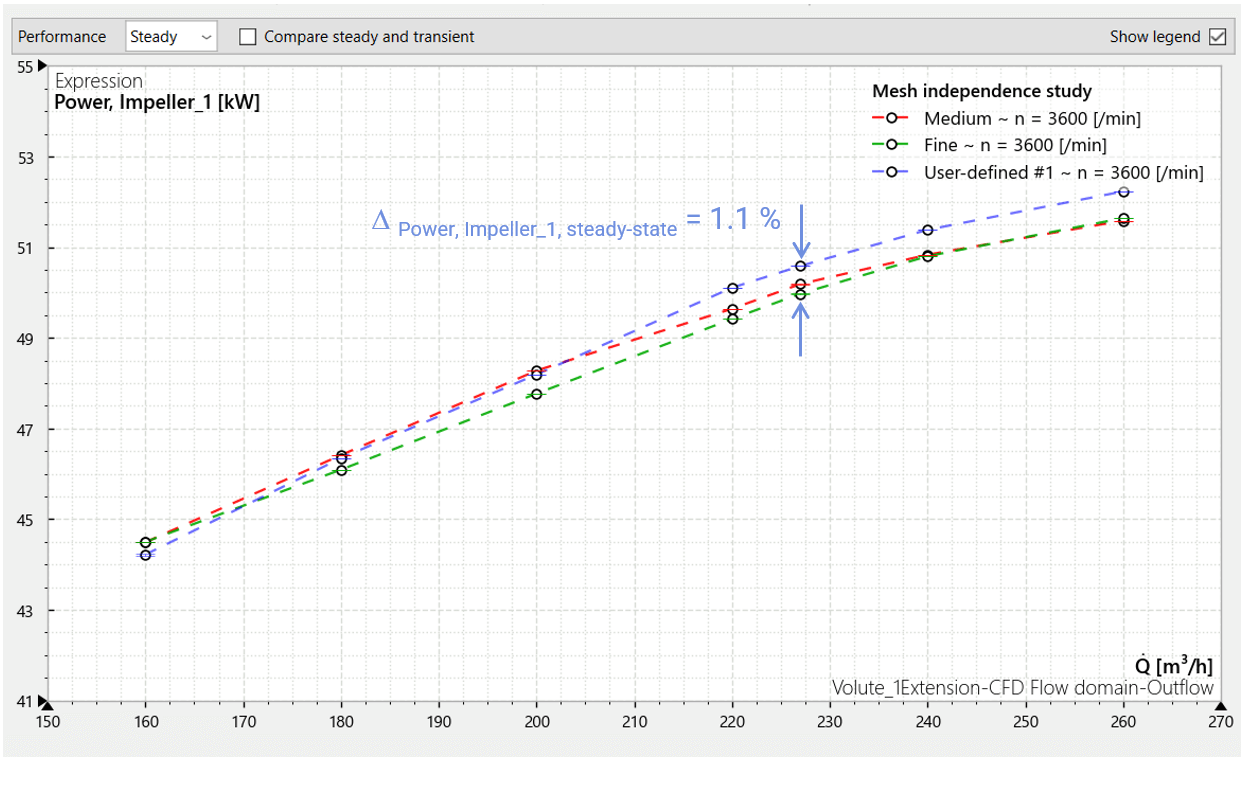
For the shaft power, steady-state simulations also provide almost identical curves with a spread of only 1.1% at the design point.
The power curve obtained by transient flow simulations fully coincides with the steady-state curve for the User-defined #1 mesh and shows a maximum spread at the design point of 2.1% for the Fine mesh.
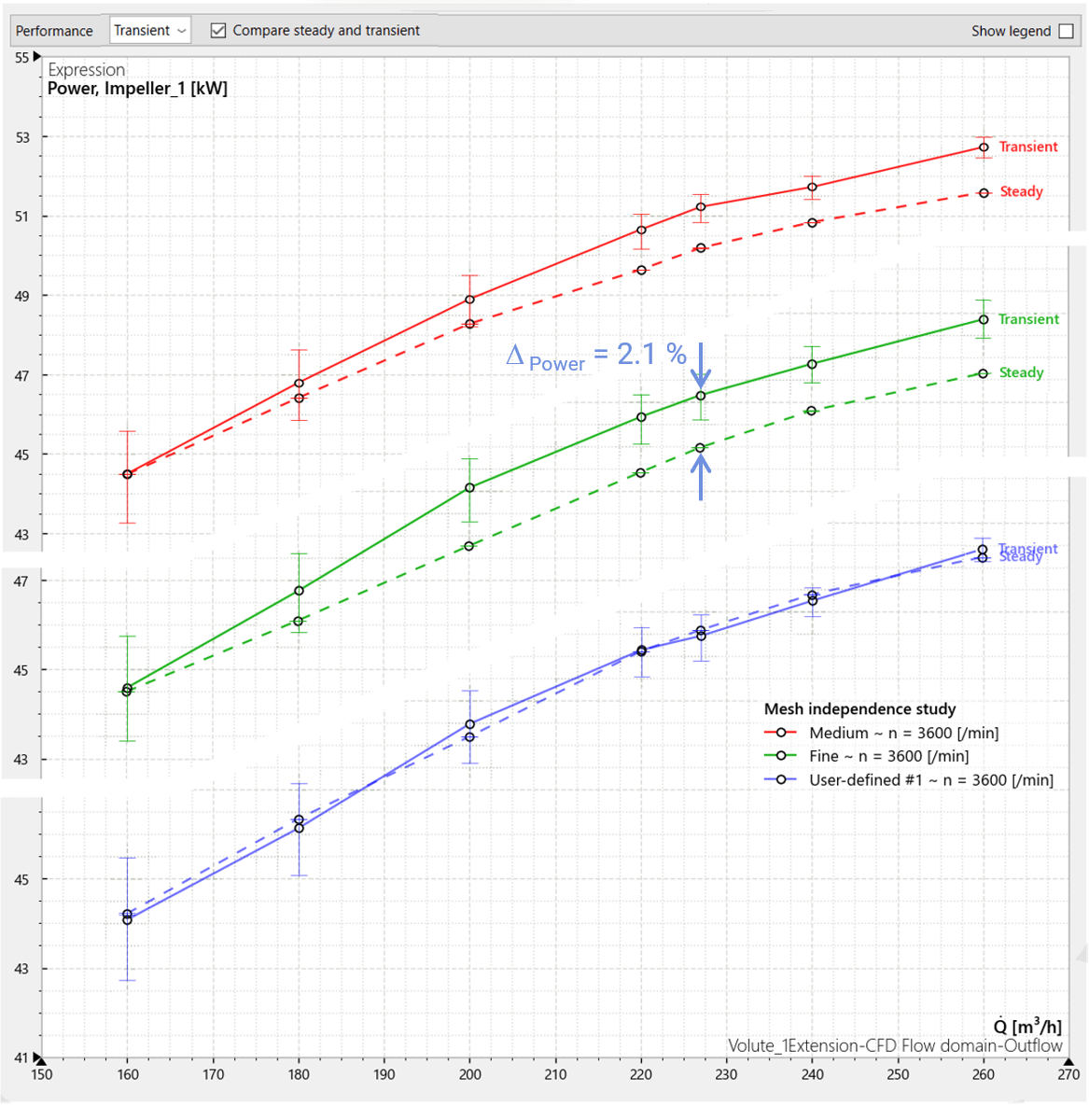
Power curves in comparison in a stacked view: steady-state (dashed lines) and transient simulations
For this mesh and operating point the pressure distributions on the blades are visualized using Simerics MP/MP+ but without a noticeable difference betwenn the steady-state and the transient results, neither on the pressure side nor on the suction side.
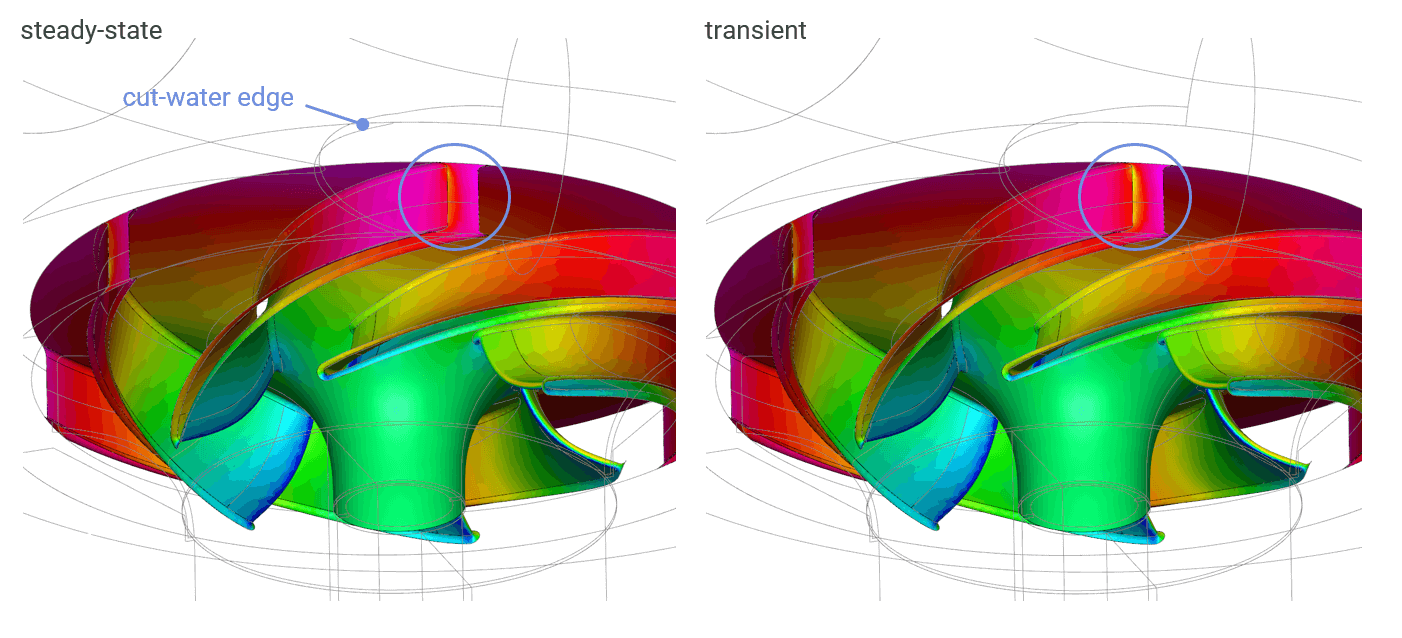
Pressure distribution on the impeller blades: barely perceptible difference (in circles) between steady-state (ledt) and transient (right) results
This brief investigation is not yet sufficient to achieve mesh independence. However, it shows that even fairly coarse grids can reproduce the curves of important expressions quite well, and do so in a short computing time. The use of transient simulations, especially away from the design point, produces results that are closer to physical reality than steady-state simulations.
A look at cavitation
Turbopumps in rocket engines deliver fuel and liquid oxygen (LOX) from tanks that are pressurized to approximately 0.2 MPa (2 bar) above ambient pressure and feed the liquids to the combustion chamber. Each turbopump consists of a centrifugal pump with an upstream inducer, at the blade edge of which cavitation occurs, which can be controlled by local confinement. The difficulty lies in simulating the process.
A steady-state simulation is quick to run, but may not accurately represent the transient process, as shown in the following CFturbo design of a LOX turbopump.
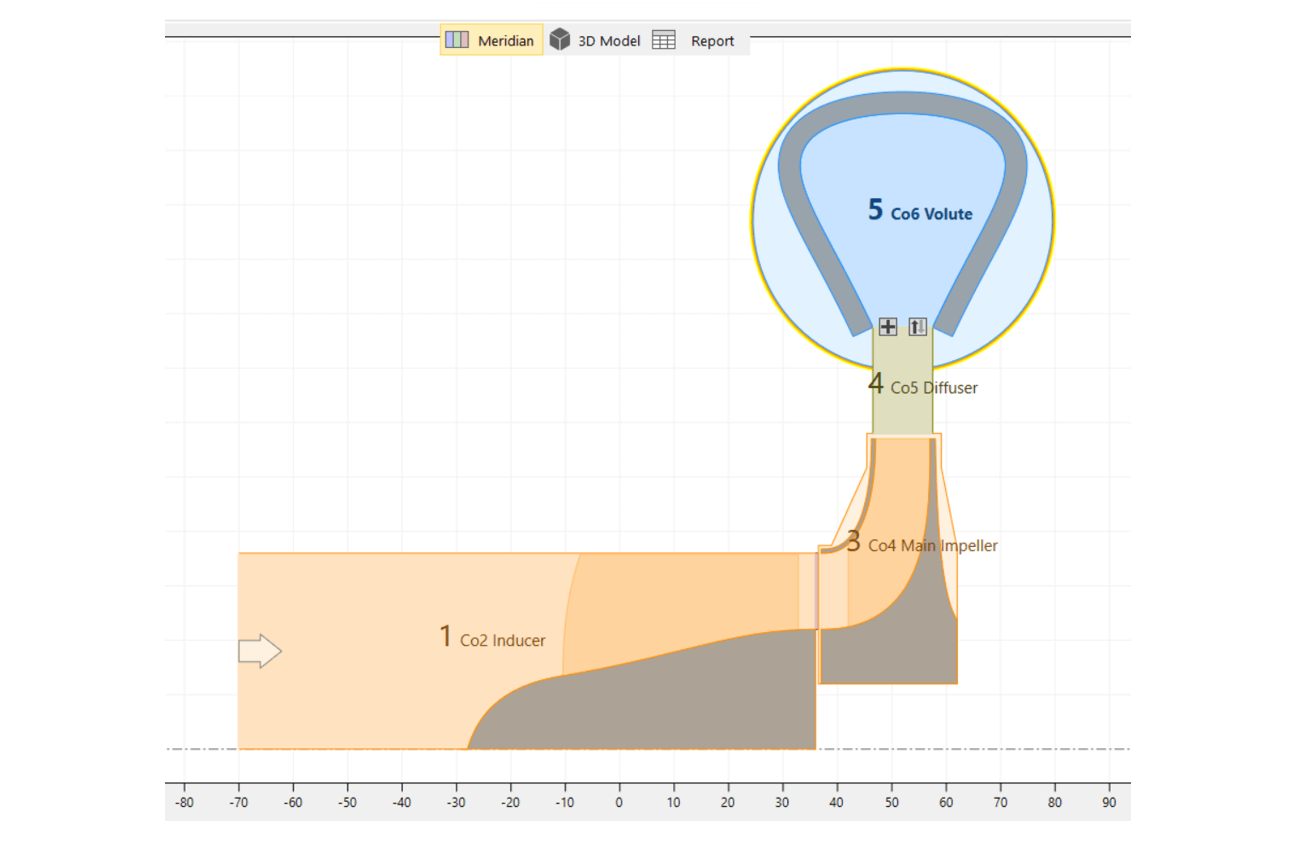

Meridional section (top) and 3D view (bottom) of a LOX turbopump in CFturbo
The steady-state simulation, with the Simerics MP/MP+ cavitation module activated, shows an efficiency curve that turns negative with the residuals of the solution variables diverging, indicating that cavitation is improperly computed.
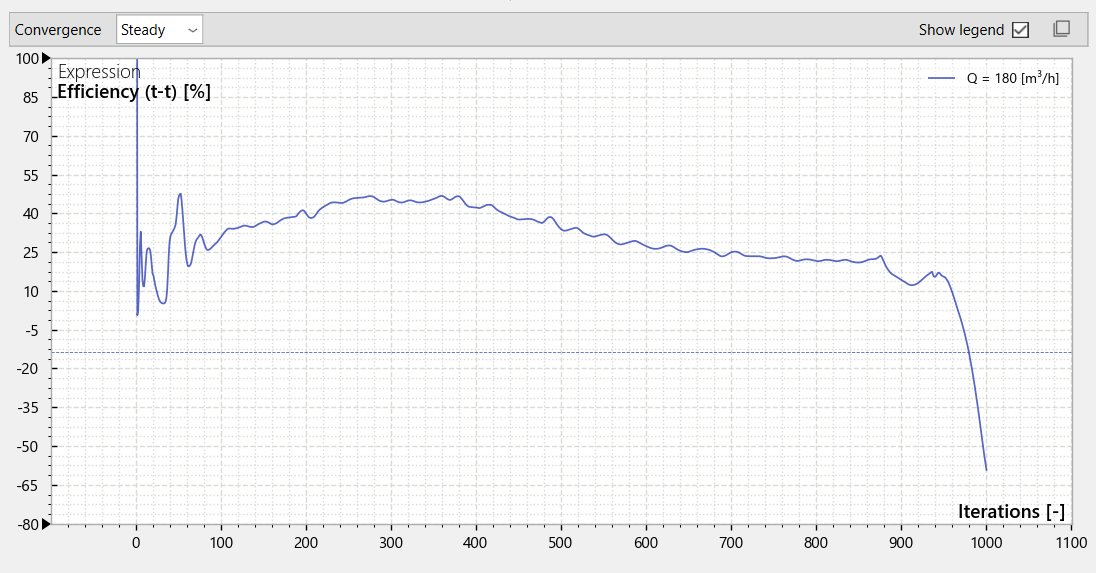
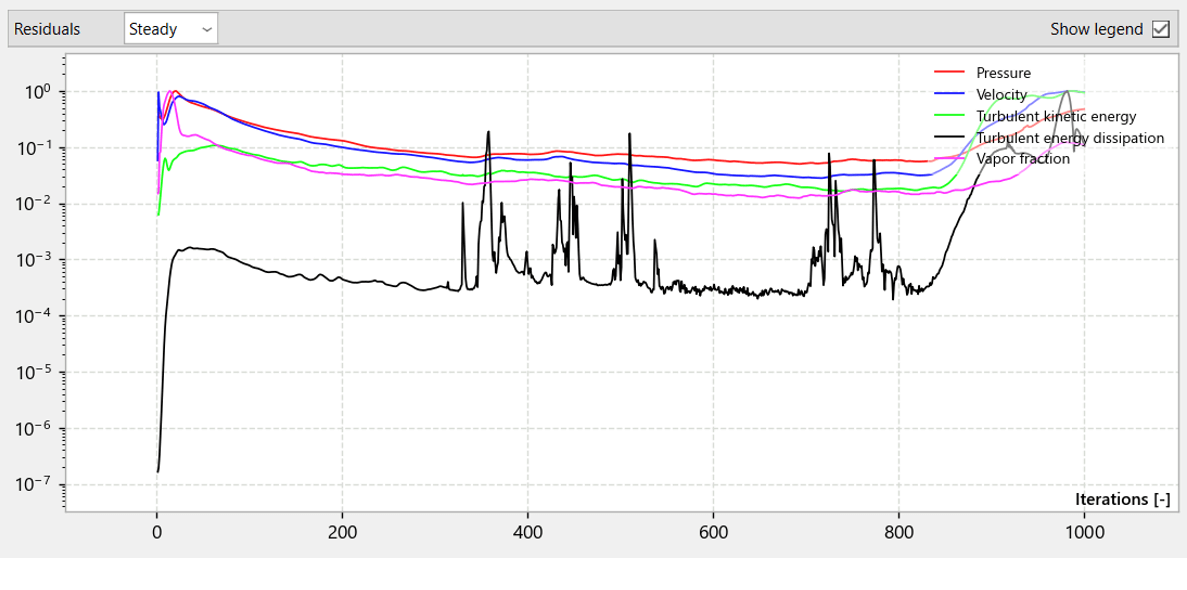
Steady-state simulation: total-to total efficiency turning negative (top), residuals diverging (bottom)
In Simerics MP/MP+, the cavitation zone can be visualized by an isosurface with a vapor volume fraction of, for example, 80% and above.

In the steady-state flow simulation, this cavitation zone extends through the entire inducer and then fills the blade channels of the impeller, which is unrealistic since a pressure of approximately 18.0 MPa (180 bar) builds up there.
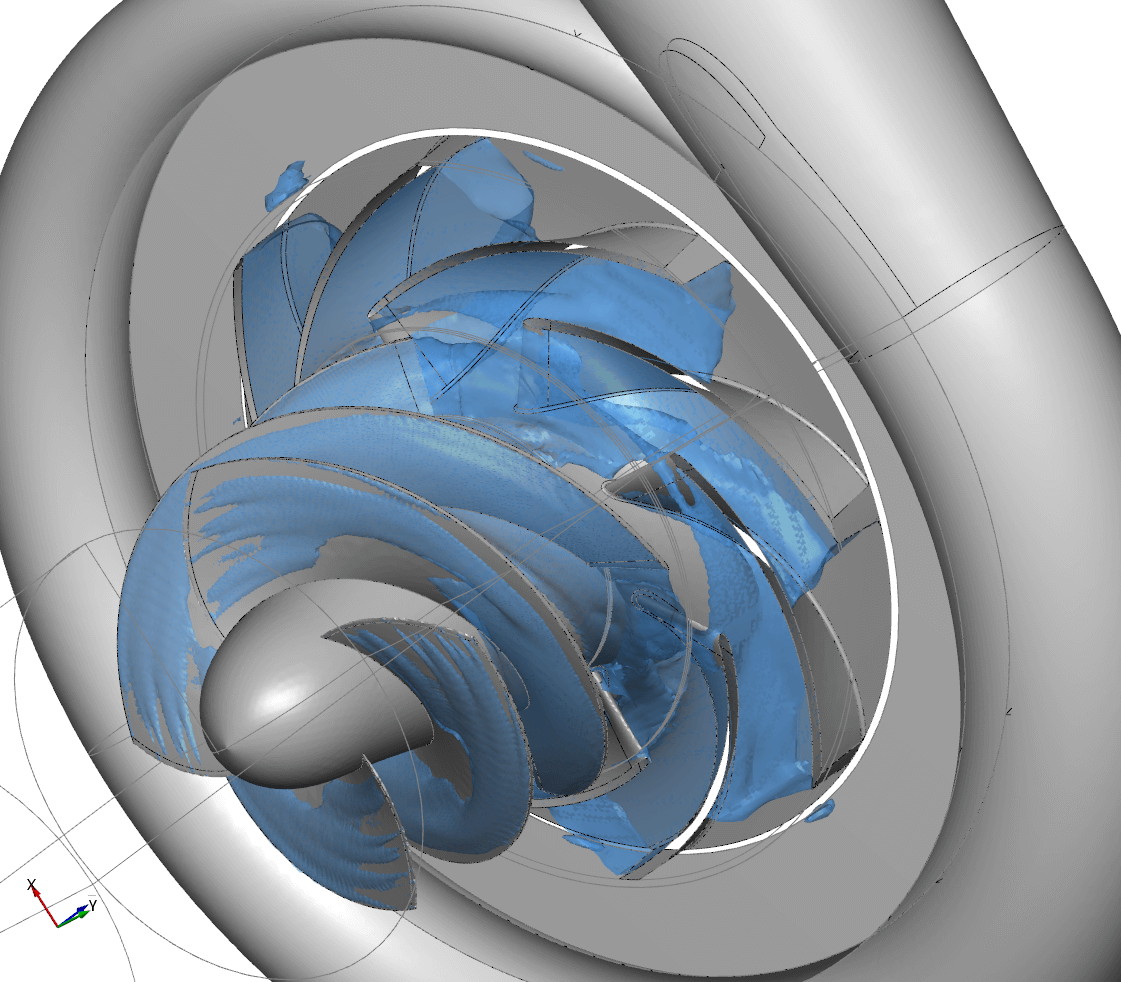
Steady-state flow simulation: unrealistic expansion of the cavitation zone (light blue) into the impeller
In contrast, the transient simulation already reaches an efficiency level of around 80% after just a few calculation steps, while the velocity and cavitation residuals have already decreased significantly.
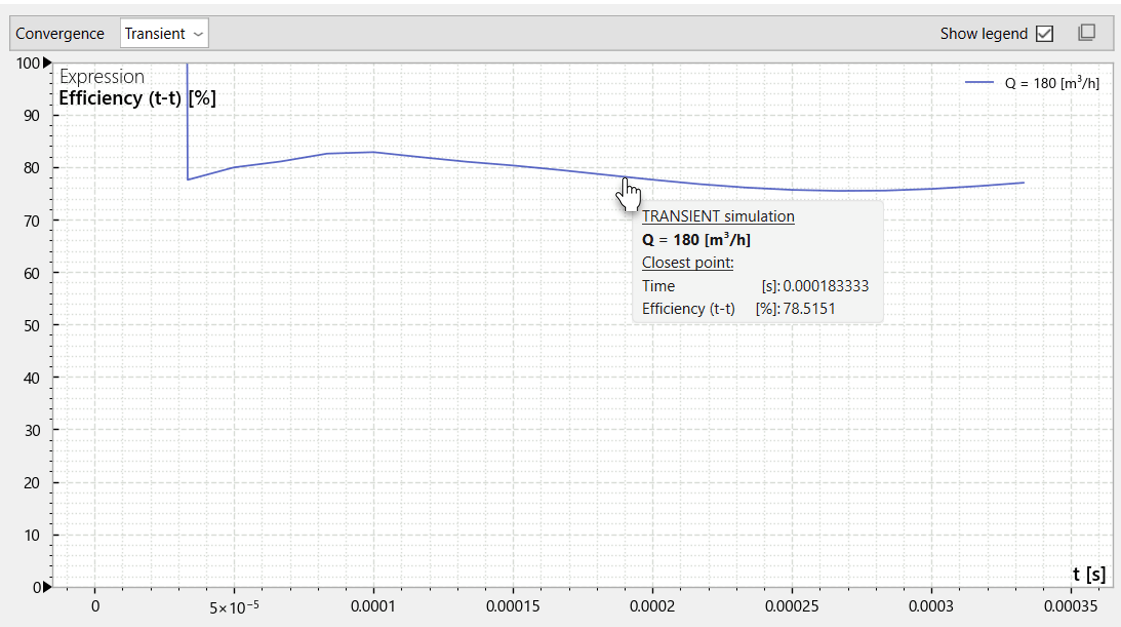
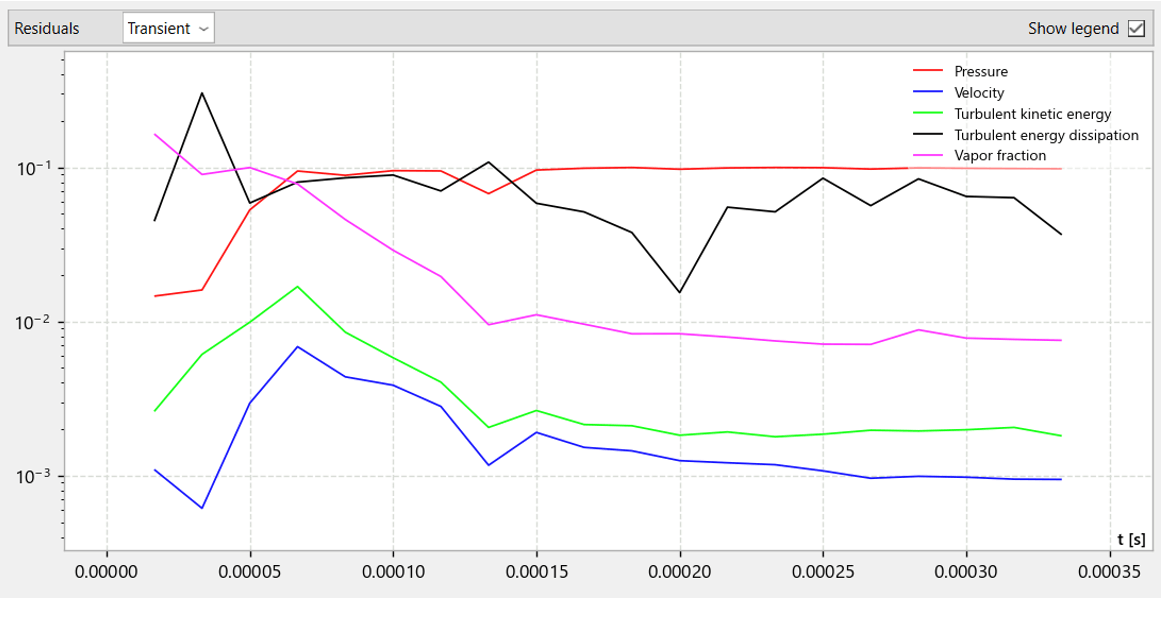
Transient simulation: high total-to total efficiency (top), already low velocity and cavitation residuals (bottom)
In the transient simulation, the cavitation zone remains limited to the area around the leading edge and outer edge of the inducer blading, which corresponds to the expected behavior. A pressure of 18.0 MPa (180 bar) builds up in the impeller.
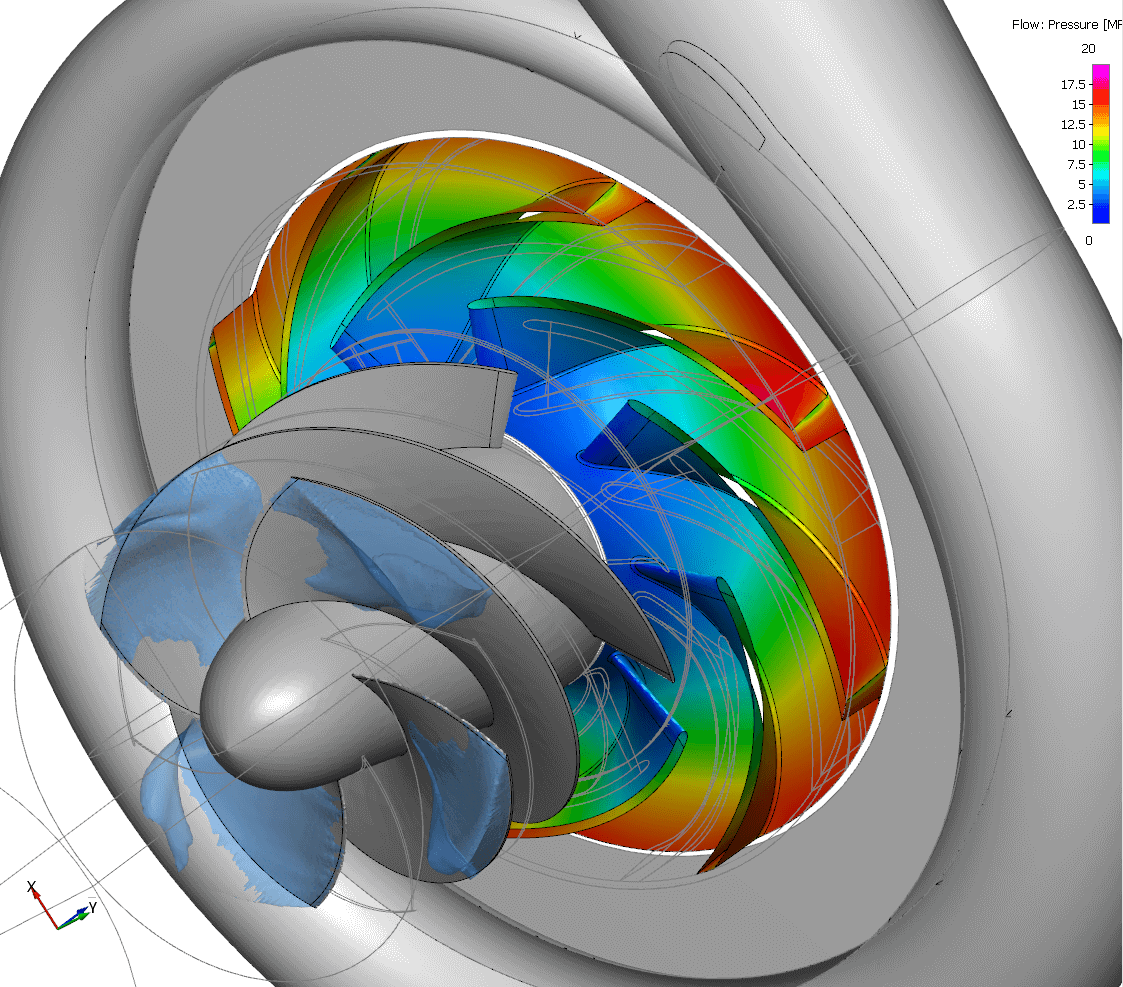
Transient simulation: realistic limitation of cavitation (light blue) to the inducer inlet, development of wall pressure of the impeller
Data export
CFturbo BLADERUNNER offers the option of exporting the data displayed in the Performance diagram
as an image via the clipboard or as a file in bitmap or vector format, or
as structured tables in a spreadsheet of a Microsoft Excel workbook file
To do this, right-click in an empty area to open the diagram's context menu and select one of the options:
Copy to clipboard
Save diagram as a bitmap or as vector graphics, or
Export to Excel
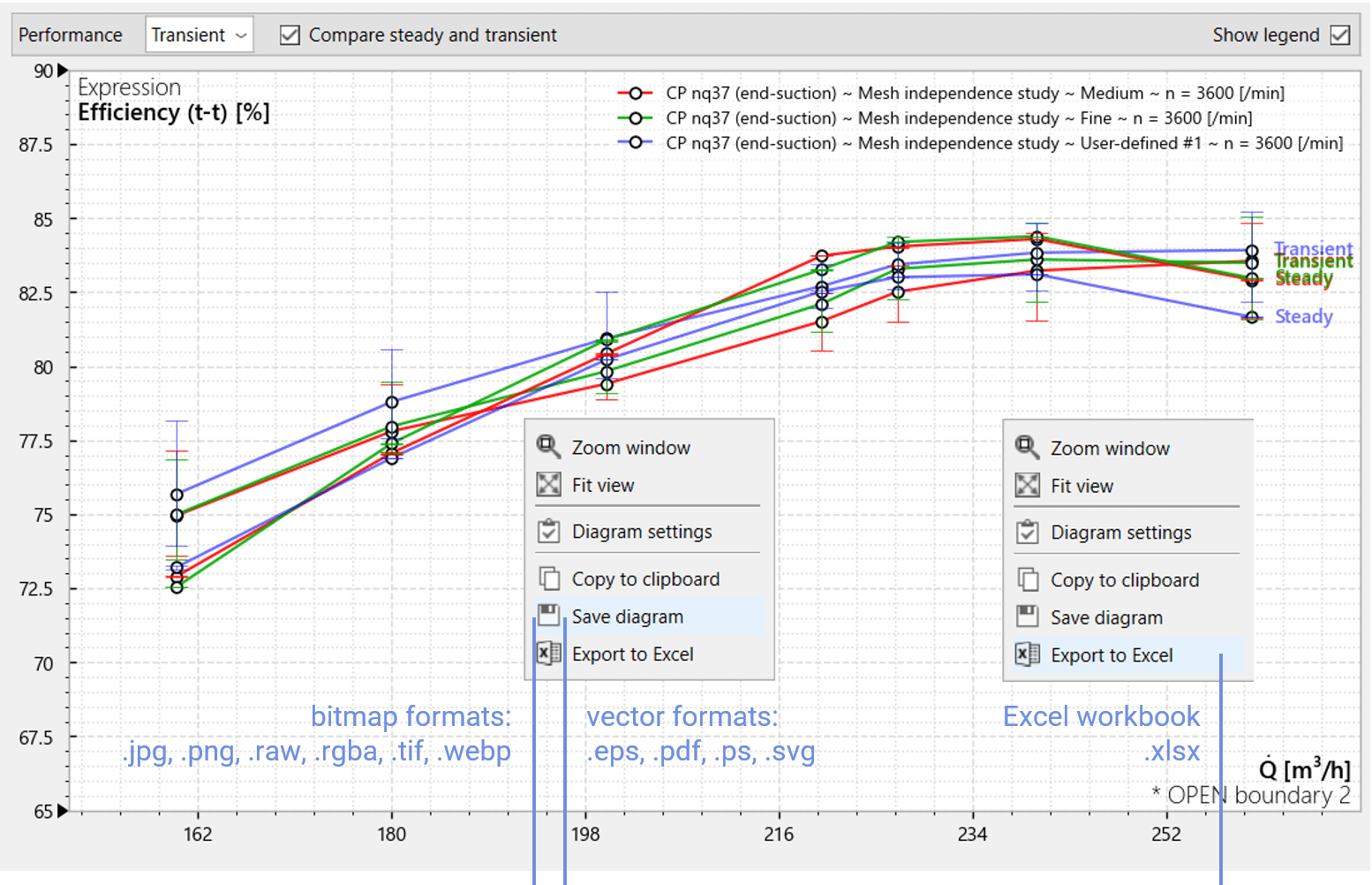
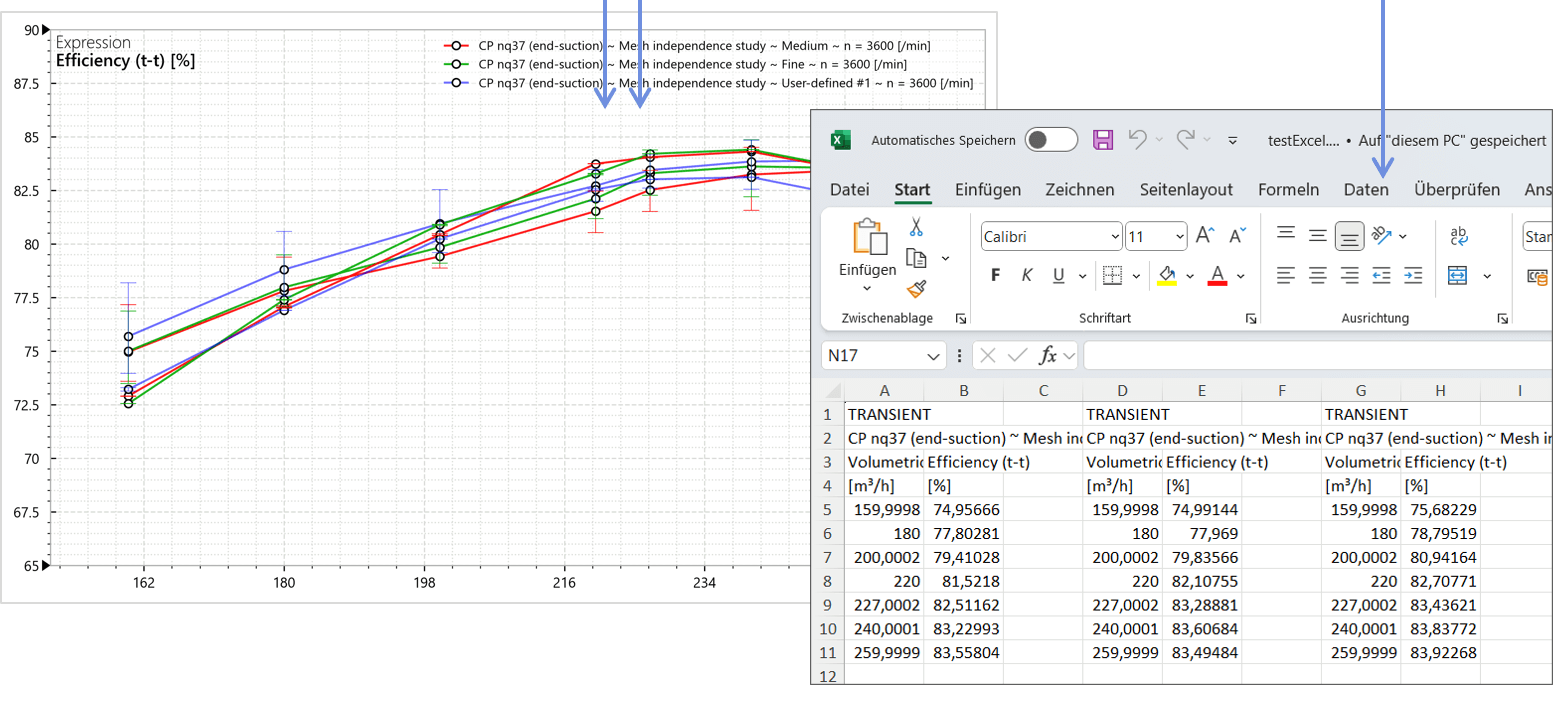
Options for exporting data from the Performance diagram