Controlling CFD runs
Starting CFD runs
CFD runs can be started in CFturbo BLADERUNNER from any level in the workspace tree by selecting Start from the context menu. The CFD runs are then carried out sequentially for all objects on the level below. Selecting Start on the performance curve level, for example, initiates CFD runs for all operating points of this performance curve.
For a quick overview, it is sometimes useful to start simulations for some individual operating points, the design point, one point to the left and one point to the right of it, using the context menu of the individual operating point.
Whether Steady, Transient, or Steady and transient flow simulations are started depends on the Run type setting of the respective performance curve. Information about the status of a flow simulation is provided by the two columns S for Steady and T for Transient runs in the workspace bar to the right of the columns E for geometry export and M for meshing.
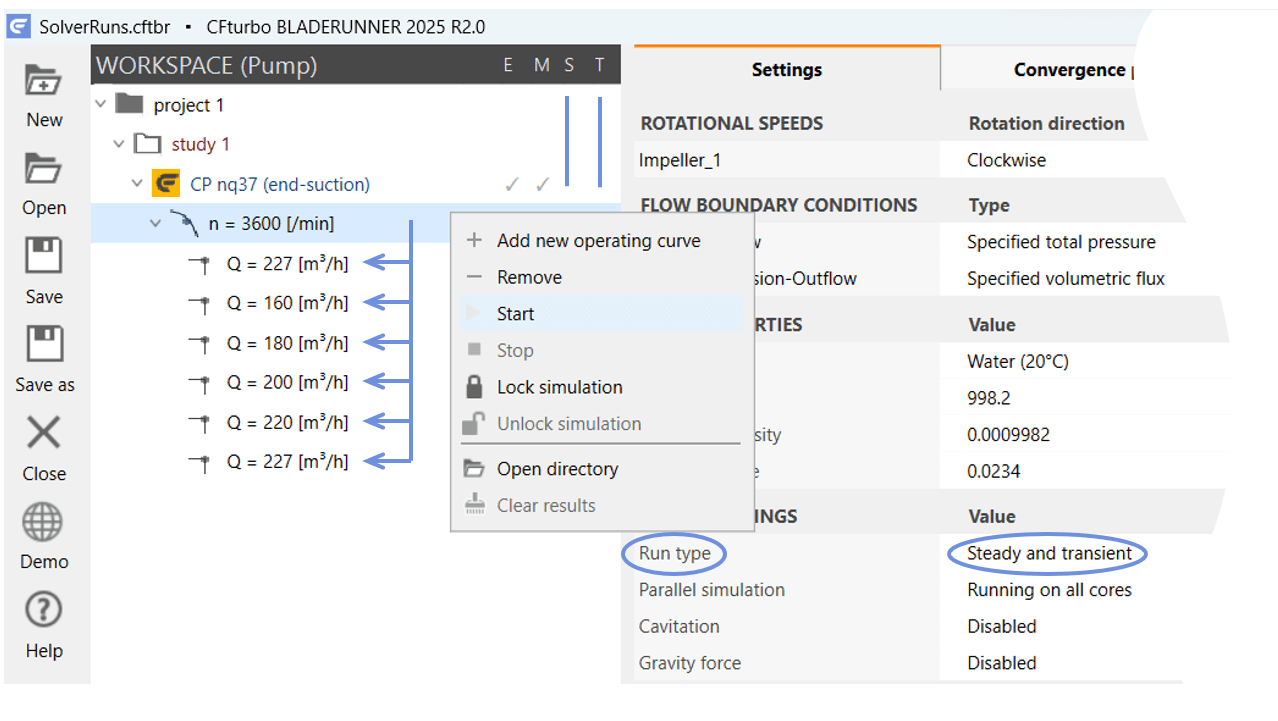
Starting Steady and transient flow simulations for a whole performance curve
When starting one or more flow simulations CFturbo BLADERUNNER
first saves the workspace, eventually asking for a file name
queues the operating points to be computed in the order in which they were selected
checks whether a Simerics MP/MP+ license is available
starts the computation of the first operating point in the queue
With the Steady and transient option, two series of CFD runs can be started at once, first a series of Steady simulations followed by a series of Transient simulations, with or without initialization by the results of the Steady simulations. If Intelligent is selected as the RUN SCHEME for the Steady simulations, the flow simulation for a new operating point is initialized with the result of a neighboring operating point. With the Middle setting, the calculation of the middle point of the performance curve is started, which usually corresponds to the design point of the turbomachine.
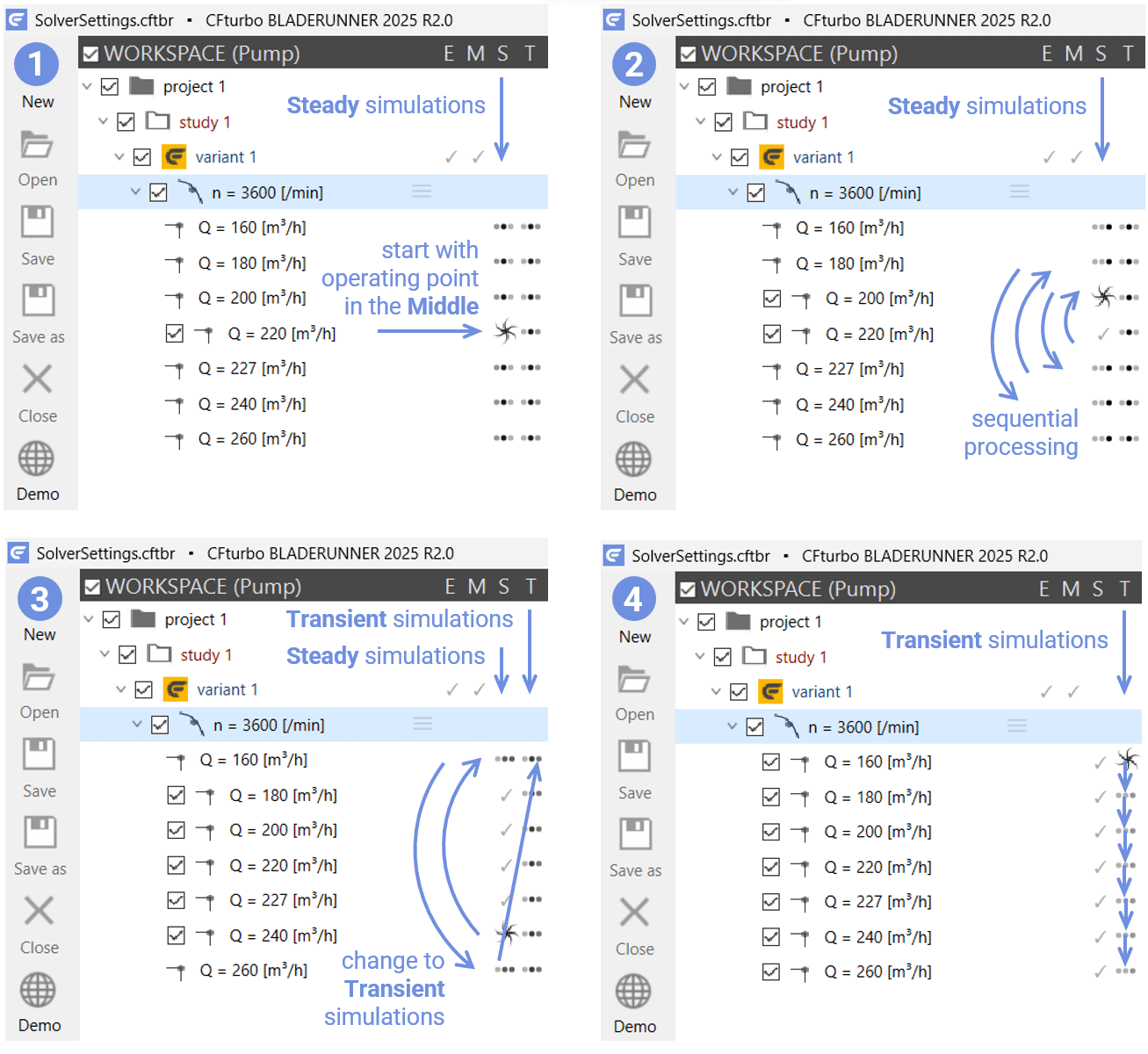
Processing steps for Steady and transient CFD runs using the option Intelligent - Middle
If no license for Simerics MP/MP+ is available for a CFD run a red exclamation mark appears on the icon of the corresponding operating point, a tooltip indicates that the Simulation was not successful, and the error message License request failed appears in the log window.
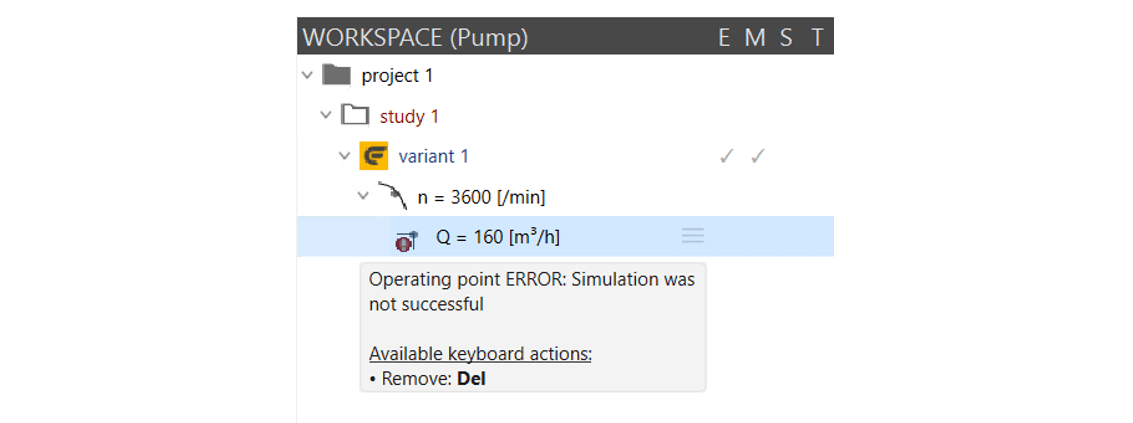

Error messages in case of Simerics MP/MP+ license unavailability
Stopping CFD runs
Stopping flow simulations is just as easy as starting them. Selecting Stop from the context menu of any object in the workspace tree stops the running flow simulation and all pending ones below this level. Stopping flow simulations for example on the performance curve level stops the flow simulations of all operating points belonging to this performance curve even if they were started one by one for particular operating points. Depending on the size of the mesh it may take a while until all data is written to the .sres result file.
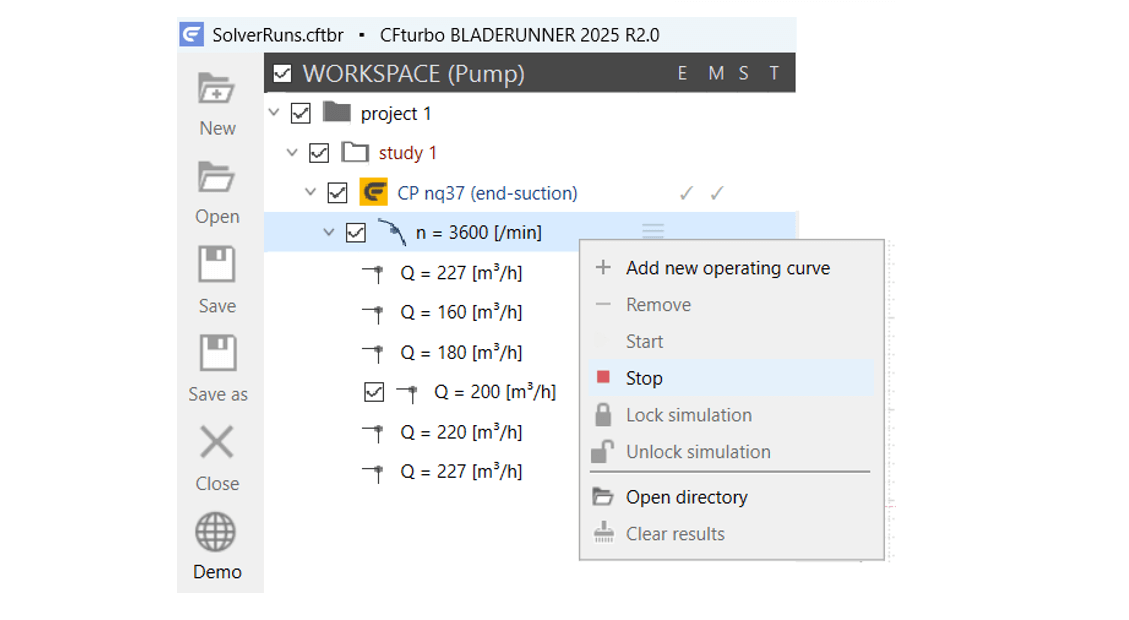
Showing/hiding and checking the status of CFD results
Once a flow simulation has been successfully started and is running, initial data is available and can be monitored. The operating point and all levels above such as the respective performance curve, variant ans so on then show a checkbox in the workspace tree that can be used to enable or disable the visibility of performance curves and curves of residuals, in CFturbo BLADERUNNER referred to as convergence plots.
Results are obviously also available for all completed flow simulations. The status in column S (Steady) or T (Transient) provides information about the quality of these results:
✓ - convergence criteria met
● - convergence criteria not met, but maximum number of iterations reached
○ - convergence criteria not met, maximum number of iterations not reached
In the latter case, the flow simulation was probably terminated by the user.
CFD results may easily be outdated in case the user changes any of the following values after the performance curve has been computed: ROTATIONAL SPEED, FLOW BOUNDARY CONDITIONS (value or type), FLUID PROPERTIES, Cavitation or the Gravity vector under SOLVER SETTINGS, or the NUMERIC SCHEME. Then the symbols above change to orange color.
If Simerics MP/MP+ .sres simulation result files are no longer available, for example if they have been deleted in order to generate a ZIP file of the workspace with minimum size, a small x is displayed next to the respective simulation status symbols.
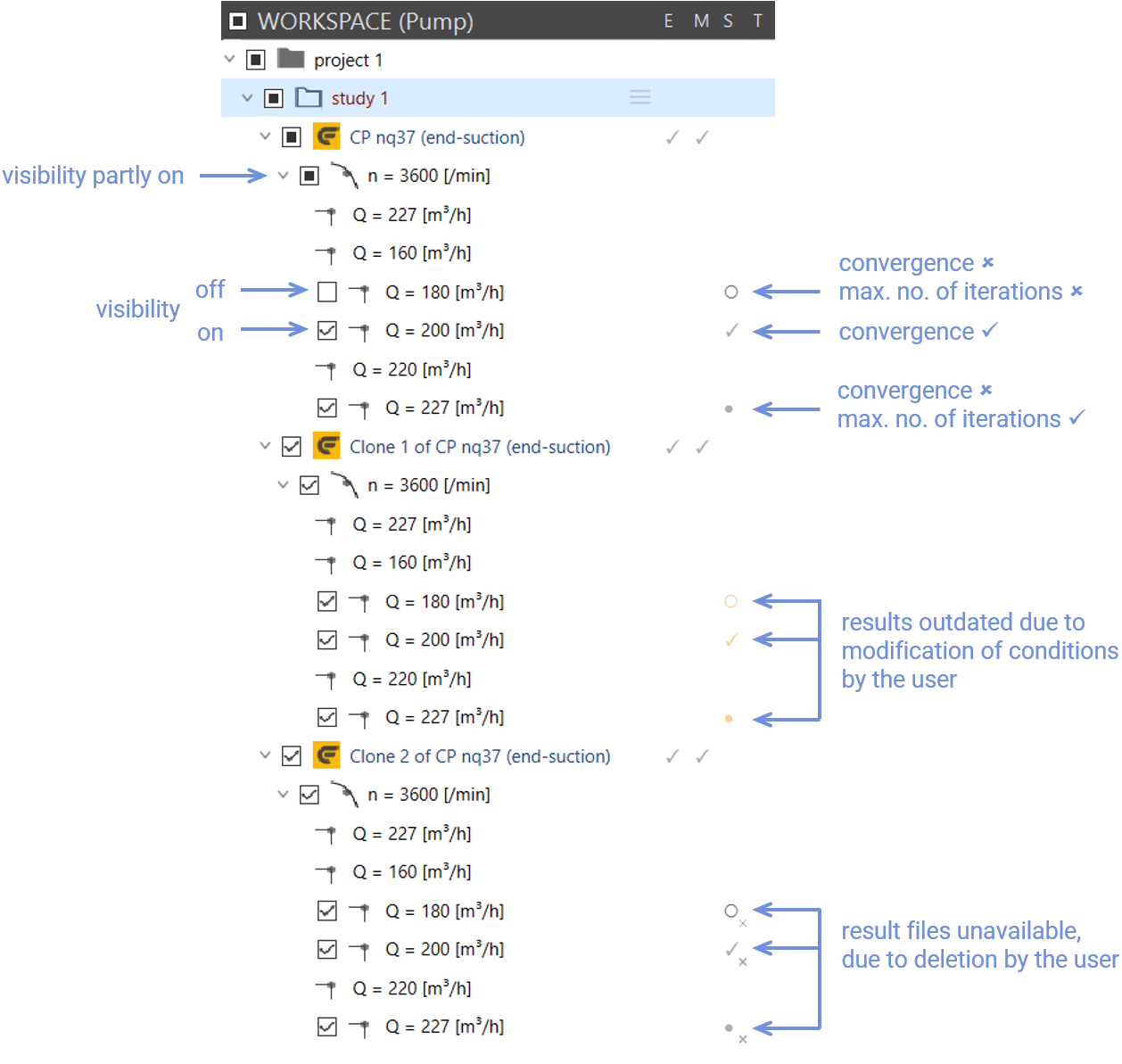
Visibility and status of CFD results
If the user changes the maximum number of iterations or the convergence criteria after the results have been calculated, these results are not outdated but may not meet the new maximum number of iterations or the new convergence criteria. Their status will then continue to be displayed in gray, but the symbols may shift.
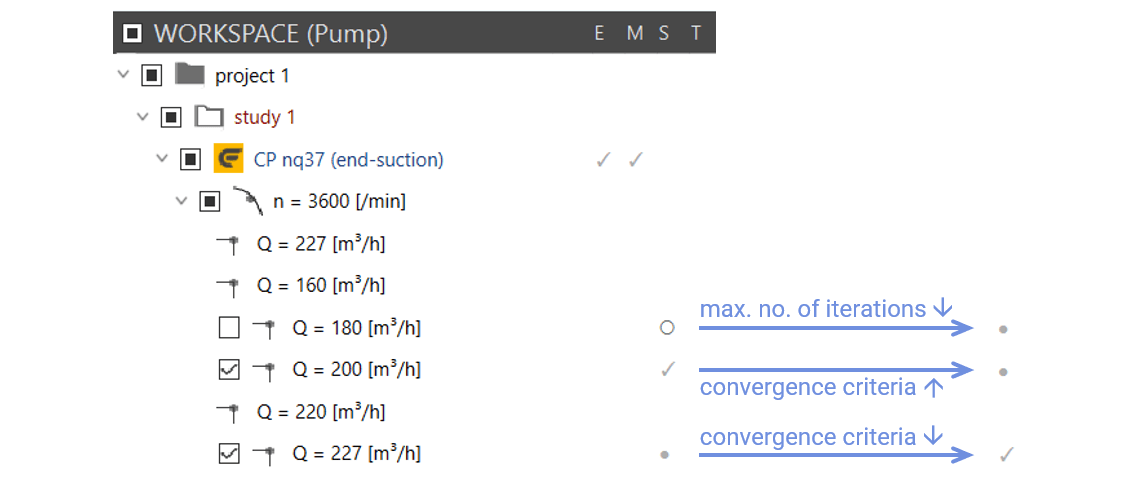
Shift of status symbols when changing iteration and/or convergence criteria
Locking/unlocking CFD results
When examining different CFturbo designs in CFturbo BLADERUNNER, it is advantageous to protect them from accidental deletion or from recalculation of the CFD results, which often took a considerable amount of time to generate.
For each element of the workspace tree, the Lock option is therefore available in the context menu, which can be used to protect entire variants, studies, or projects, as well as individual performance curves and operating points from being changed or deleted. The respective element and the elements in its subordinate branches are then marked with small filled orange lock symbols. It is irrelevant whether the CFD results of these elements are marked visible or not.
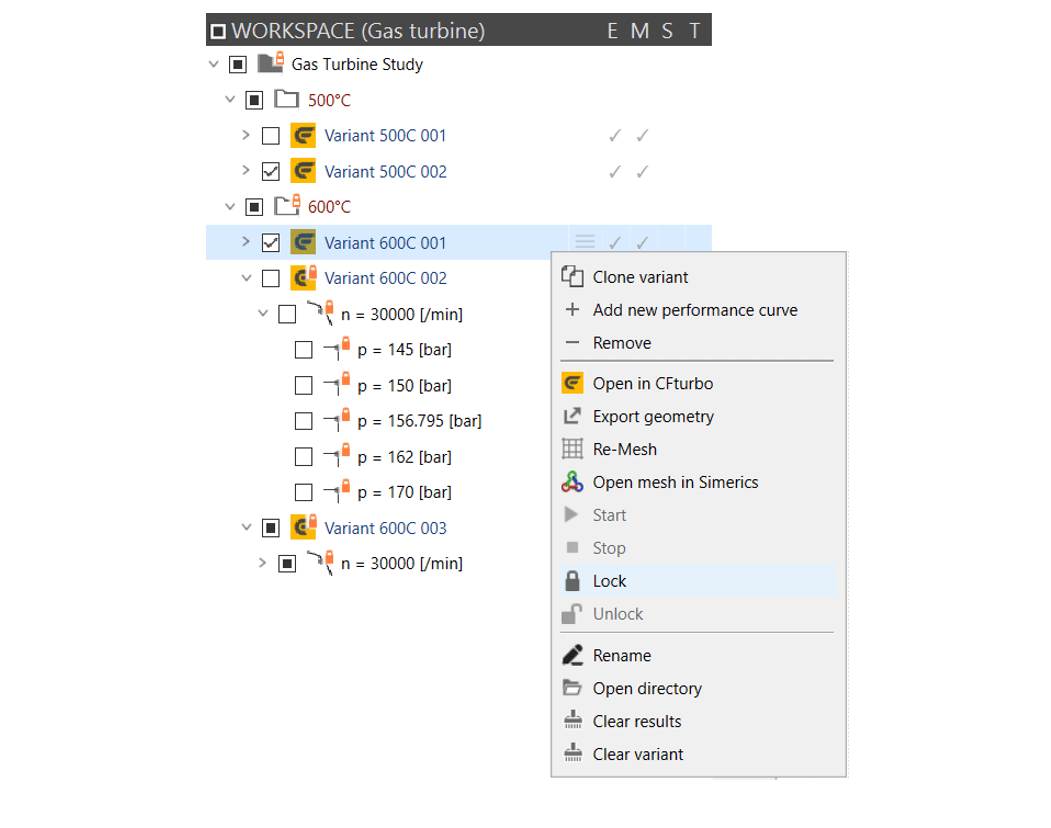
Options such as Start or Remove are then grayed out, while the CFD results of an operating point can still be analyzed in Simerics MP/MP+ via Open steady results and/or Open transient results, and the directory with the associated files remains accessible via Open directory.
Individual elements can be unlocked using the Unlock option in the context menu, for example, to recalculate a single operating point.
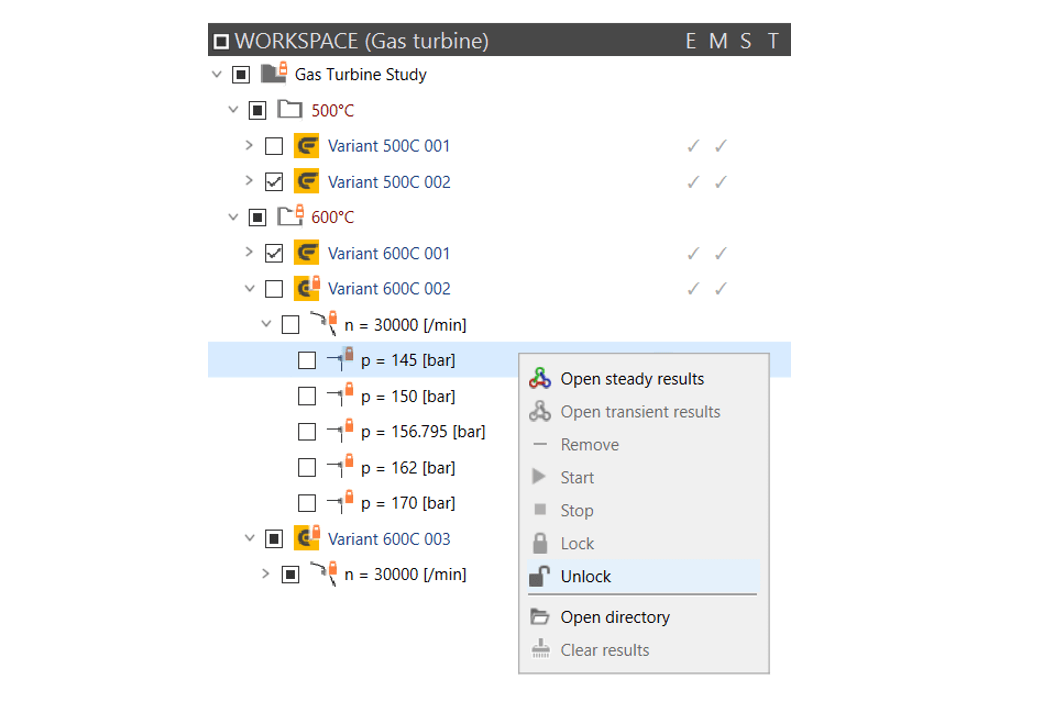
If only parts of the subordinate tree structure of an element are locked, e.g. only individual variants of a study, an empty orange lock symbol appears.
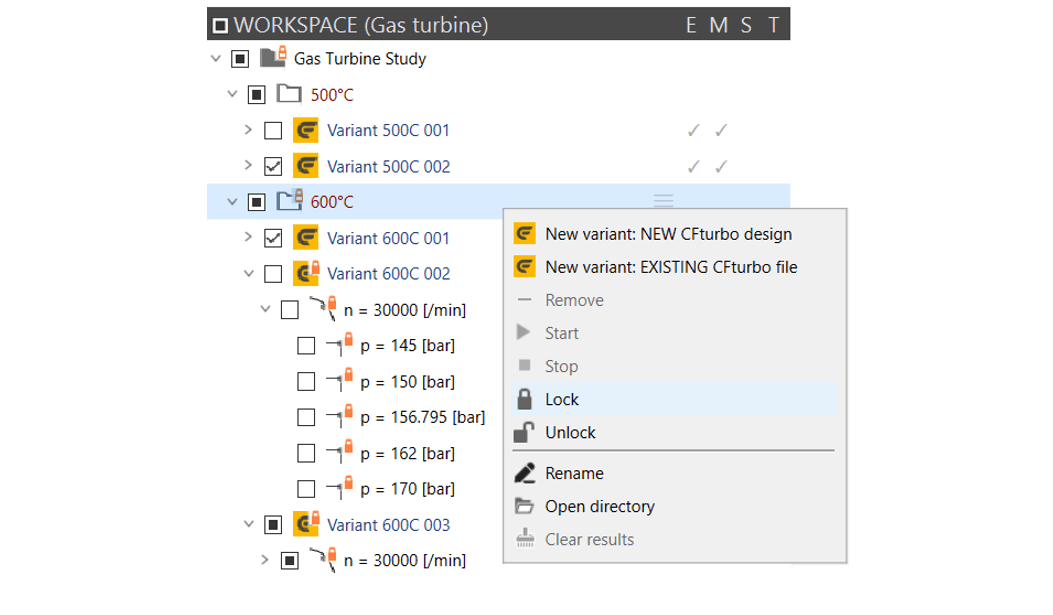
In this case the Lock and Unlock options are both available in the context menu of this element to lock or unlock the entire structure.