Creating and meshing CFD models
Geometry preparation and meshing for CFD are carried out automatically in CFturbo BLADERUNNER, but can be controlled by various parameters, which is particularly important for good mesh quality.
- The process is as follows:
Reading in a CFturbo file as a new variant
Calculating the geometry and exporting it to files readable by the CFD solver
Meshing the flow domains
Initial variant settings
When reading in a CFturbo file, CFturbo BLADERUNNER creates a new variant node in the workspace tree and an associated data structure. Information extracted from the CFturbo file appears in the variant's Settings tab.
Under Variant description the file name with the complete file path is displayed, which can be changed at any time. A tab named CFturbo shows the meridional view of the CFturbo model along with design point and fluid data. Project type refers to the model's turbomachine type while File version indicates the CFturbo version the model was created with.
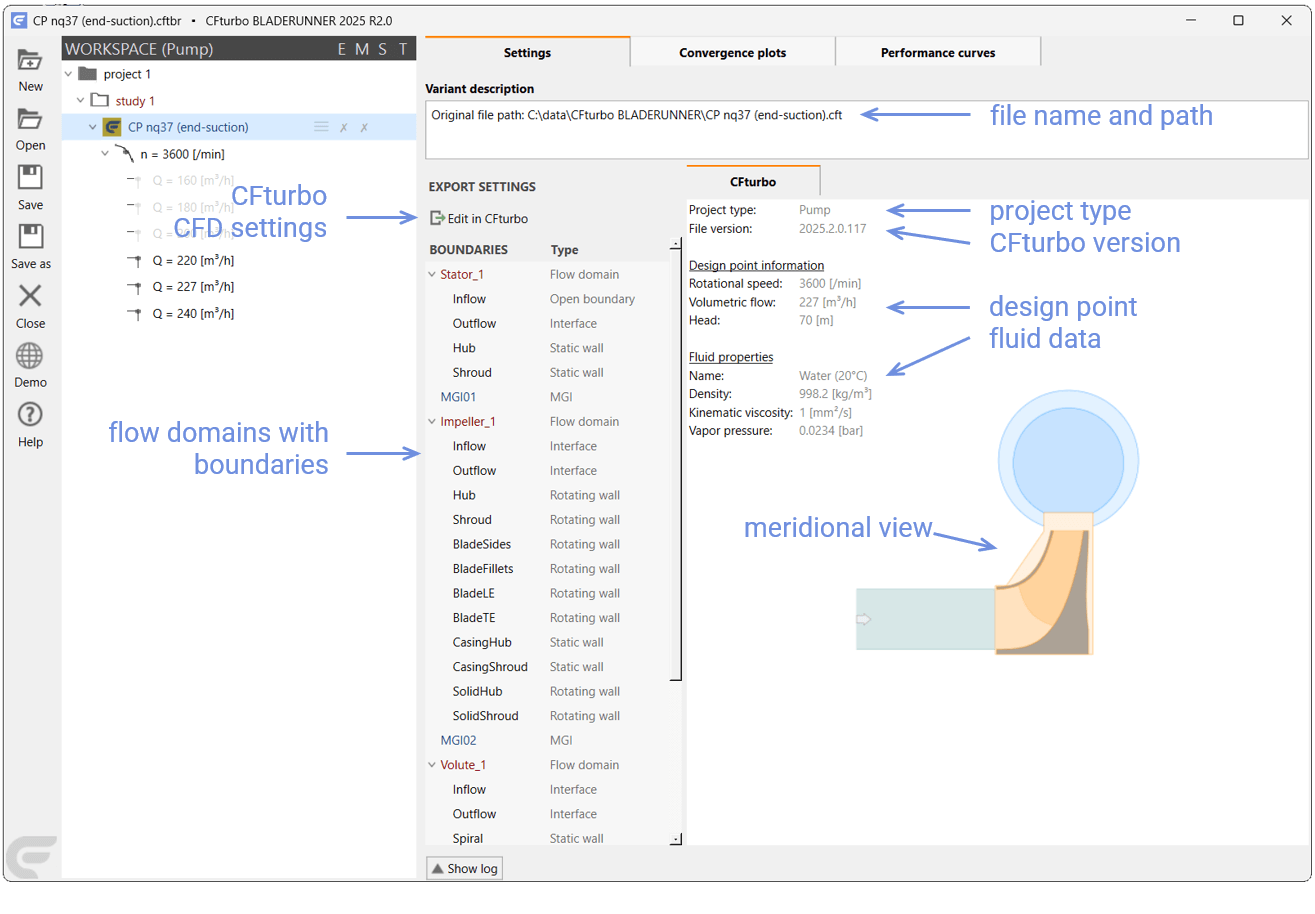
The centrifugal pump "CP nq37 (end-suction)" shown in the meridional view consists of four components - a greenish annular inflow duct, an orange impeller, a light blue volute and an outflow duct that extends the volute's outlet but is not visible here. Each component forms its own flow domain, called "Stator_1", "Impeller_1", "Volute_1" and "Volute_1Extension", respectively. These four flow domains and the boundaries they consist of are listed unter BOUNDARIES.
A CFturbo design can contain flow domains with secondary flow paths for an exact representation of the real geometry, or simplified, so-called virtual flow domains, in which bridging surfaces like rotor-stator interfaces (RSI) are automatically inserted to replace the secondary flow paths. Furthermore, CFD flow domains may be added, mainly as outflow ducts, to complete a CFD model. It is, for example, common to continue the flow field of a volute beyond its outlet by a volute extension to ensure a reliable evaluation at this location.
- So these three different flow domain types are defined in CFturbo:
Flow domain - full CFturbo design including secondary flow paths
Flow domain (virtual) - simplified CFturbo design without secondary flow paths
CFD flow domain - added geometry necessary for accurate CFD results
- Also four different boundary types used by the CFD solver can be distinguished:
Open boundary - either a flow inlet or outlet
Static Wall - a wall of a stationary component like a duct or an impeller casing
Rotating Wall - a rotating wall of a rotating component like an impeller blading
Interface - an outlet of a component that matches the inlet of the next one and vice versa

Different boundaries in standard flow domains (left) and virtual flow domains (right)
To connect two flow domains Simerics MP/MP+ forms a so-called MGI, a mismatched grid interface, from two adjacent interfaces. MGIs are listed between the respective components.
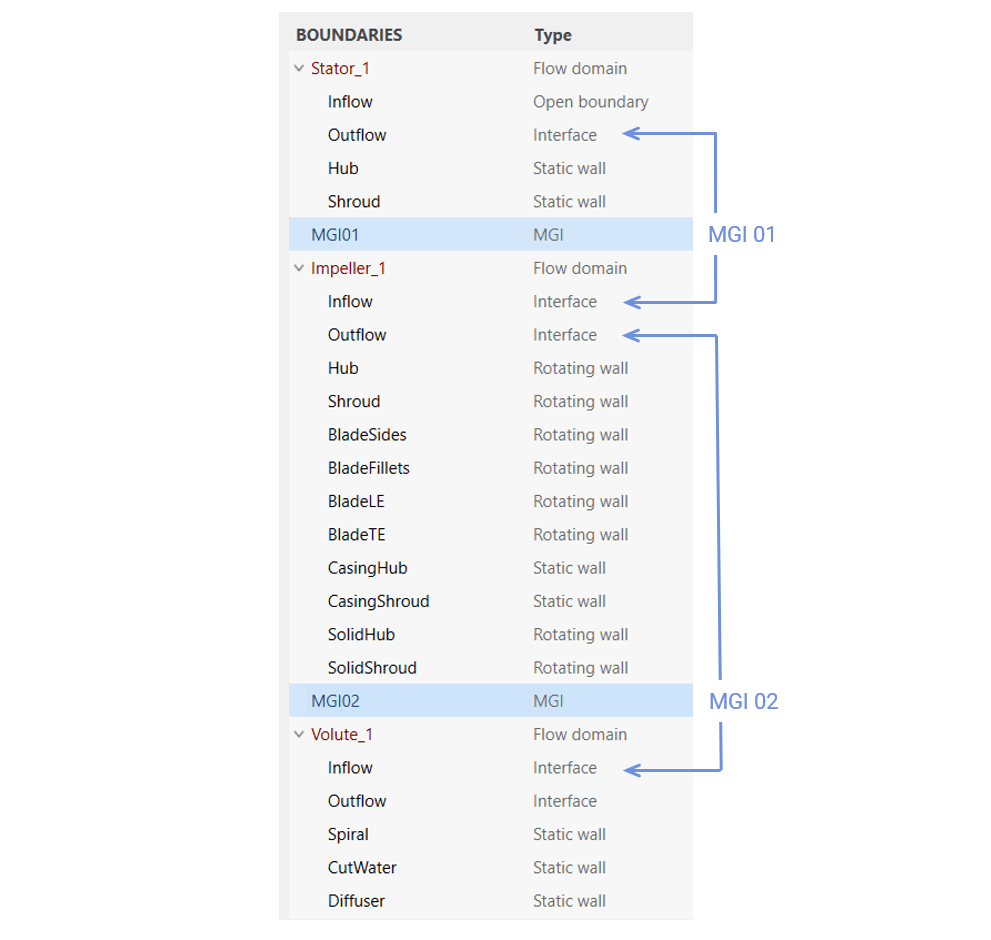
Under EXPORT SETTINGS, the settings made in CFturbo for geometry, mesh and solver can be called up and changed using the Edit in CFturbo button.

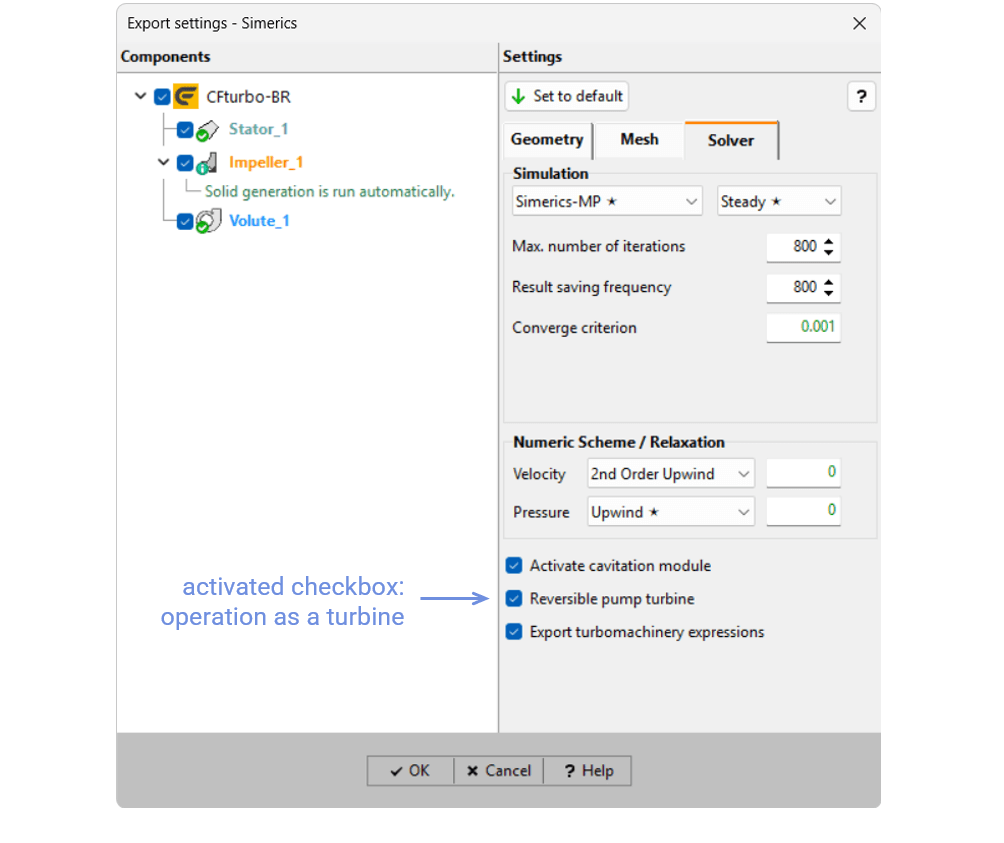
Without the CFturbo user interface becoming visible the CFturbo dialog window Export settings - Simerics then appears with the setting tabs Geometry, Mesh and Solver described earlier. An interesting option is Reversible pump turbine, which allows a pump to be operated as a turbine by reversing the flow direction.
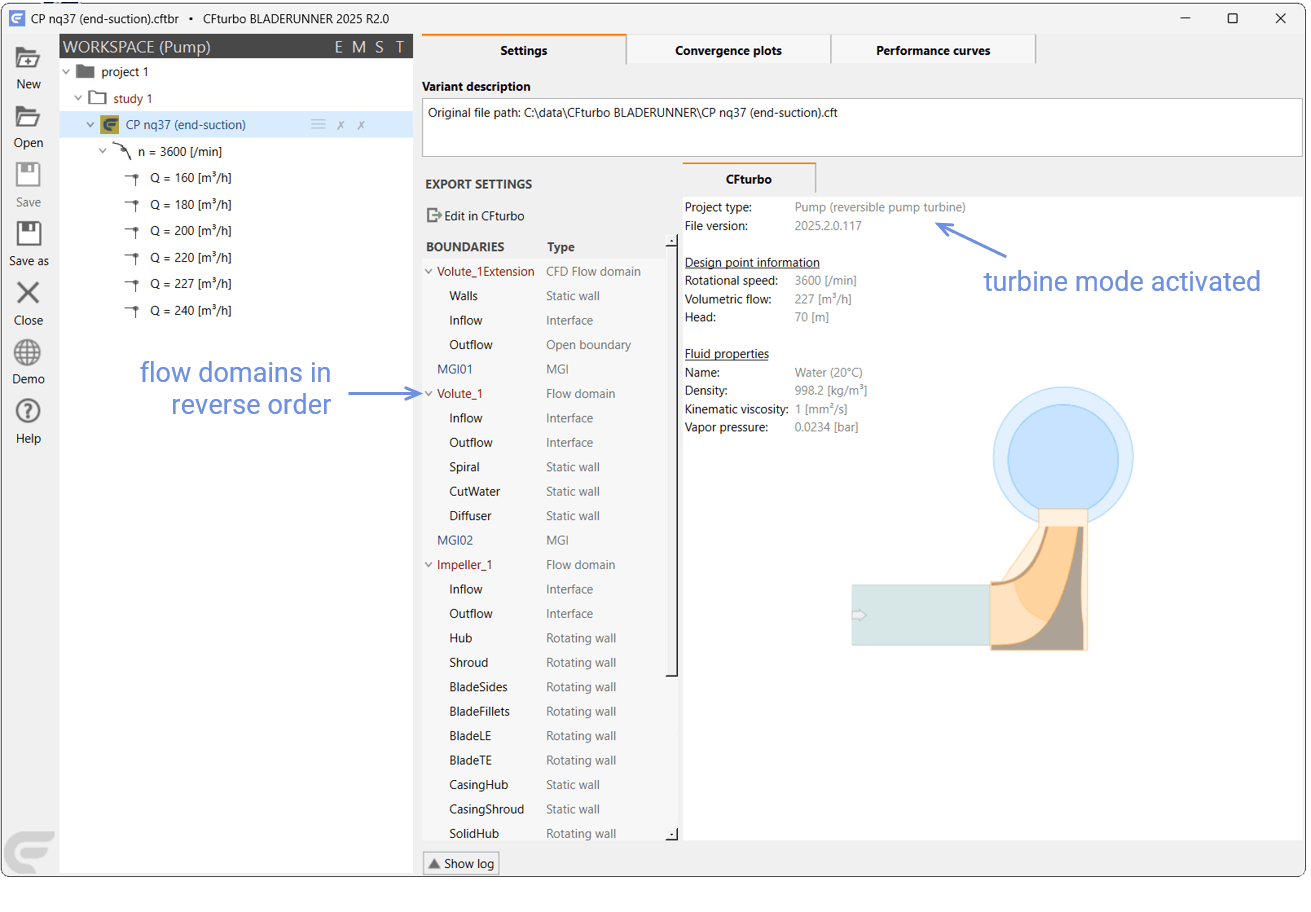
Accordingly the CFD model is set up in reverse order, i.e. starting with the flow domain "Volute_1Extension ". The Project type is given the addition (reversible pump turbine).
As long as the CFturbo dialog window is open, the CFturbo BLADERUNNER user interface remains locked showing the notice "Close CFturbo to unlock the application" in its window caption.

Of course, the CFturbo design can still be edited in CFturbo. To do this, CFturbo is launched by selecting Open in CFturbo in the context menu of the variant.
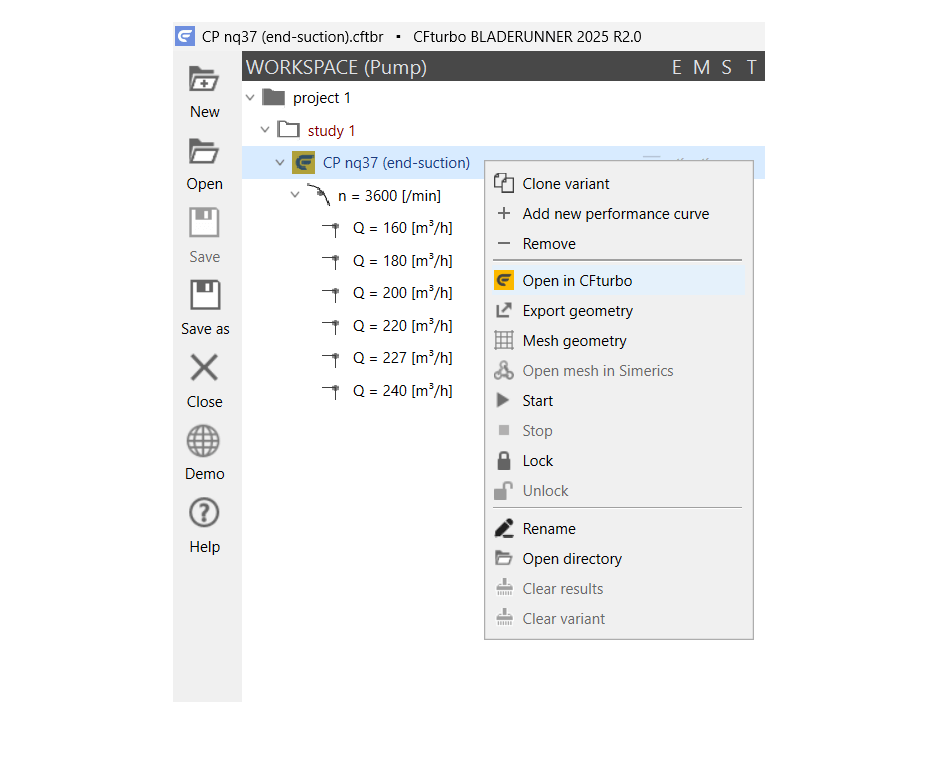
With the option of cloning variants, a CFturbo design can easily be developed in parallel for both pump and turbine operation. For this purpose, an initial design is created as a variant in pump mode and its behavior is calculated with CFD. The variant is then cloned and converted to a reversible pump turbine, and its behavior is also calculated with CFD. Further cloning produces another variant, which is edited in CFturbo and calculated with CFD for both cases, and so on.
Geometry export to the CFD solver
The entire surfaces of the flow domains, defined by parameter sets in CFturbo, are now calculated, and polygonal 2D surface grids - not to be confused with the 3D CFD meshes explained further down - are created by triangulation in the resolution selected in the export settings. The geometry files are then stored in STL format to be processed by the CFD solver.
This process is referred to as export and is started via the Export geometry option in the context menu.
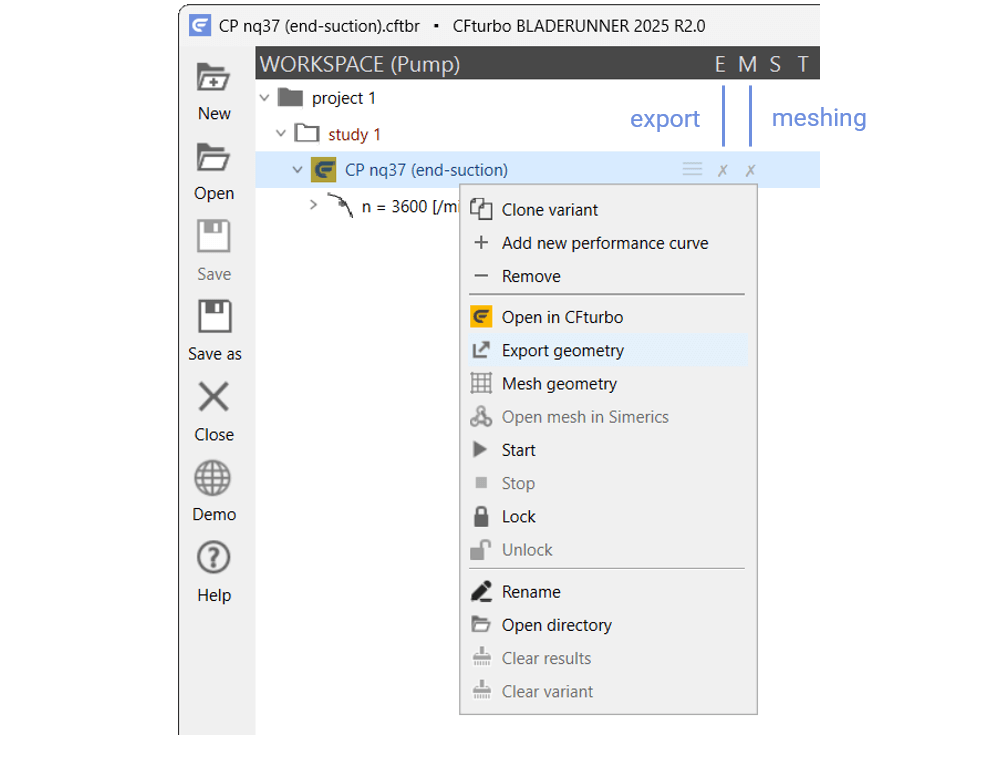
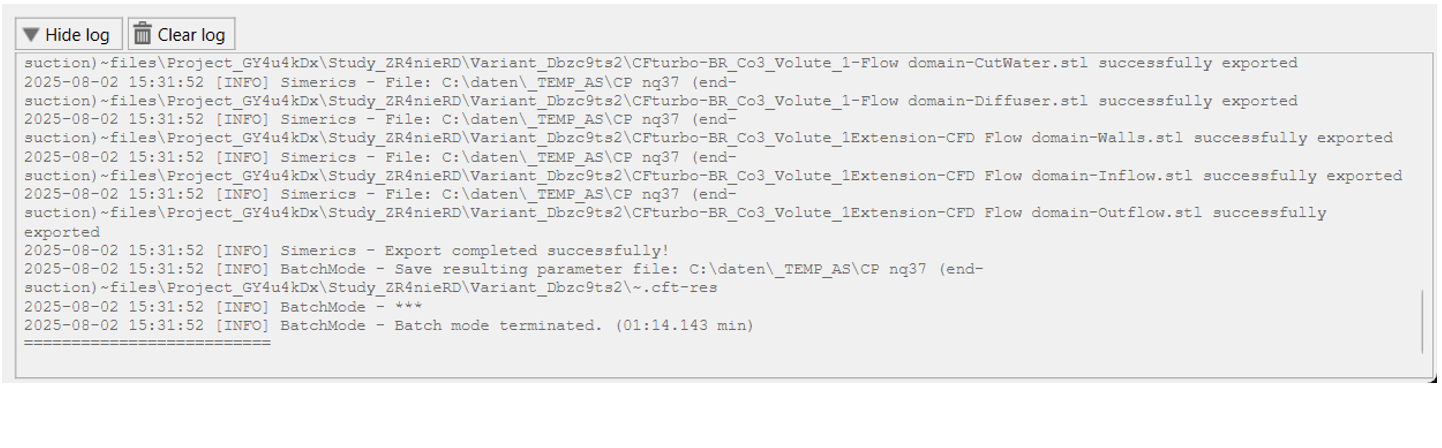
In the workspace bar, the two columns E and M show the status of E - export and M - meshing. When exporting the geometry of a variant, the corresponding icon in the E column changes from ✗ - geometry unavailable via  - export in progress to ✓ - geometry available. Progress and success are also displayed in the log window with the messages *.stl successfully exported and Batch mode terminated along with the duration of the process. Here, errors would be displayed in red.
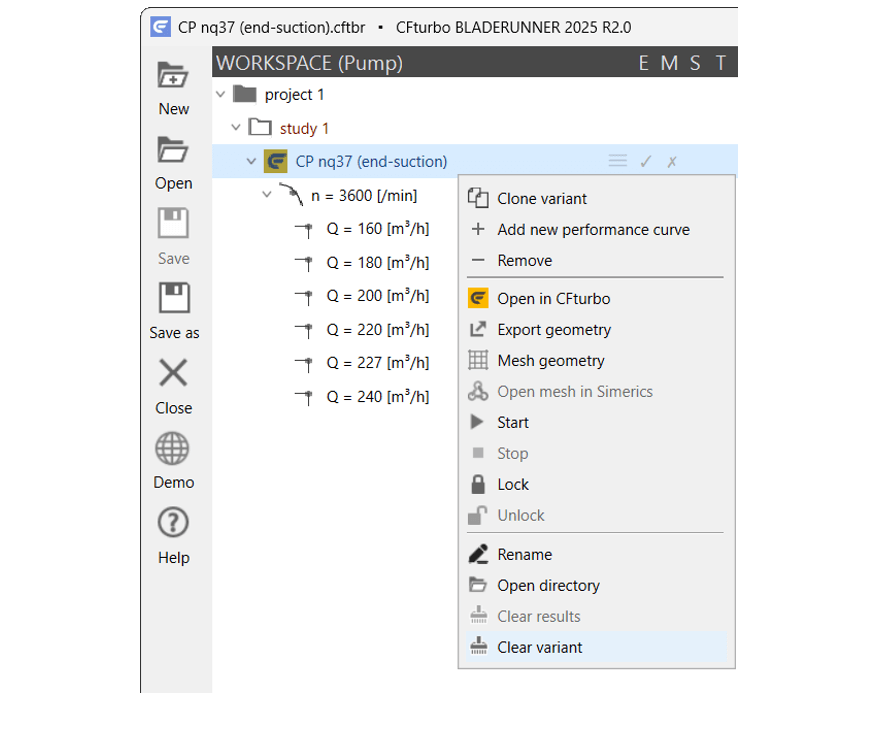
Of course, a CFD run can be also started at any time using the Start option in the context menu of any variant, performance curve or operating point, which includes the export and meshing processes. The export step can also be undone using the Clear variant option, for example to create the geometry with a finer resolution. The STL files are then deleted again and the export process can be restarted with modified export settings.
Since the geometry is only generated once for each variant on a powerful computer suitable for CFD the Fine setting is recommended.
After the export process has finished two new tabs - 3D model and Mesh statistics - are visible in the Settings tab of the variant. The 3D model tab shows the geometry data as a shaded solid model. Hold down the left mouse button and drag the mouse to rotate the model, hold down the right mouse button and drag the mouse to pan the view. Zoom in or out with the mouse wheel. Use the icons at the top left of the window to fit the view or align the model to the axes. Enlarge the view by moving the left and top edges of the frame and by hiding the log window.
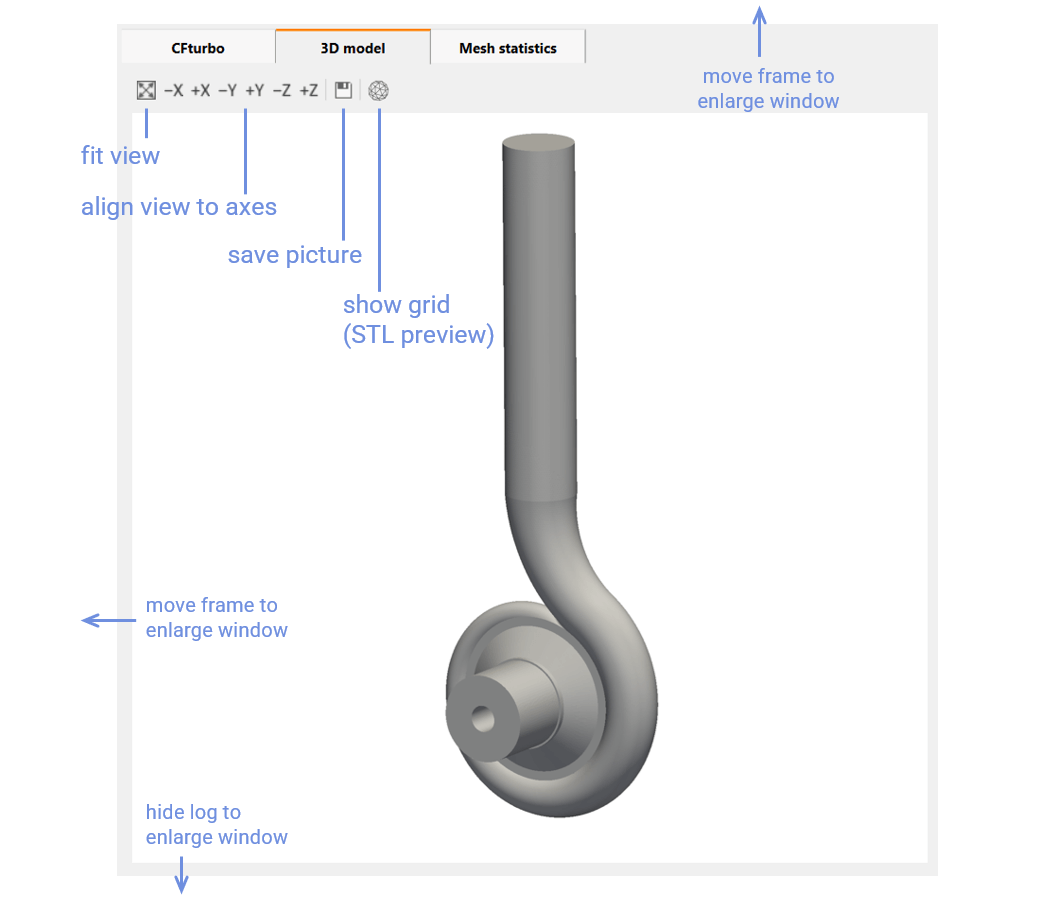
To save a picure in PNG format or embedded in another file format such as PDF or SVG, press the Save picture icon.
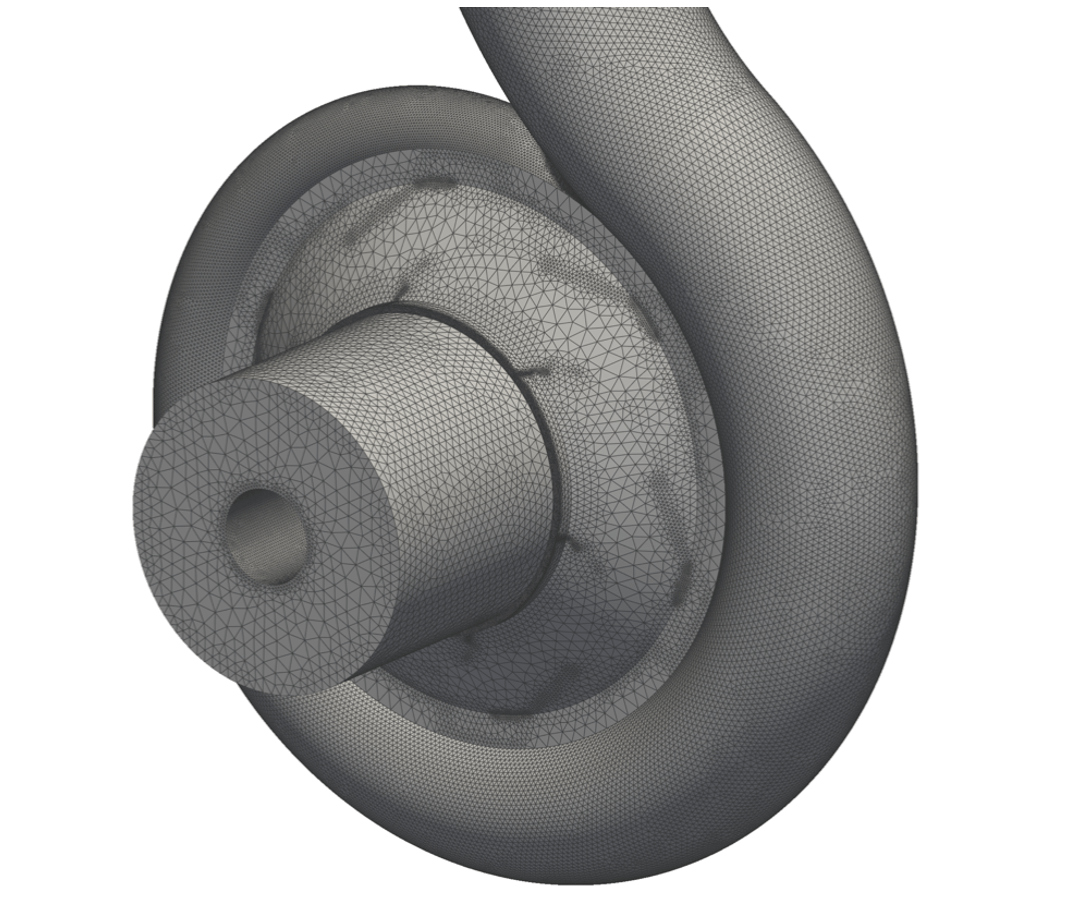
The quality of the exported geometry can be judged very well by displaying the surface grids via the STL preview icon. The example of the centrifugal pump CP nq37 (end-suction) shows clearly how the resolution of the grids increases with higher curvature of the surfaces thus ensuring maximum geometrical accuracy.
Just left of the 3D model the LOCAL MESH PARAMETERS now appear instead of the BOUNDARIES, but as before with a list of the flow domains and their individual boundaries. Clicking on a flow domain or a boundary highlights the surface(s) in red in the 3D model. Further surfaces can be marked with Ctrl left mouse click. The checkboxes can be used to hide individual surfaces so that underlying surfaces become visible, for example to examine the resolution of the blading.
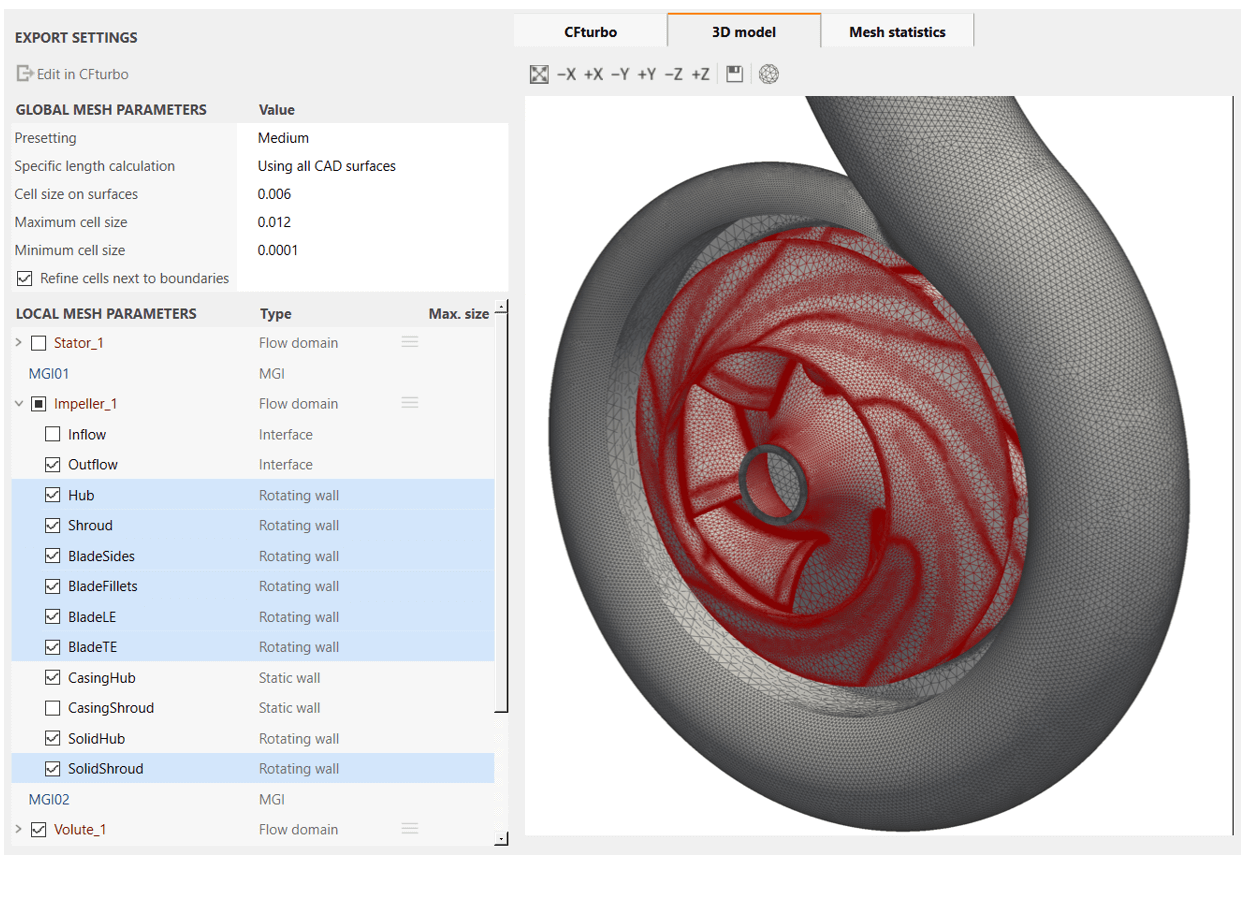
The GLOBAL MESH PARAMETERS reflect above settings made in the Mesh tab in the CFturbo Export - Simerics dialog for subsequently creating the 3D CFD meshes. From now on, the global mesh settings are made here while local mesh settings are made under LOCAL MESH PARAMETERS, so that the Edit in CFturbo button under EXPORT SETTINGS is no longer required and therefore deactivated.

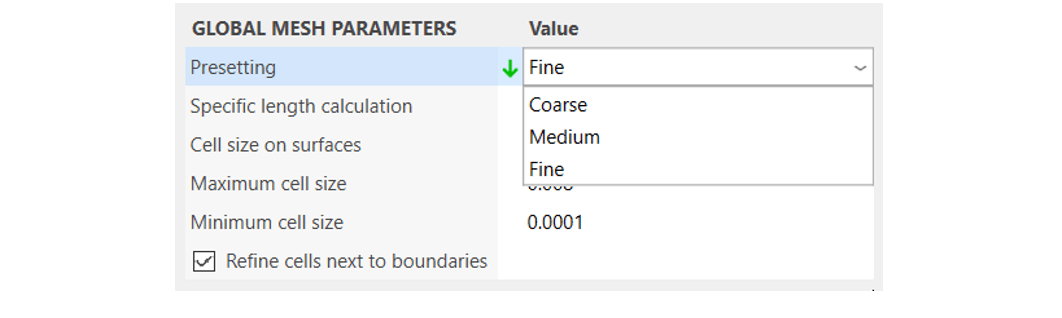
For Presetting the GLOBAL MESH PARAMETERS the mesh resolution level Coarse, Medium or Fine chosen in CFturbo is used. Predefined values of Cell size on surfaces, Maximum cell size and Minimum cell size are connected to these levels. The level may be switched at any time. Changing one or more cell sizes individually sets the Presetting level to User defined. The Refine cells next to boundaries setting is an option of the Simerics MP/MP+ mesher to further refine the meshes.
The cell sizes are dimensionless since they are related to a specific length of the geometry. CFturbo BLADERUNNER uses the diagonal of the bounding box as the specific length. So depending on whether Using component CAD surfaces or Using all CAD surfaces - both native Simerics MP/MP+ options - has been selected, the dimensionless cell sizes are related to the specific length of either the respective component, i. e. a single flow domain, or the entire 3D model.
Diagrams of specific lengths are shown in the Mesh statistics tab. Once the workspace includes other variants the maximum and minimum specific length of all components or of all 3D models, respectively, is displayed.
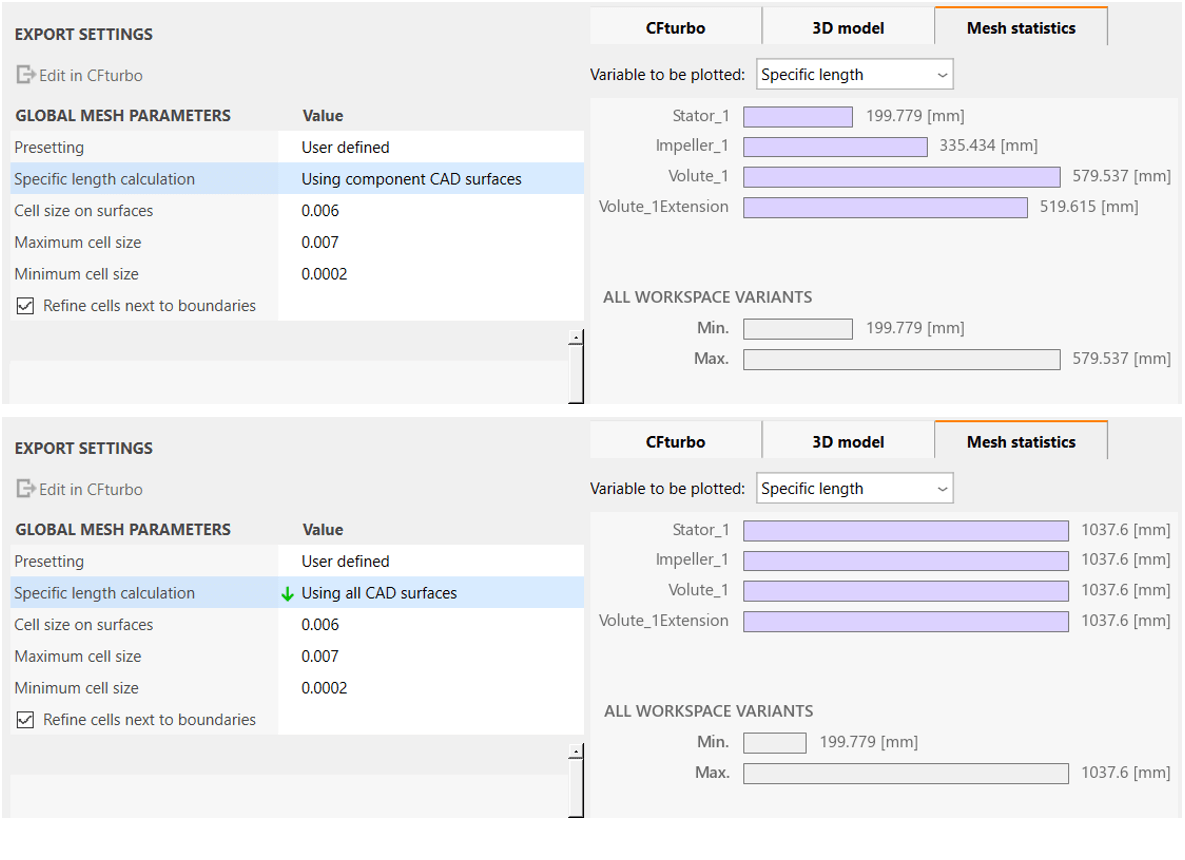
Specific length of each component (top right) and of the entire 3D model (bottom right)
The specific length forms the basis for calculating an estimated maximum cell size. Since Simerics MP/MP+ has a built in binary tree mesher that automatically generates body fitted meshes directly from CAD surfaces, CFturbo BLADERUNNER just passes the mesh parameters defined to Simerics MP/MP+. Estimated maximum cell sizes, also displayed as diagrams in the Mesh statistics tab, may therefore differ from real values.
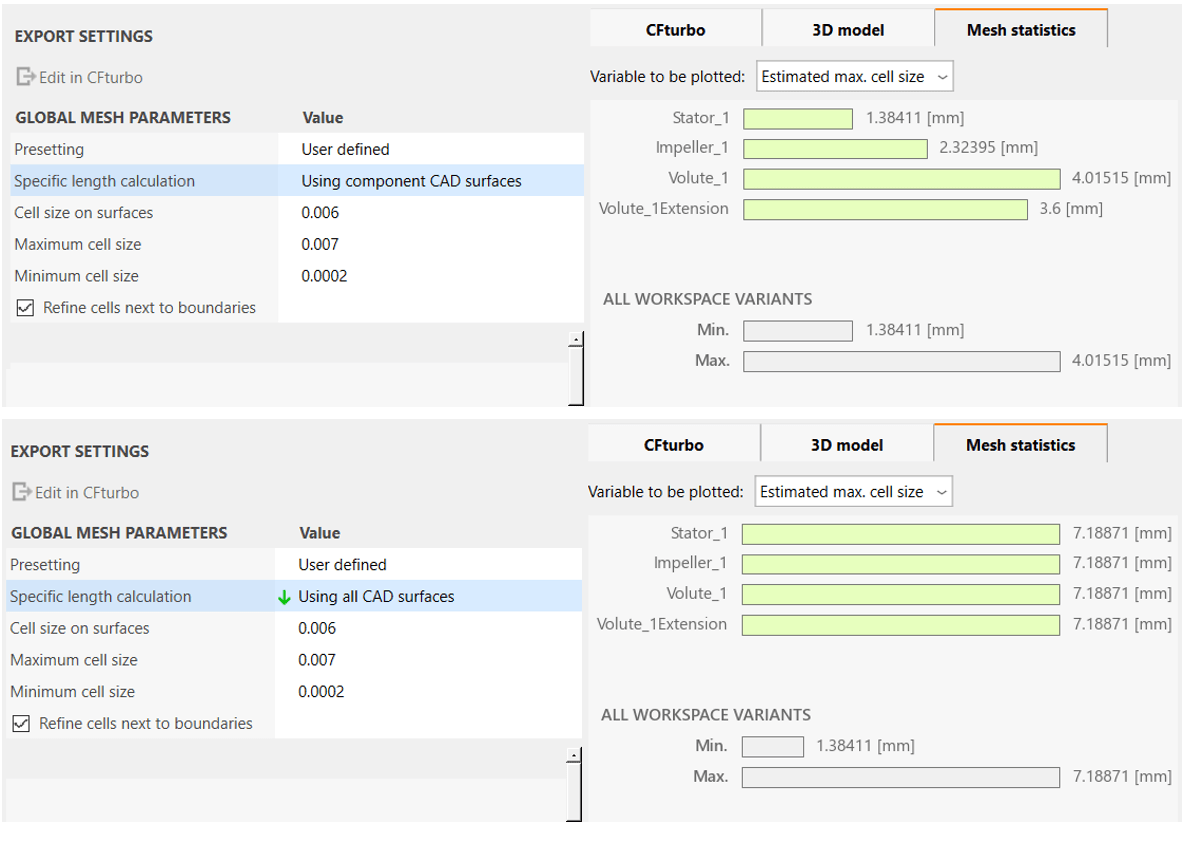
Estimated maximum cell size of each component using component sizes (top right) or the size of the entire 3D model as the basis for calculation (bottom right)
While GLOBAL MESH PARAMETERS are useful to define a general cell size that matches the 3D model, LOCAL MESH PARAMETERS have the advantage of making targeted refinements at important regions in the flow field, for example around the blading of a rotor. These parameters can be set individually for each flow domain via the Advanced mesh parameters option in the context menu.

Once the Use local parameters option is activated, the minimum cell size and maximum cell size set here only apply to the selected flow domain regardless of the corresponding values in the GLOBAL MESH PARAMETERS. The Uniform cell size option ensures that these cell sizes are applied to the whole mesh - both volume and boundaries.
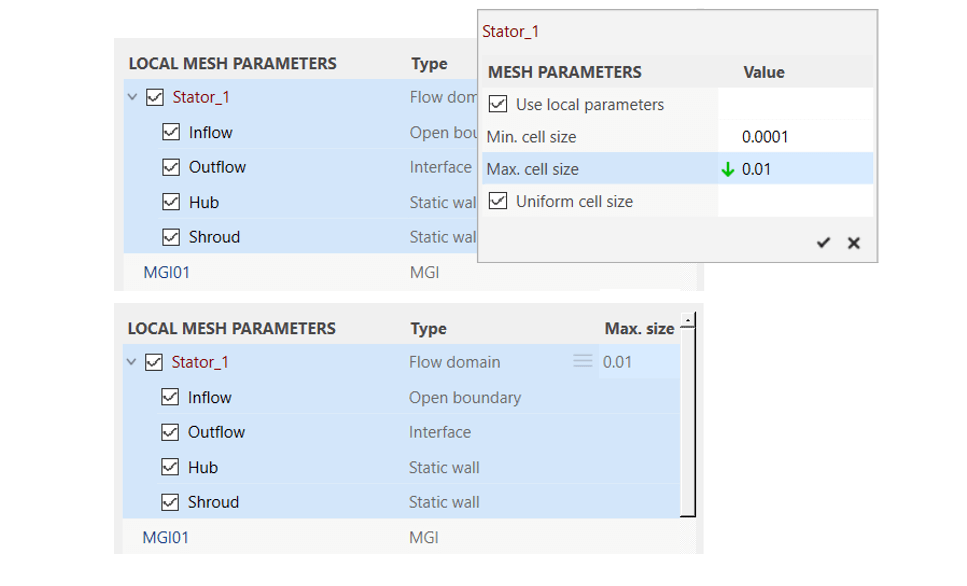
If the Uniform cell size option is deactivated, the minimum cell size and maximum cell size specified here only affect the interior of the volume grid, while a separate maximum cell size can be set for each boundary, regardless of the Cell size on surfaces defined in the GLOBAL MESH PARAMETERS.
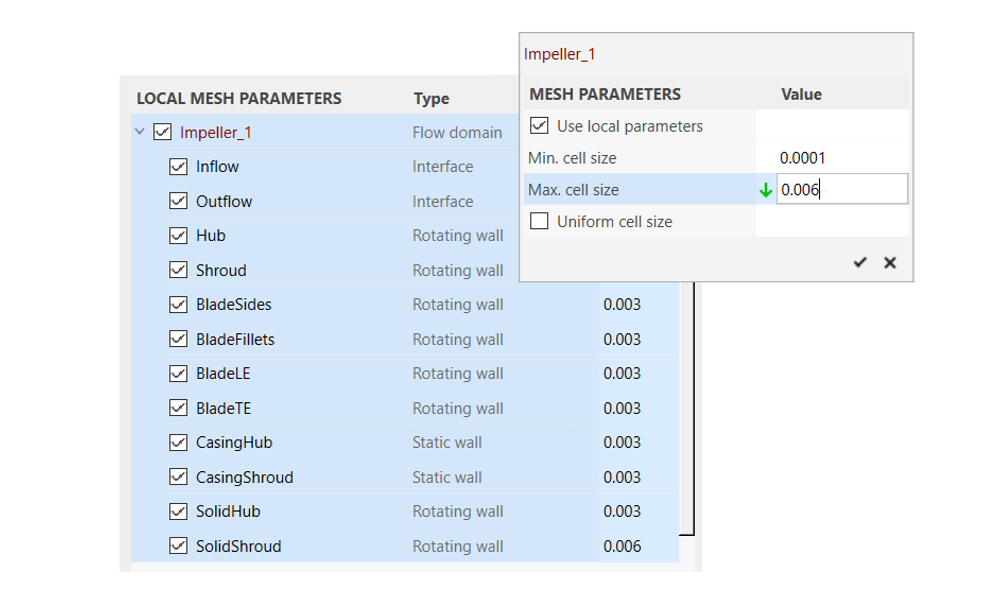
After closing the dialog window via ✓ maximum cell size values are indicated both for the flow domain and for each boundary and may be directly edited.
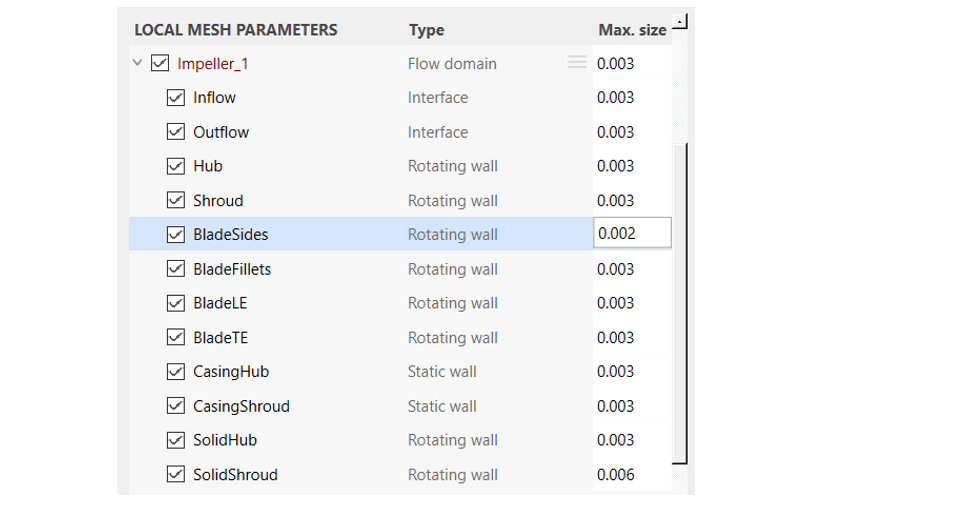
Now that all mesh parameters are set, it's time to start the meshing process and verify the result!
Meshing
Mesh generation is best initiated via the Mesh geometry option in the context menu of a variant. Individual meshes are then generated for all components in the order specified in the CFturbo design.
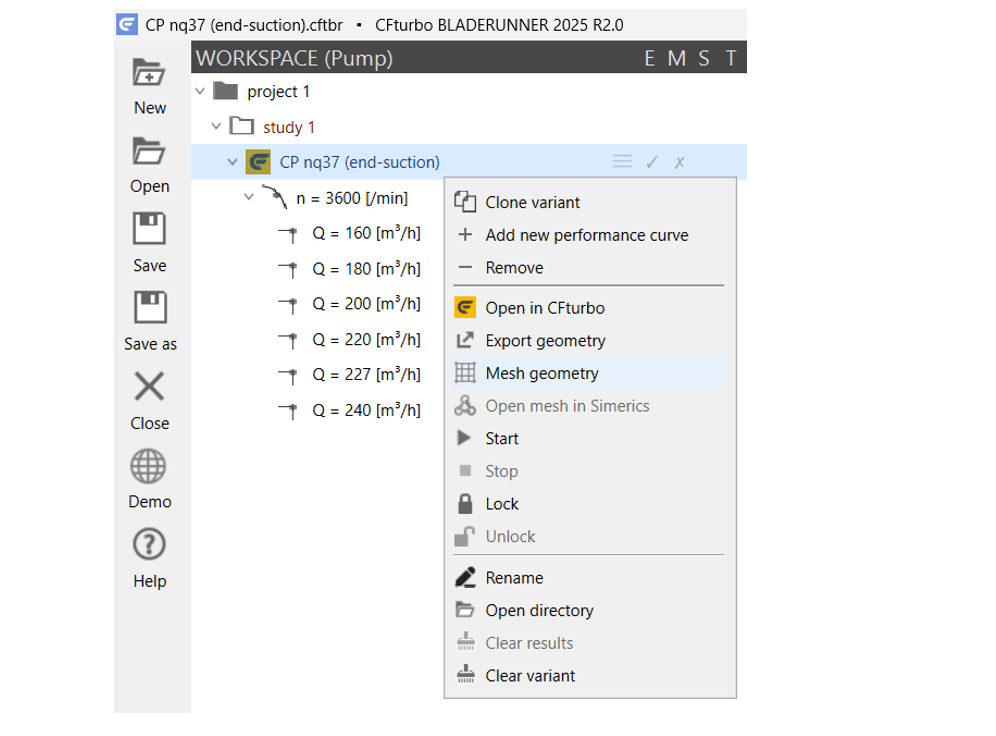
It is also possible to create a single mesh for a specific flow domain by selecting the Mesh domain option in the context menu under LOCAL MESH PARAMETERS.
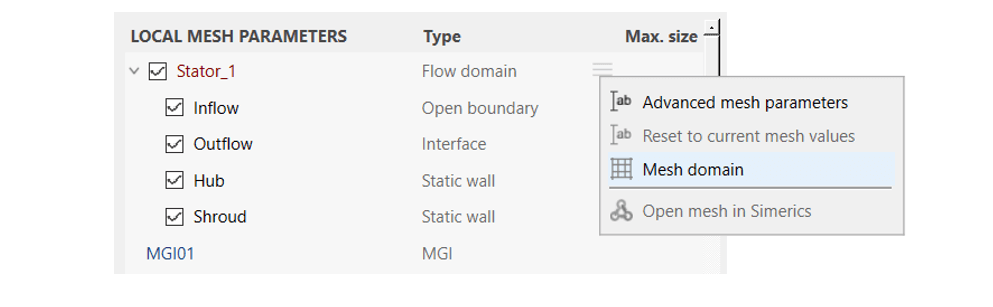
CFturbo BLADERUNNER then calls the Simerics MP/MP+ mesher with previously created .spro XML project files. As with geometry export, the corresponding icon in the M column changes from ✗ - meshes unavailable via  - volume meshing in progress to ✓ - meshes available.
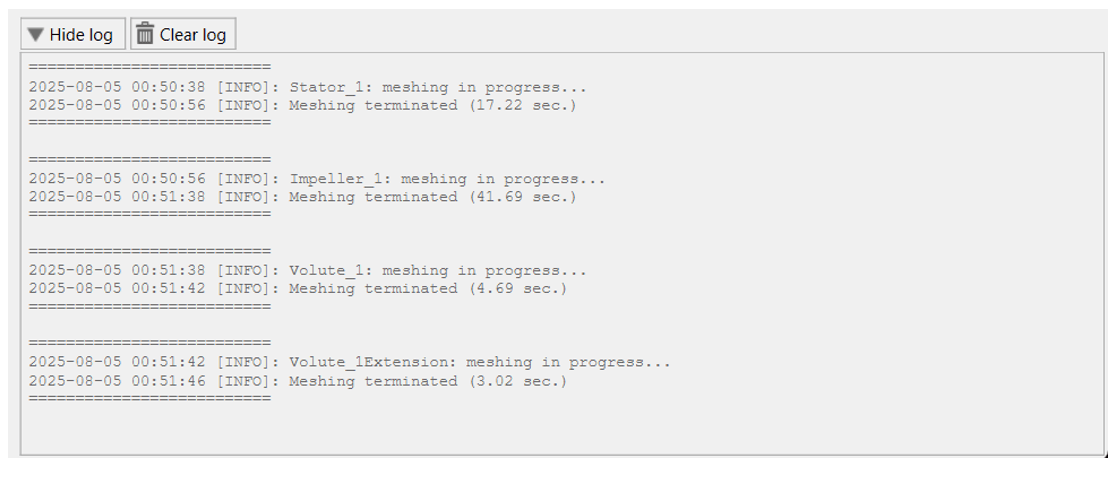
The log window shows the messages [flow domain]: meshing in progress... and Meshing terminated along with the duration of the process. Also errors would be displayed here in red.
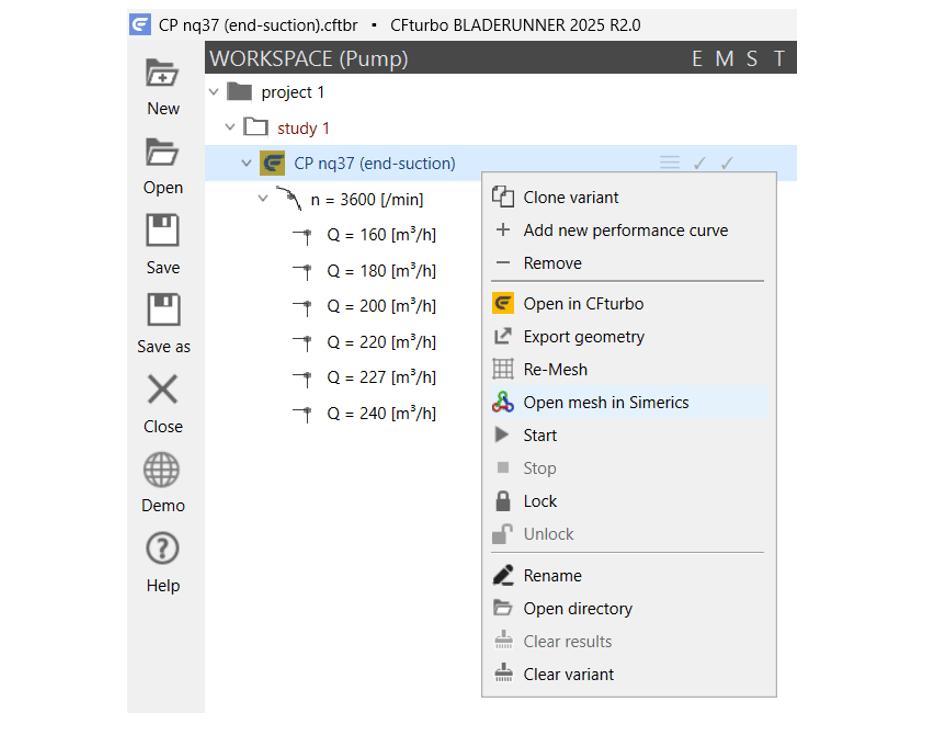
A requirement for accurate flow simulations is, of course, the mesh independence of the CFD results. It is therefore very important to visually examine the generated meshes in the environment of the CFD solver. To visualize the meshes of the whole 3D model the option Open mesh in Simerics is available in the context menu of a variant.
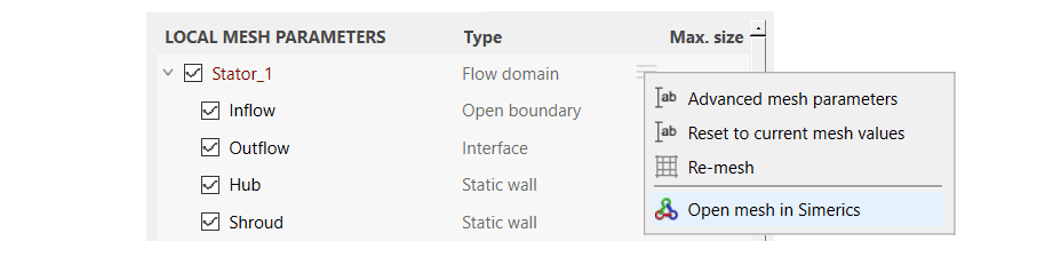
To open just the mesh of the selected flow domain the same option is available in its context menu under LOCAL MESH PARAMETERS.
To start with a single component such as the impeller of the centrifugal pump CP nq37 (end-suction) a maximum cell size of 1.2 mm on the surfaces and 2.4 mm for the volume mesh with a minimum cell size of 0.06 mm for resolving fine gaps in the secondary flow paths are chosen as starting values to provide a mesh for fairly accurate CFD results.
- From these values the following dimensionless cell sizes are calculated as GENERAL MESH PARAMETERS:
cell size on surfaces 0.002
maximum cell size 0.004
minimum cell size 0.0001
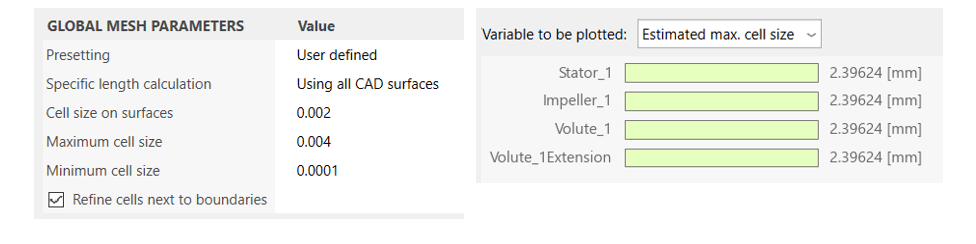
An identical mesh would of course be generated if the same values were specified in the flow domain Impeller_1 under LOCAL MESH PARAMETERS.
CFturbo BLADERUNNER defines a cutting plane named Section YZ in the Simerics project file, which is shown when the 3D CFD model is opened in Simerics MP/MP+. This sectional view is especially useful for analyzing the quality of the volume mesh, its resolution and its transition to the surface meshes.
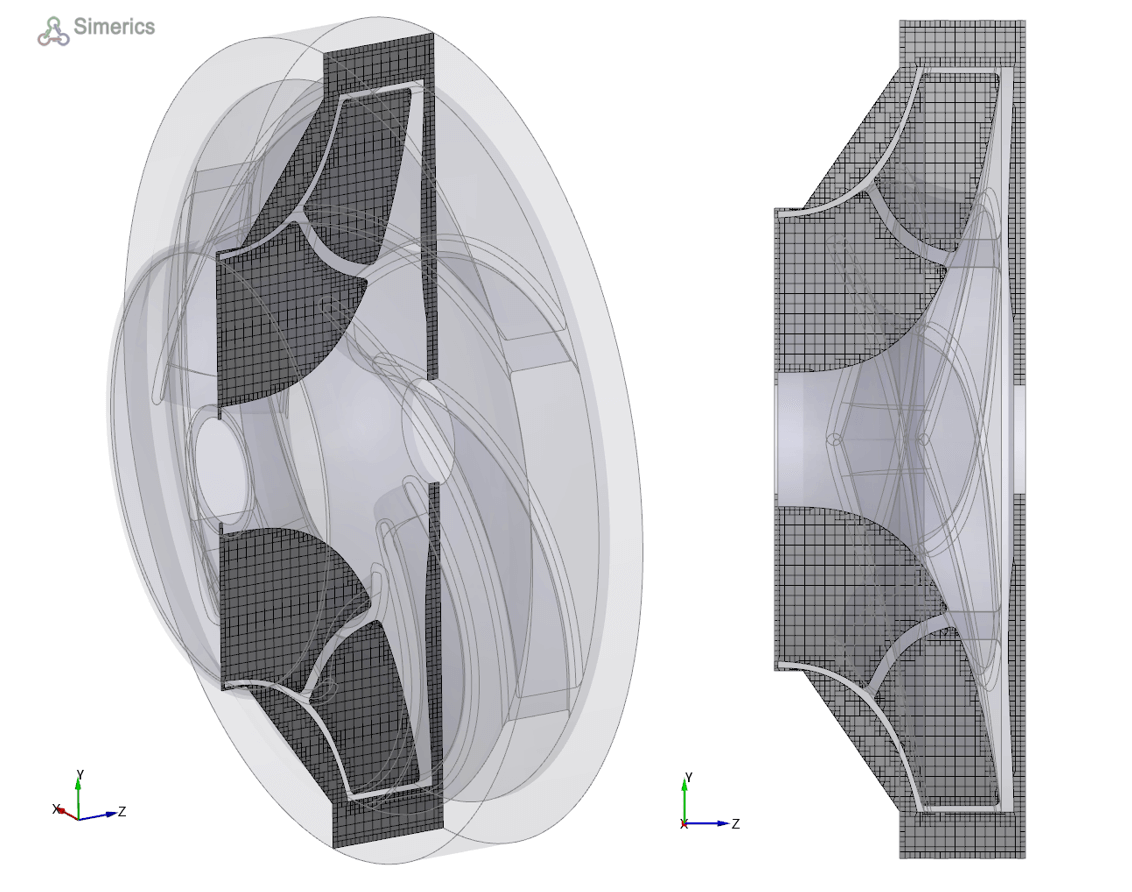
Impeller CP nq37 (end-suction): cell sizes: on surfaces 0.002, max. 0.004, min. 0.0001
In addition to the mesh's volume structure the resolution of the surfaces, particularly of the blading, is important for accurately calculating the pressure fields and thus the force transmitted to the fluid as well as for modeling any possible flow separation.
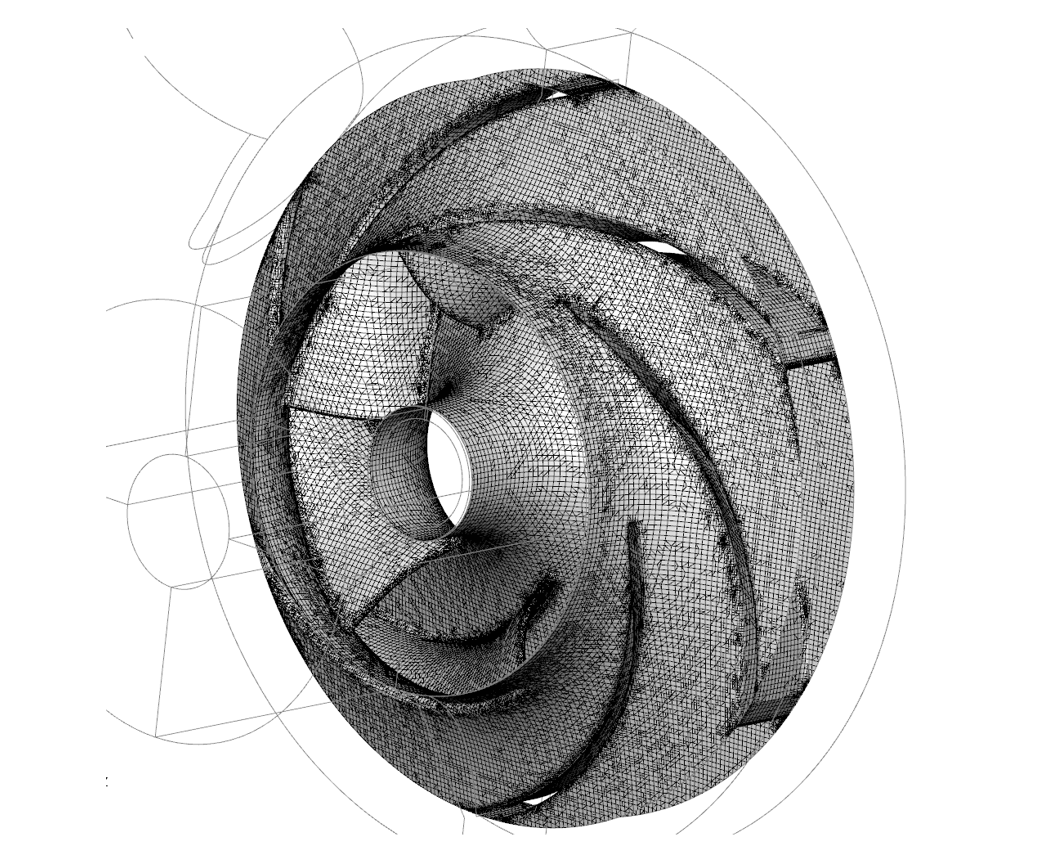
Impeller CP nq37 (end-suction): surface mesh
Simerics MP/MP+ delivers meshing information back to CFturbo BLADERUNNER so that after meshing, additional diagrams with the number of cells and the number of nodes are available in the Mesh statistics tab. Mesh quality and cell distribution across the individual flow domains may also be assessed on the basis of these values.
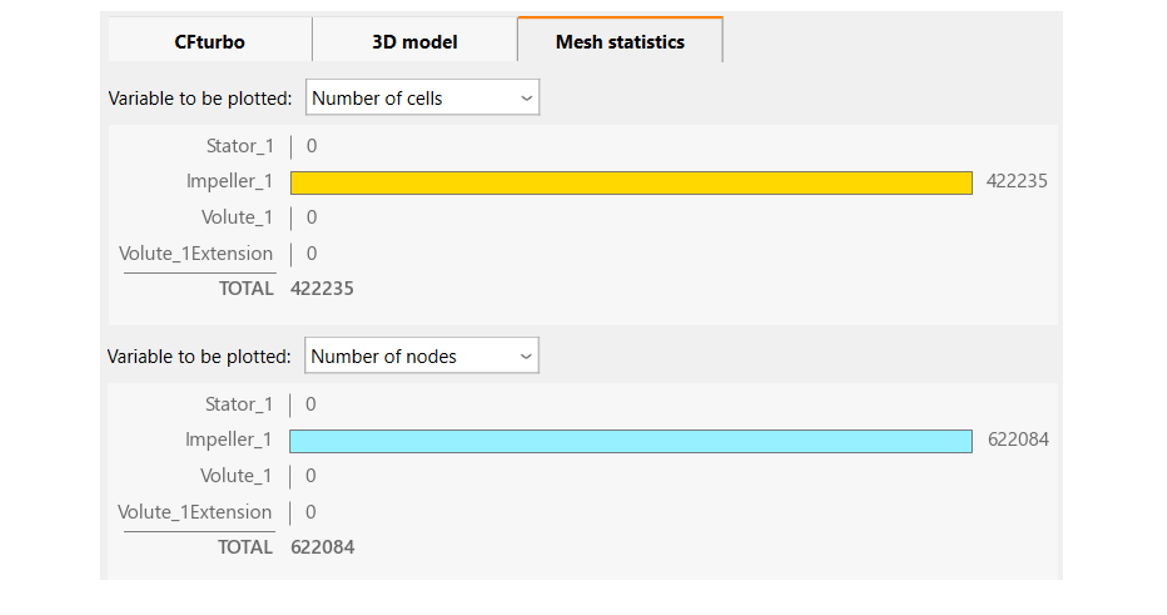
Impeller CP nq37 (end-suction): 422,235 cells (top) and 622,084 nodes (bottom)
By selecting Mesh geometry in the variant's context menu the first mesh of the complete 3D model is generated with the settings used for the impeller under GENERAL MESH PARAMETERS. It looks like this on Section YZ:
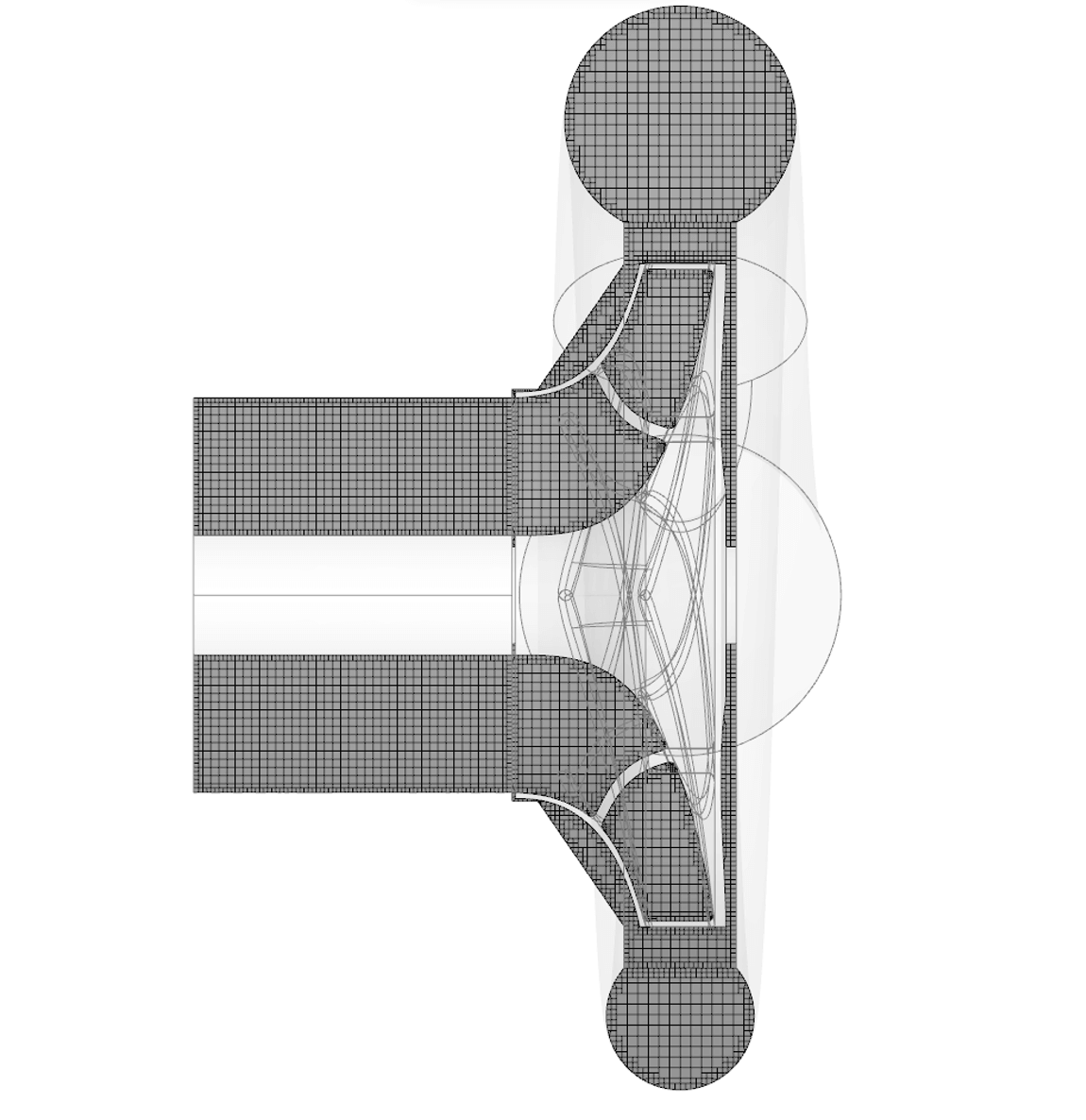
Complete CP nq37 (end-suction) 3D model, Section YZ
The mesh features a uniform resolution of the volume and also a fine resolution of surfaces and secondary flow paths. The Mesh statistics provide information about the total number of cells and their distribution across the individual components:
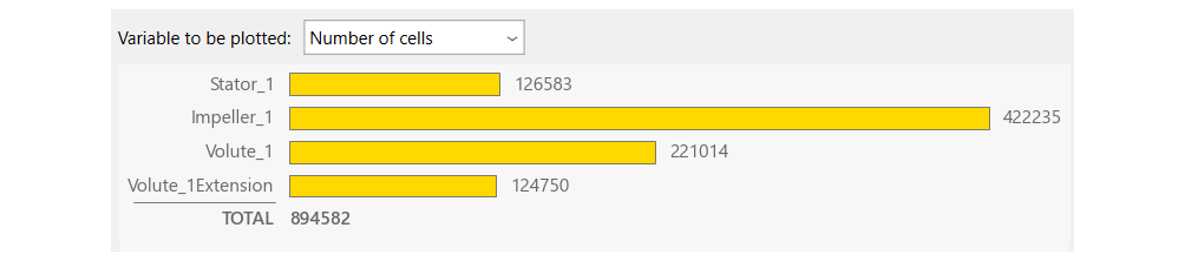
Complete CP nq37 (end-suction) 3D model: about 900,000 cells in total
The distribution of the approximately 900,000 cells, which already promise fairly accurate CFD results, is well balanced across the individual components. A good 400,000 cells are found in the impeller and thus in the rotating, power-transmitting component. However, a considerable number of cells is needed for meshing the secondary flow paths with their presumably very weak flow. The mesh of the volute, whose flow field is crucial for flow losses behind the impeller, has more than 200,000 cells. Approximately 125,000 cells are used for the inflow and outflow, respectively.
With the option Using component CAD surfaces unfavorable meshes may occur in which unimportant flow sections show an unneccessarily fine resolution while important areas appear too coarse simply because the corresponding components have a small or large specific length. Meshes Using component CAD surfaces are generally finer because the specific length of a component is always smaller as a reference value than the specific length of a complete 3D model. Another drawback is the different cell size on either side of an interface. The setting Using all CAD surfaces is therefore recommended.

Mesh option Using all CAD surfaces (left) vs. Using component CAD surfaces (right), same settings of the dimensionless cell sizes
Re-meshing is easily carried out via the Re-mesh option, which is available in the context menu both at the variant level and for individual flow domains in the LOCAL MESH PARAMETERS.
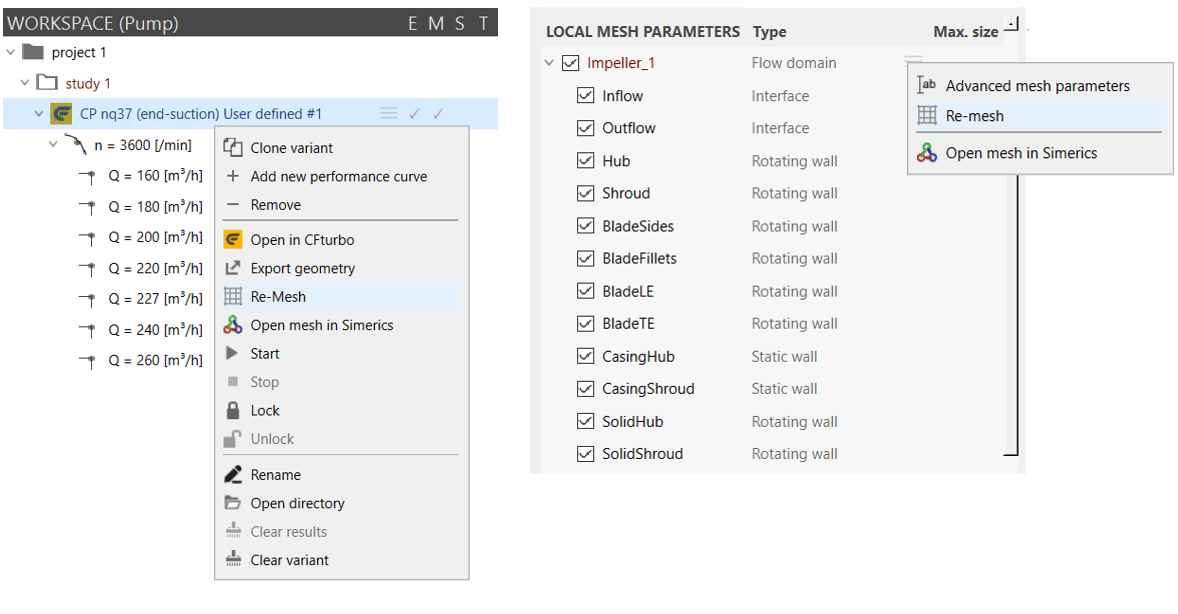
Re-mesh option at variant level (left) and at domain level (right)
The number of cells may be effectively reduced by omitting the modeling of secondary flow paths and using simplified virtual flow domains instead.
The simplified CP nq37 (end-suction) mesh shown below was achieved with the same GLOBAL MESH PARAMETERS used above for the full 3D model.
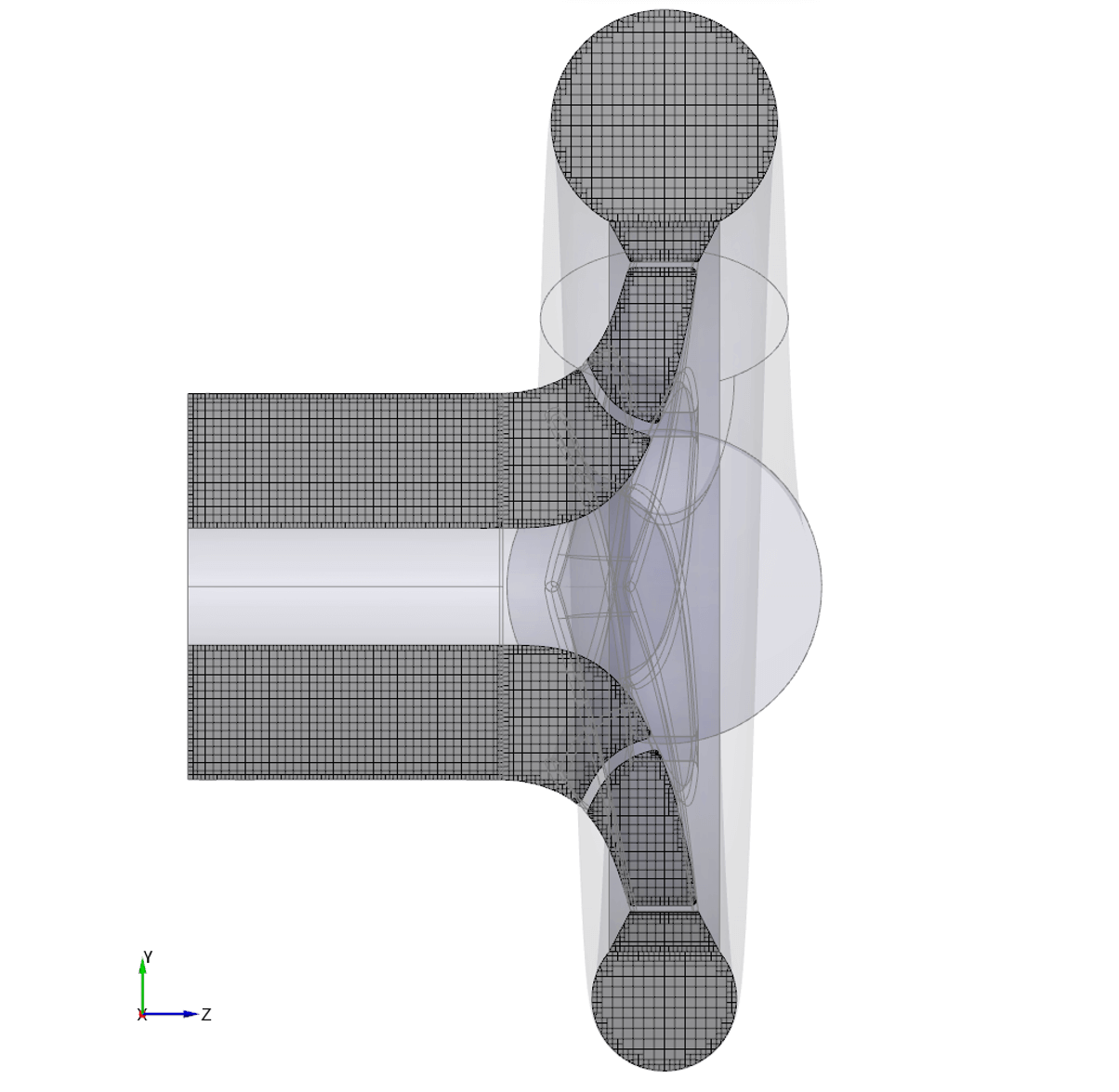
CP nq37 (end-suction) 3D model with virtual flow domains, Section YZ
Comparing the Mesh statistics with the data above for the full 3D model a reduction of 31 % of the cells is achieved for Impeller_1, where the secondary flow paths were removed, and of 14 % for the whole 3D model.
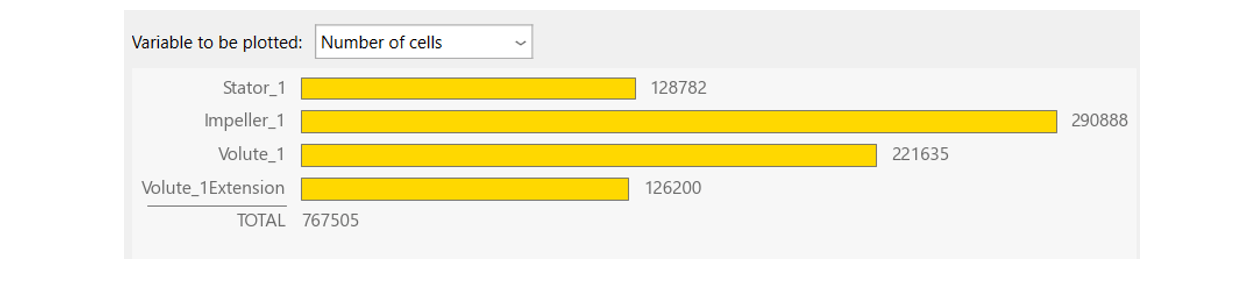
Complete CP nq37 (end-suction) 3D model with virtual flow domains, Section YZ
Stator_1 is slightly enlarged now by a cylindrical rotor-stator surface and thus a displacement of its outlet and therefore has slightly more cells than before. The inlet of Volute_1 also changed slightly along with its number of cells. Changes in the VoluteExtension_1 mesh may be induced by the interface to Volute_1.
By omitting the secondary flow paths, the CFD results are obviously no longer comparable with those of the full 3D model.